

Browse tips
Product use guides
Yume Techo Use Cases
- As a Student
- As a Teacher
- For Moms & Family
- For Work
- For Creative Projects
- For Bible Study
- For Small Business
- For Content Creation
- For Fitness & Health
- For Travel
- For Rapid Logging
- For Life Planning
- For Journaling & Reflection
- For Budget & Finance
- For Meals & Grocery
- For Project Planning
- For Home Management
- For Creative Writing
- For Music Writing
- For Brainstorming
- For Homeschooling
Page-by-Page Use Ideas
Essential Template Pages
- Template Index
- Yearly Spread
- Yearly Grid
- Yearly - Day Month Tracker
- Monthly - Day Tracker
- Monthly Grid
- Monthly Overview
- Weekly Review
- Monthly Spread
- Weekly - Horizontal
- Weekly - Vertical
- Routines
- 30 Day Challenges
- 100 Day Challenges
- Vision Board
- 100 Things
- Multi Purpose Table
- Level 10 Life
- 31 Things
- Daily Page - Type 1
- Daily Page - Type 2
- Gantt Chart - Universal
- Gantt Chart - Weekly
- Photo Page
- World Map
- Multi Purpose Wheel
- Kanban - 4/6/8 columns
- Template Pages
- Level 10
- Daily Template
- Yearly Tracker
Life Planner Pages
- Life Planner Index
- Life Planner
- Vision Board
- Life Inspirations
- Favorite Quotes
- Things That Make Me Happy
- My Life Systems and Rules
- Level 10 Life
- Things I Need To Change
- Bucket List
- Skills To Learn
- Projects To Make
- Challenges To Try
- Resolutions
- Yearly Goal Overview
- Goal Planner
- Reward Ideas
- Distraction List
- My Achievements
- Note To My Future Self
- Routines
- 30 Day Challenges
- Kanban Board
Books
Turn Shibui Noto V1 Landscape into a project notebook
Keep a class project's brief, lesson notes, sketches and next actions together in Shibui Noto V1 Landscape.
On this page
Applies to: Shibui Noto V1 Landscape digital notebook. The example uses its Index, blank pages and reusable paper templates. Paper styles and covers can differ by version.
Give a class project one place for the brief, lesson notes, ideas and unfinished questions. You can build that structure inside Shibui Noto without preparing every section before you start. Begin with the assignment you need to work on now.
Give the project a home
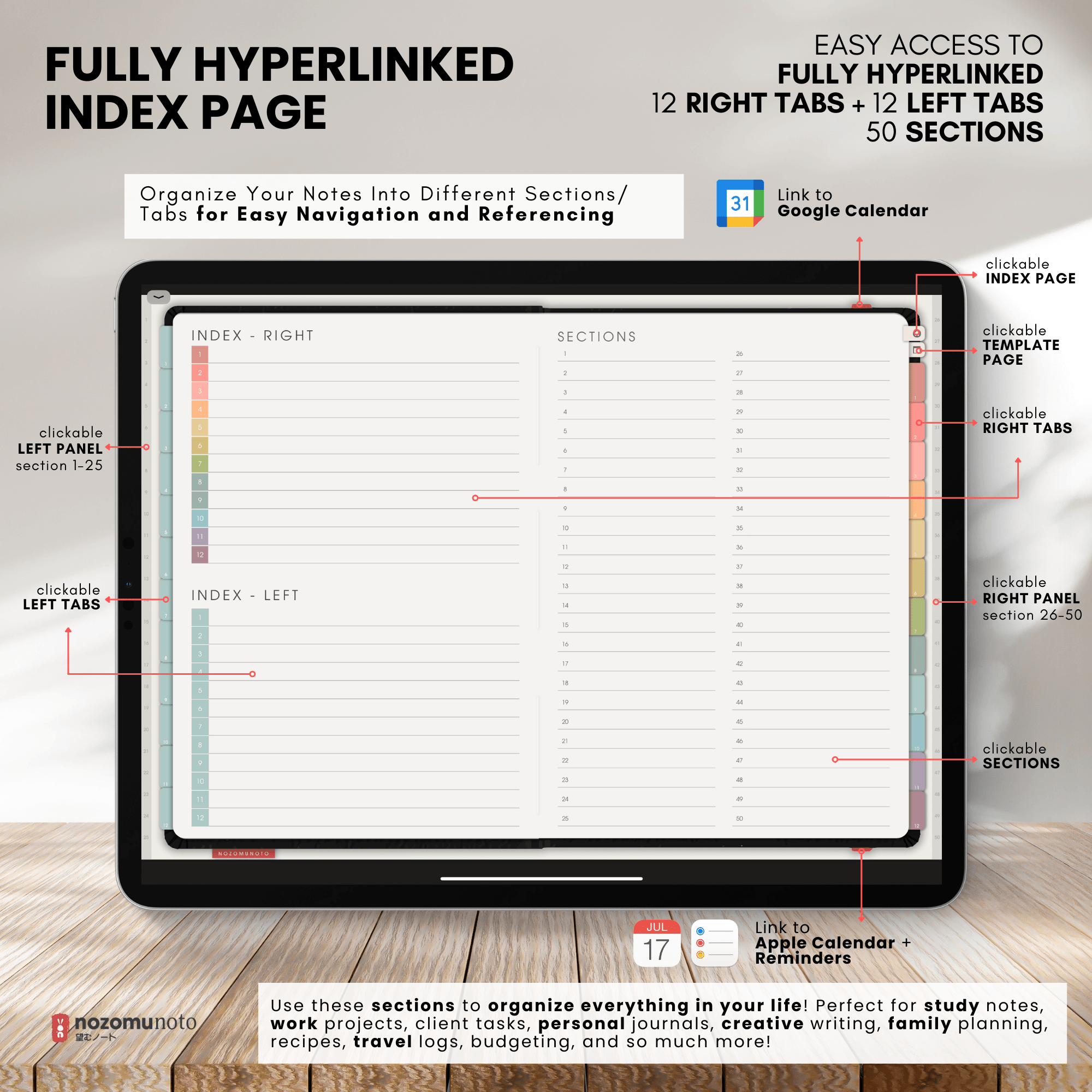
Choose an existing subject entry in Index and label it with a useful name, such as Illustration class. Follow that entry to its linked page. Write the current project title there, followed by the deadline, what you need to submit and any instructions you must check.
For a poster assignment, your first notes might be: topic, required format, reference ideas and questions for the teacher. These are headings you add yourself. Keep the assignment brief nearby so you can check decisions against it.
Separate notes, ideas and next actions
- Lesson notes: choose a Cornell paper template for class notes. Add your questions and a short summary before you close the page.
- Visual ideas: use a grid or blank page for thumbnail sketches, reference notes and alternative compositions. Label the page with the project name and date.
- Next actions: write a small list on your working page. For the poster, that could be collect references, sketch three arrangements, choose one direction and ask for feedback.
If your app supports whole-page copying, make working copies of the templates and place them in your project area. Keep the masters clean. If copying is unavailable, use the notebook pages already provided and add your own headings.
Leave a clear place to restart
Before closing the notebook, note what is finished, what still needs a decision and the next action. For example: the topic is chosen; the layout needs feedback; next, bring two sketches to class. That gives your next session a specific starting point.
Use an app bookmark or favorite for a working copy if your app offers it. Naming or copying a page does not add a new built-in Index destination. Keep the original linked pages and use the existing Index to return to the project area.
For importing, page copying and navigation help, open the Shibui Noto V1 Landscape setup guide. Check the supplied files and options on the Shibui Noto product page.
Use this with Shibui Noto
Check the supplied files and version before choosing your notebook.