

Browse tips
Yume Techo Use Cases
- As a Student
- As a Teacher
- For Moms & Family
- For Work
- For Creative Projects
- For Bible Study
- For Small Business
- For Content Creation
- For Fitness & Health
- For Travel
- For Rapid Logging
- For Life Planning
- For Journaling & Reflection
- For Budget & Finance
- For Meals & Grocery
- For Project Planning
- For Home Management
- For Creative Writing
- For Music Writing
- For Brainstorming
- For Homeschooling
Page-by-Page Use Ideas
Essential Template Pages
- Template Index
- Yearly Spread
- Yearly Grid
- Yearly - Day Month Tracker
- Monthly - Day Tracker
- Monthly Grid
- Monthly Overview
- Weekly Review
- Monthly Spread
- Weekly - Horizontal
- Weekly - Vertical
- Routines
- 30 Day Challenges
- 100 Day Challenges
- Vision Board
- 100 Things
- Multi Purpose Table
- Level 10 Life
- 31 Things
- Daily Page - Type 1
- Daily Page - Type 2
- Gantt Chart - Universal
- Gantt Chart - Weekly
- Photo Page
- World Map
- Multi Purpose Wheel
- Kanban - 4/6/8 columns
- Template Pages
- Level 10
- Daily Template
- Yearly Tracker
Life Planner Pages
- Life Planner Index
- Life Planner
- Vision Board
- Life Inspirations
- Favorite Quotes
- Things That Make Me Happy
- My Life Systems and Rules
- Level 10 Life
- Things I Need To Change
- Bucket List
- Skills To Learn
- Projects To Make
- Challenges To Try
- Resolutions
- Yearly Goal Overview
- Goal Planner
- Reward Ideas
- Distraction List
- My Achievements
- Note To My Future Self
- Routines
- 30 Day Challenges
- Kanban Board
Books
How to start Yume Techo without getting overwhelmed
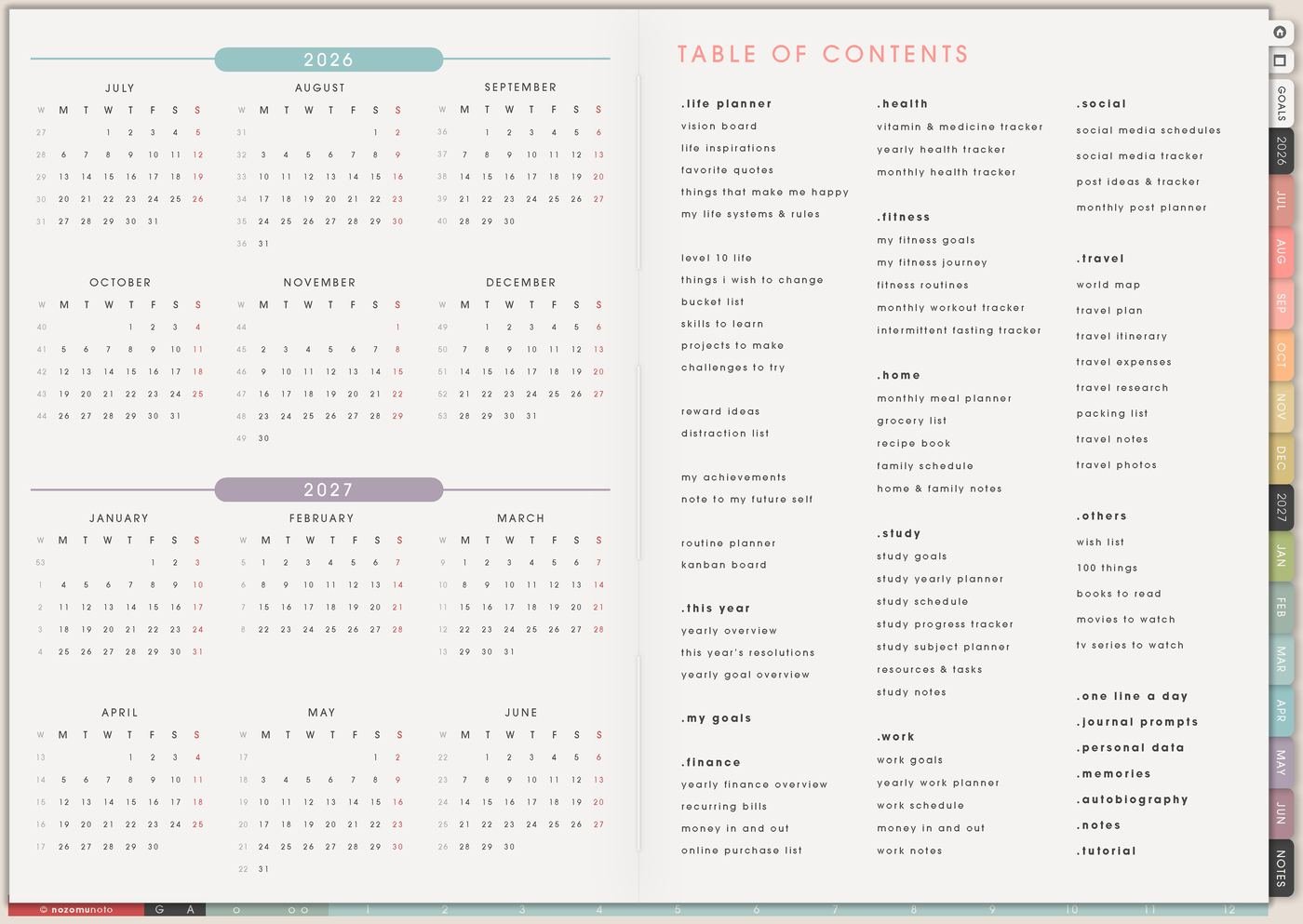
Start Yume Techo with a simple first-day setup: test links, choose one page, plan one week, and add more only when you need it.
This starter guide is for everyone opening Yume Techo for the first time and wondering where to begin. Use one tiny working loop first: Index, current Monthly, current Weekly, and Today. Once those pages feel familiar, the extra trackers, Template Pages, and Life Planner pages can join naturally.
A big planner becomes easier when the first job is simple: find the map, write real dates, choose this week, and make today visible. Everything else can wait until it has a job!
Start with only one small setup
You can leave most Yume Techo pages for later on the first day.
Try this first:
- Open your planner.
- Go to the Index page.
- Test one link.
- Choose one weekly page or one daily page.
- Write today’s real tasks, notes, or reminders.
- Add one notebook section only if you need it today.
- Come back later to explore templates, extra pages, and more sections.
Yume Techo is made to grow with your life. Start with the page you need now, then build your setup as you use it.
Use case ideas for starting Yume Techo
1. Use Index as the first page you trust
Index is the map. If the planner feels big, return there first instead of swiping through pages. From Index, choose only the page you need: Monthly for fixed dates, Weekly for this week, Daily for today, Template Pages for reusable copies, or a specific Life Planner page when you need deeper planning.
For the first week, bookmark Index in your app. This gives everyone one safe return point when the planner starts feeling like too much.
2. Put real dates on the current Monthly page
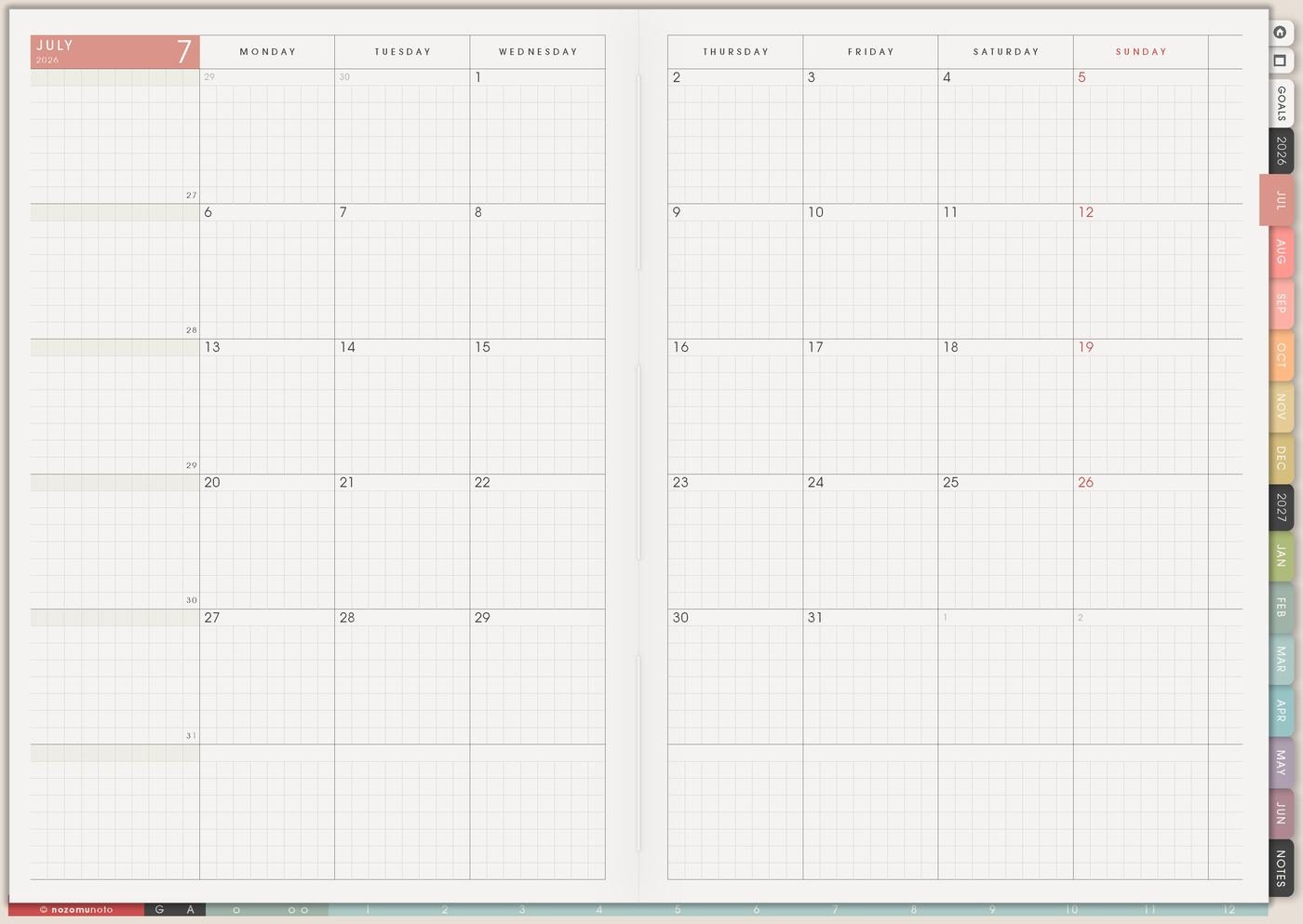
Before covers, stickers, colors, or trackers, write three real dates on Monthly: an appointment, a bill, a deadline, a class day, a trip, a family event, or a renewal date. Real dates teach the planner what belongs there.
Example: Monthly says dentist Friday. Weekly says confirm appointment time. Daily says bring insurance card. That small chain makes the planner useful immediately.
3. Use Weekly as the first control panel
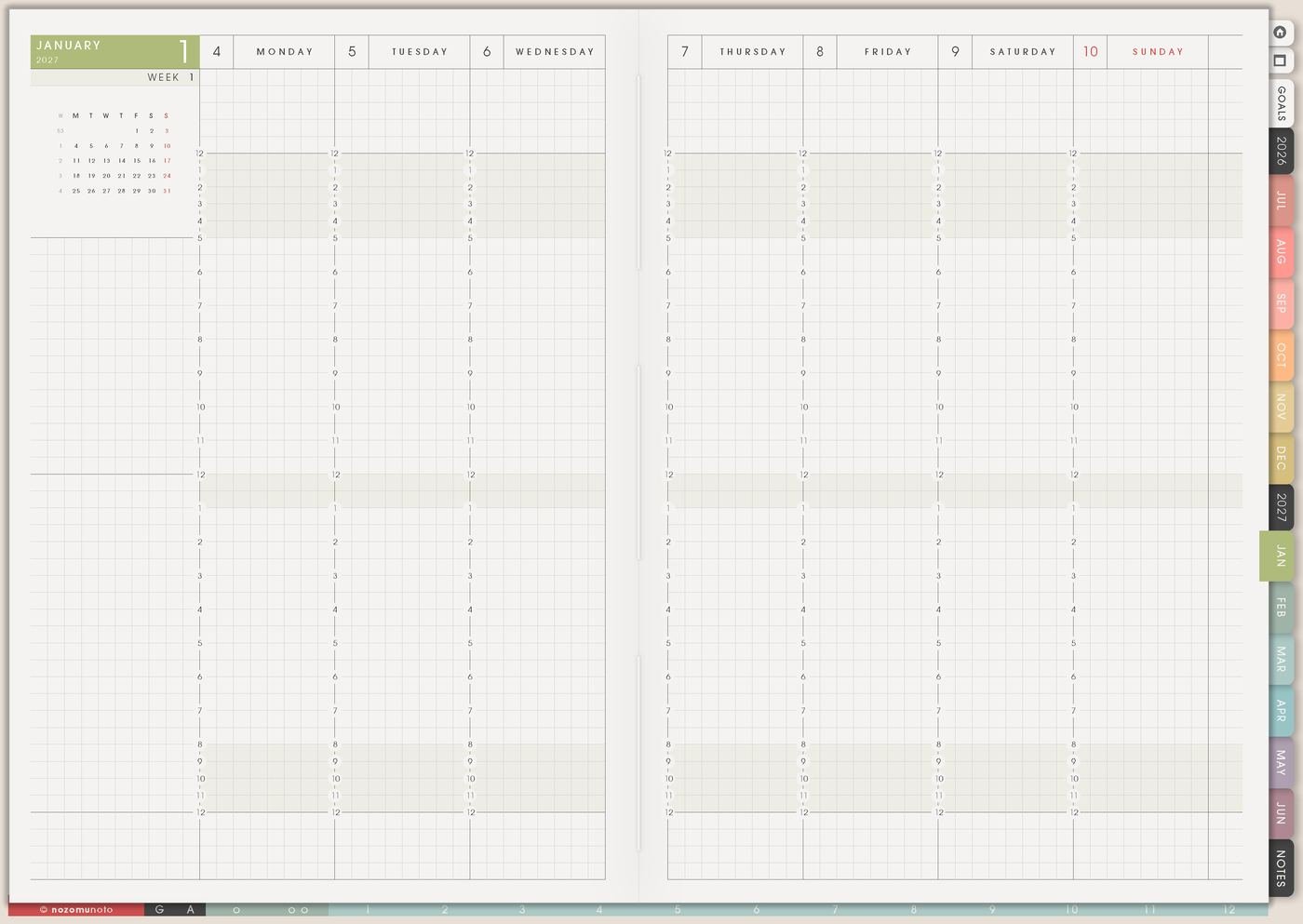
Weekly is where you choose what matters now. Write one to three things that actually belong to this week, then rewrite them as actions you can start. Instead of study, write open chapter 3 notes. Instead of kitchen, write wash five cups.
Keep Weekly lighter than your full brain dump. Weekly should show the next few moves, not everything your life contains.
4. Use Daily for today only
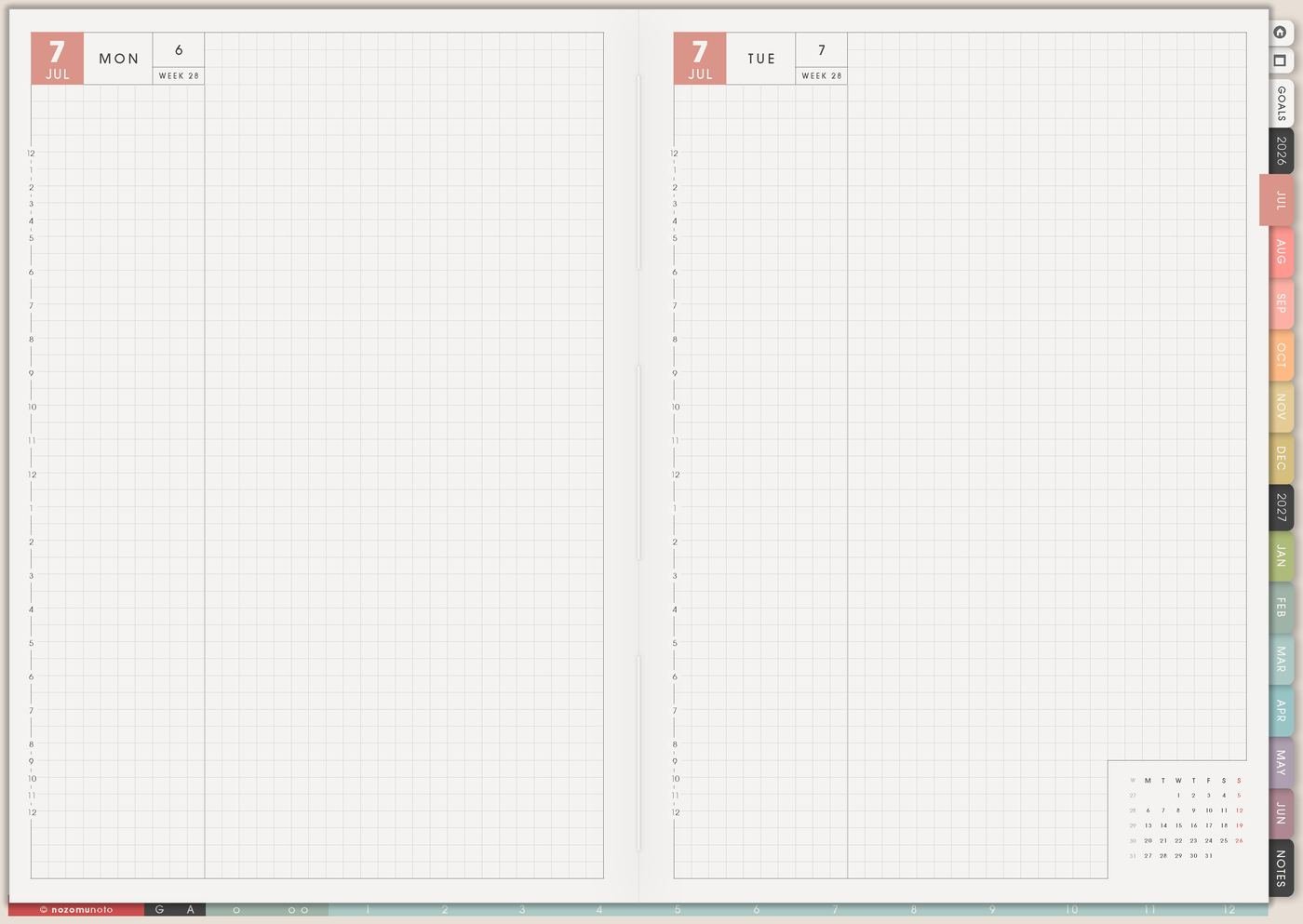
Daily should feel like today. Add appointments, three realistic actions, one note, and one body-care cue if helpful. If the day changes, adjust the page and keep going.
Good first daily entries are simple: pay invoice, email one question, bring water bottle, order medicine, write grocery list, read two pages, or open the planner again after lunch.
5. Use Notes or Template Pages for overflow thoughts
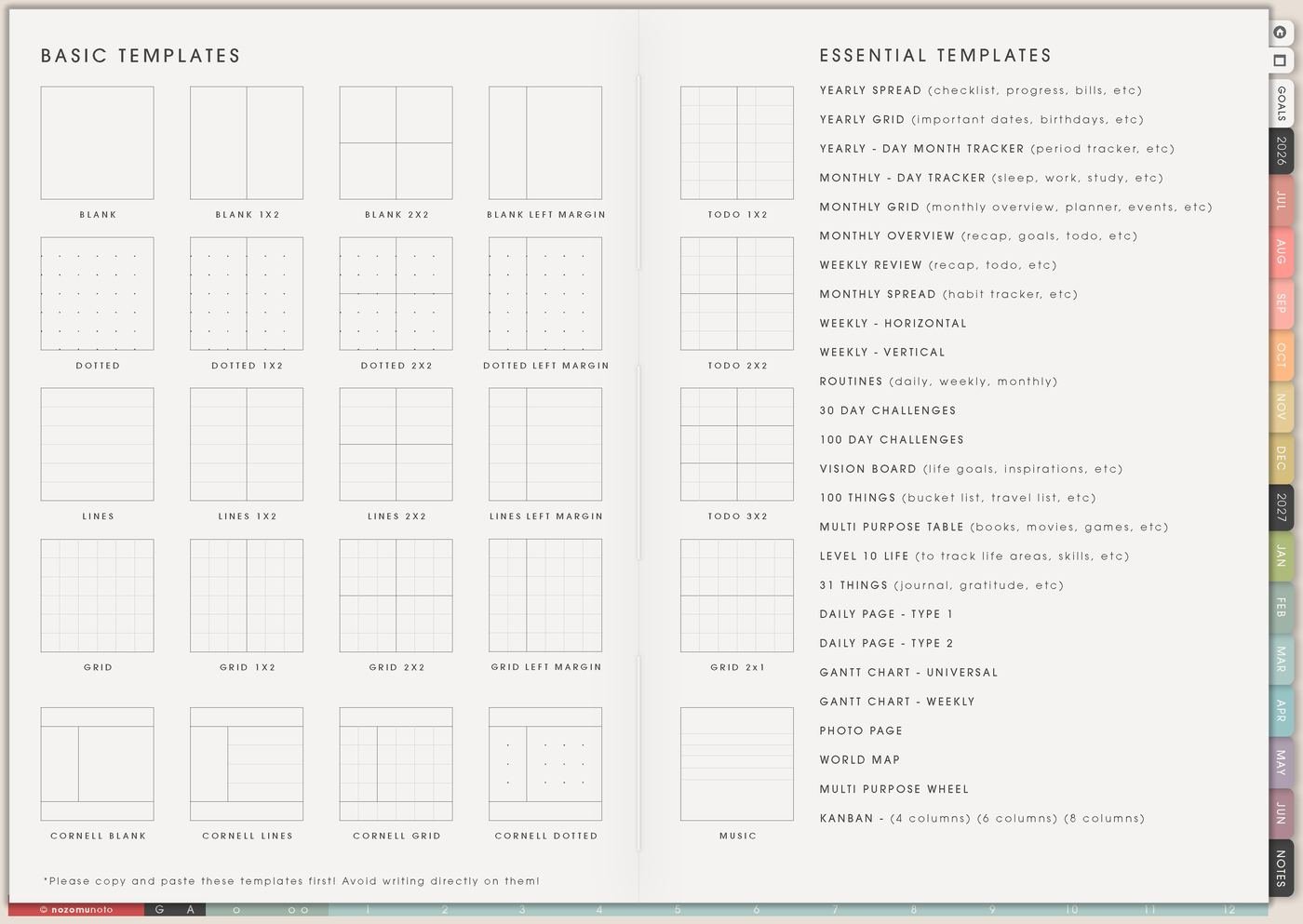
If your brain has twenty tasks, park the full list on Notes or a copied template page. Then move only the current actions to Weekly. The big list stays safe, and the current week stays readable.
This is especially helpful for ADHD planning because nothing feels lost, but the active page stays small enough to use.
6. Add extra pages only when they solve a real problem
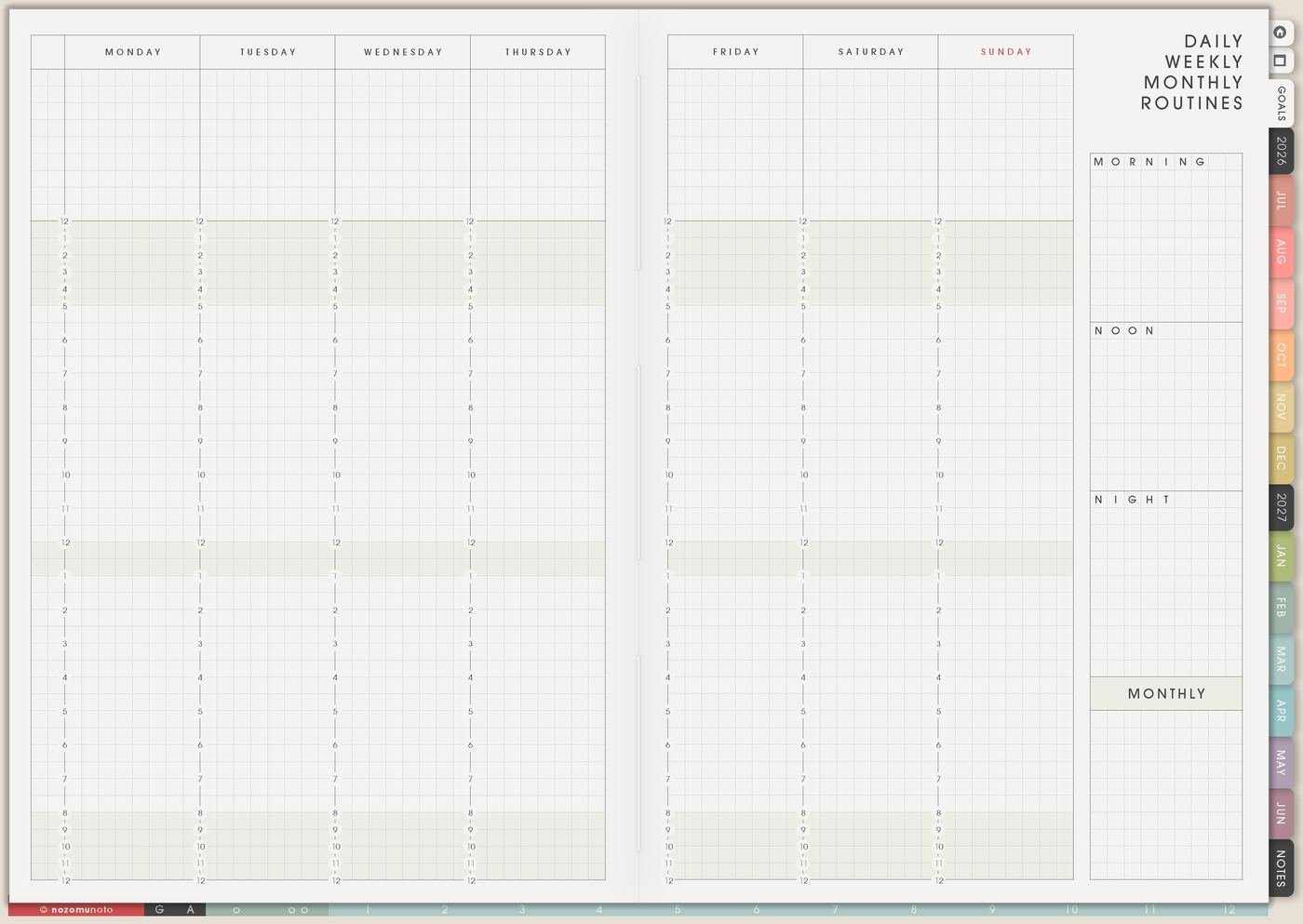
Add Goal Planner when a goal is too big for Weekly. Add Kanban when a project has stages. Add Routines when repeat tasks keep disappearing. Add a tracker when you need to notice a pattern. Pages are easiest to love when each one has a real job.
If app buttons, hyperlinks, import steps, or download steps feel confusing, use the Help Center for the exact app guide. Tips & Ideas helps everyone decide what to plan; the Help Center helps everyone tap the correct buttons.
7. Restart from today if you already missed pages
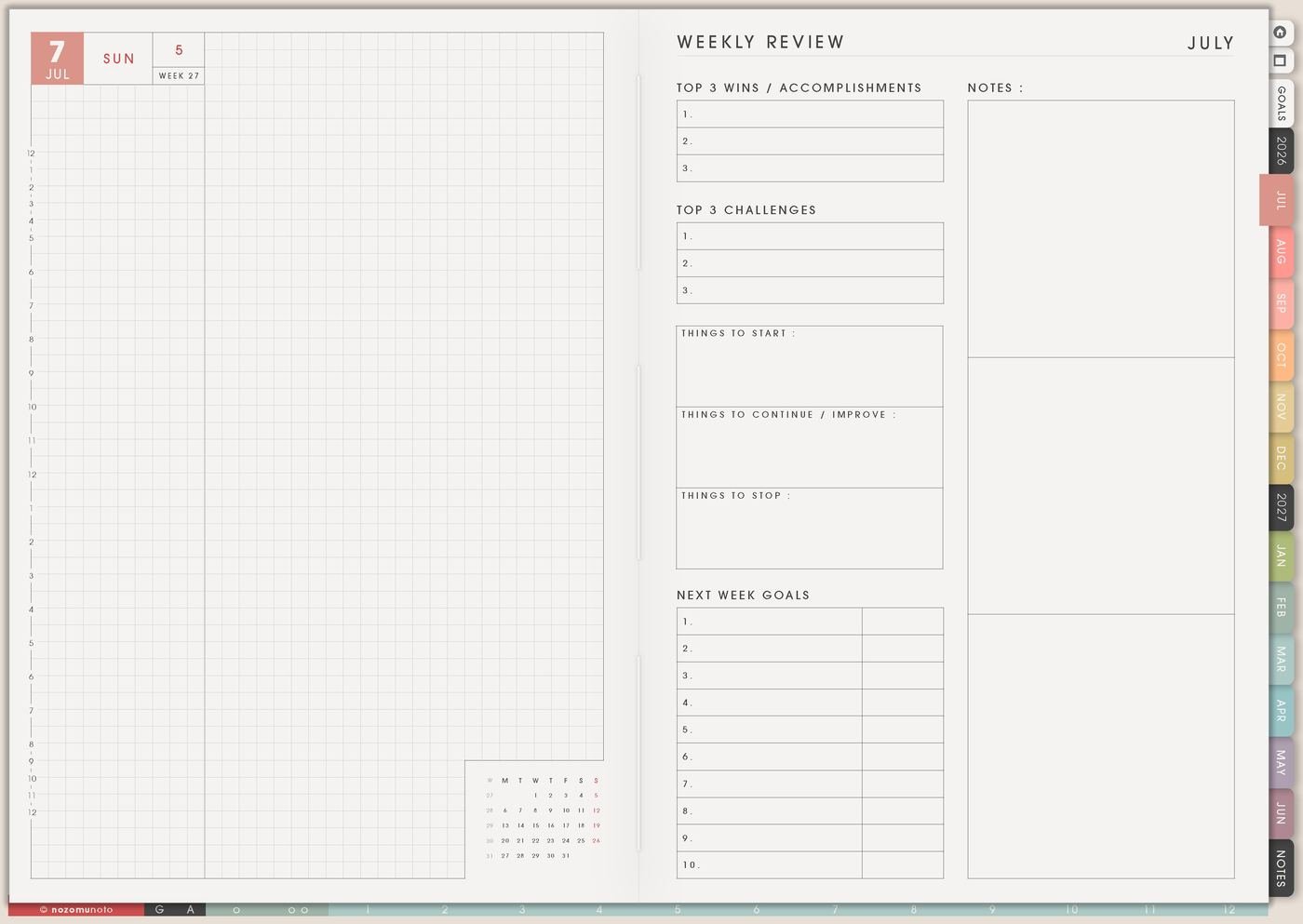
If you are starting late, begin with today, this week, and the next real deadline. Blank past pages are simply pages from before this setup existed.
A good restart line is: start from today. Write it on the current Weekly page, move only what still matters, and let old pages stay quiet. That is how a planner stays useful!
Set it up in ten minutes
- Bookmark Index. Make it the page you return to when you feel lost.
- Open the current Monthly page. Write three real dates or deadlines.
- Open the current Weekly page. Choose one weekly focus and three realistic actions.
- Open Today or a Daily page. Write one appointment, one must-do, one note, and one small care cue.
- Create one overflow Notes page. Put the long list there instead of stuffing Weekly.
- Leave optional pages closed. Add trackers, Life Planner, Kanban, and Template Pages when they solve a real problem.
- Choose tomorrow’s opening page. Before closing the app, decide where you will start next time.
What I usually use it for and how I use it
Tips for starting Yume Techo without overwhelm
- Use the four-page loop first. Index, Monthly, Weekly, and Daily are enough for the first week. Add Life Planner, trackers, Template Pages, and notes only when they have a real job.
- Put real dates before decoration. Write three dates and one daily action before covers, stickers, colors, or tracker experiments. Pretty pages feel better when the planner already knows what it is holding.
- Start from today. If the planner begins in the middle of the year, use the current month and current week. Past blank pages can stay blank.
- Keep Weekly for current actions. Move the long brain dump to Notes, then pull only this week’s actions into Weekly. Weekly gets easier when it is not carrying every idea at once.
- Test links in the right app mode. Many PDF apps separate writing mode from reading, view, hand, or navigation mode. Test one month tab, one weekly link, and one template link before writing heavily.
- Choose one tracker only after a question appears. Use Monthly or Weekly first. Add a tracker when you actually need to see a pattern such as sleep, spending, reading, workouts, symptoms, or planner-open days.
- Make a restart route. If the planner disappears for a few days, return to Index, open the current Weekly page, move only still-relevant tasks, and write one tiny action for today.
- Protect private setup details. For health, money, school, client, account, family, location, or child details, keep sensitive details in a secure place and use short labels in the planner.
Related guides: use the Yume Techo Template Index and clean template pages when you are ready to copy reusable pages, rapid logging in a digital planner when thoughts are moving quickly, and a digital life planner for goals, routines, and direction when you want a bigger setup later.
When you need setup help
This starter setup works well with Index, Monthly, Weekly, Daily, Notes, Template Pages, Routines, Weekly Review, and the NozomuNoto Help Center. If you need exact download steps, app import steps, hyperlink mode, page duplicate steps, or sticker/image import steps, open how to import the PDF, how to use hyperlinks, how to use NozomuNoto template pages, how to install and use digital stickers, or the main NozomuNoto Help Center.
Final thought
I hope starting Yume Techo feels lighter when the first step is only one small loop. Find the map, write real dates, choose this week, use today, and let every extra page earn its place later!
Use this with a simple digital planner setup
Start with one small working loop, then add pages only when they solve a real planning problem.
Browse NozomuNoto products
Find the planner, notebook, e-reader file, or add-on that fits the way you actually plan.
About NozomuNoto
NozomuNoto creates Japanese-inspired digital planners, notebooks, stickers, and e-reader PDFs for people who want useful pages that still work in real life.
Yume Techo is built with dated yearly, monthly, weekly, daily, Life Planner, Planner Pages, and Template Pages so one planner can hold study, work, home, ADHD-friendly routines, lists, and creative projects without adding paper bulk.
New to digital planning? Start there, use the Help Center for setup help, or browse NozomuNoto products when you are ready to choose your planner.