

Browse help topics
Getting Started
Need help choosing?
Need help after purchase?
Download & Import
Using your notebook/planner
- How to change or reuse template pages on planner landing pages
- Why stickers look blurry when enlarged
- What to check if a product does not work on your device
- How to use NozomuNoto index pages
- How to use NozomuNoto template pages
- How to change a digital planner cover
- How to install and use digital stickers
Product Tutorials
- How to use Yume Techo Landscape tutorial pages
- How to use Yume Techo Portrait tutorial pages
- How to use Shibui Techo Weeks tutorial pages
- How to use Shibui Techo Months tutorial pages
- How to use Yume Noto V1 Landscape tutorial pages
- How to use Yume Noto V1 Portrait tutorial pages
- How to use Yume Noto V2 Landscape tutorial pages
- How to use Yume Noto V2 Portrait tutorial pages
- How to use Yume Noto V3 Portrait tutorial pages
- How to use NozomuNoto Ultimate Digital Stickers
- How to use NozomuNoto Digital Covers
- Which NozomuNoto instruction or tutorial file should I open first?
Device & App
iOS / iPadOS
GoodNotes
Notability
Noteshelf
Noteful
StarNote
Flexcil
Kilonotes
Android
StarNote
Samsung Notes
Penly
Flexcil
Noteshelf
Xodo
E-reader Devices
Boox devices
reMarkable
Bigme
Supernote
How to Use Planner Hyperlinks in Kilonotes on iPad
Learn how to use NozomuNoto planner hyperlinks in Kilonotes on iPad and what to check if tabs, dates, buttons, or index links fail to move.
On this page
Use these steps to work with NozomuNoto PDF planners, notebooks, stickers, covers, and template pages in Kilonotes. The official links below are for downloads, updates, and current help pages.
If links fail to move
If tapping a tab, date, Index item, or button writes on the page, selects something, or stays on the same page, the planner file is usually okay. Kilonotes may still be in writing or editing mode.
- Switch to the hand / navigation tool before testing planner links.
- Try tapping the link with your finger instead of Apple Pencil.
- Test one obvious link from the Index page.
- Make sure the PDF has been imported into Kilonotes instead of only opened in a preview screen.
- If the link still fails, import a fresh clean copy and test again.
Reference links
Use these for current app or device help, downloads, updates, vendor help, and manual references.
Tap planner links in Kilonotes on iPad
- Open the imported NozomuNoto planner.
- Tap the hand / navigation tool on the top toolbar before using planner links.
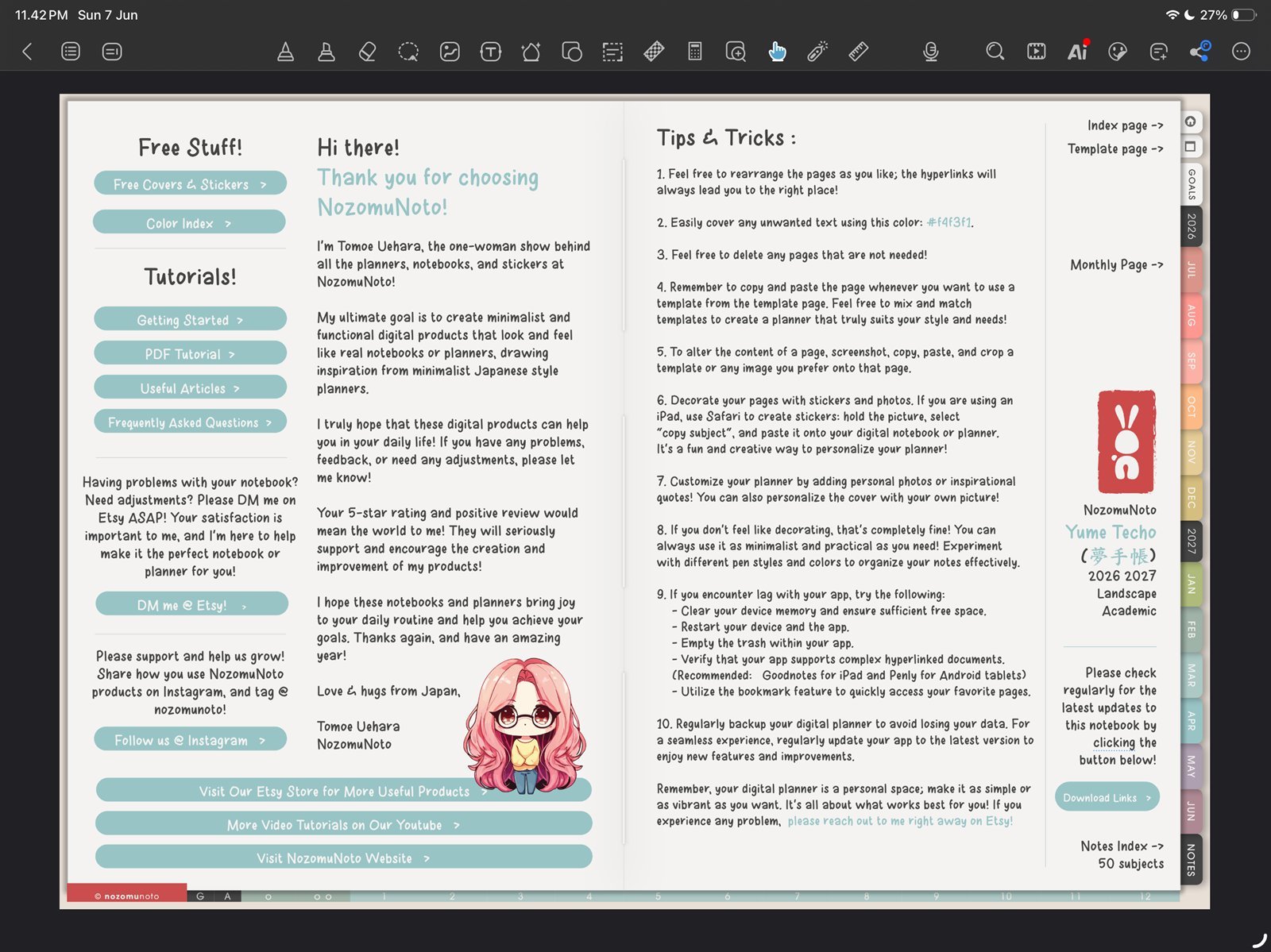
Hand / navigation toolTap the hand tool before using planner links. Product shown: Yume Techo Academic 26-27 Landscape. - Tap a planner tab, index item, month, week, or linked button.
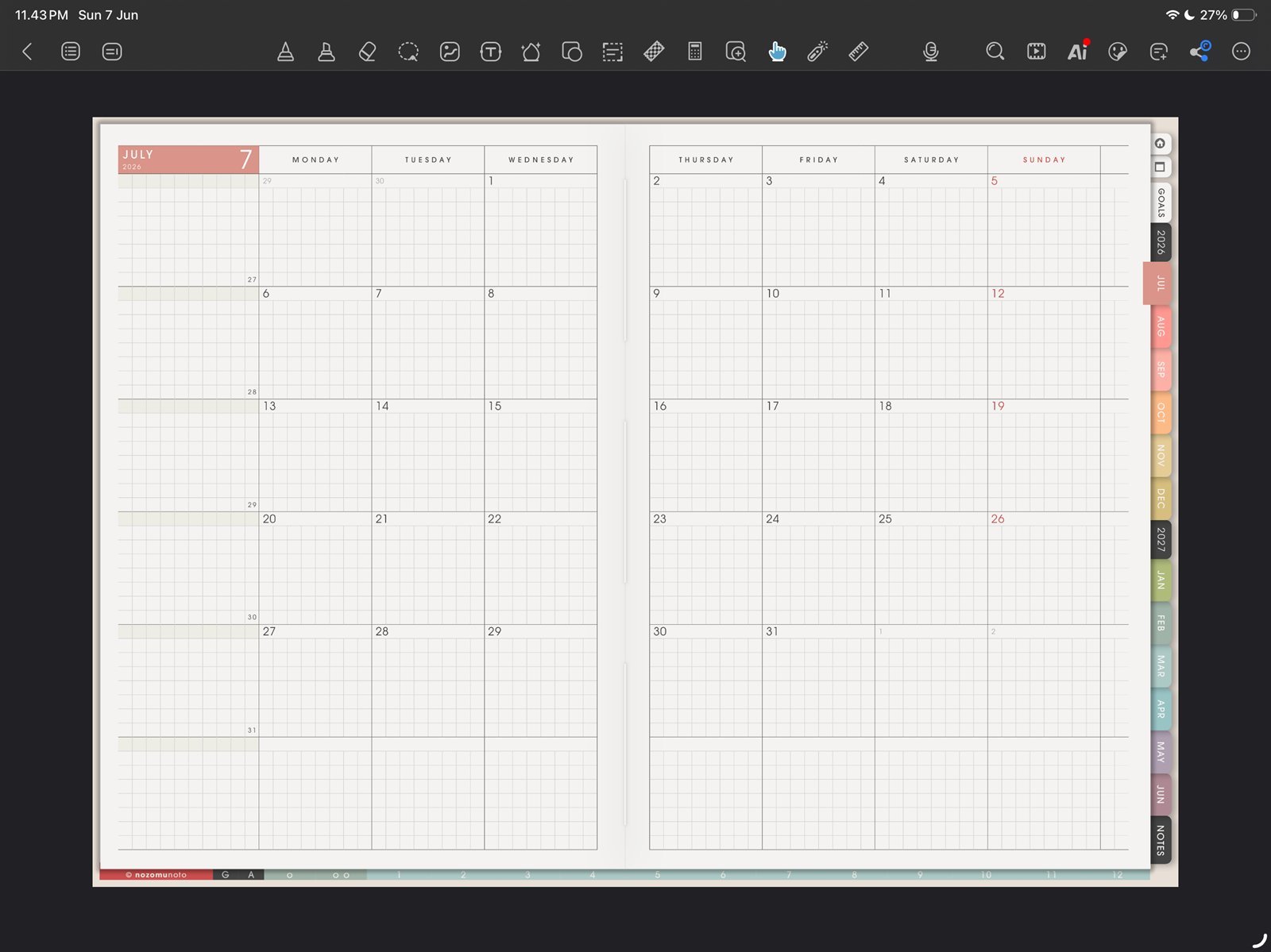
Monthly link testTest one monthly tab or link before writing heavily. Product shown: Yume Techo Academic 26-27 Landscape. 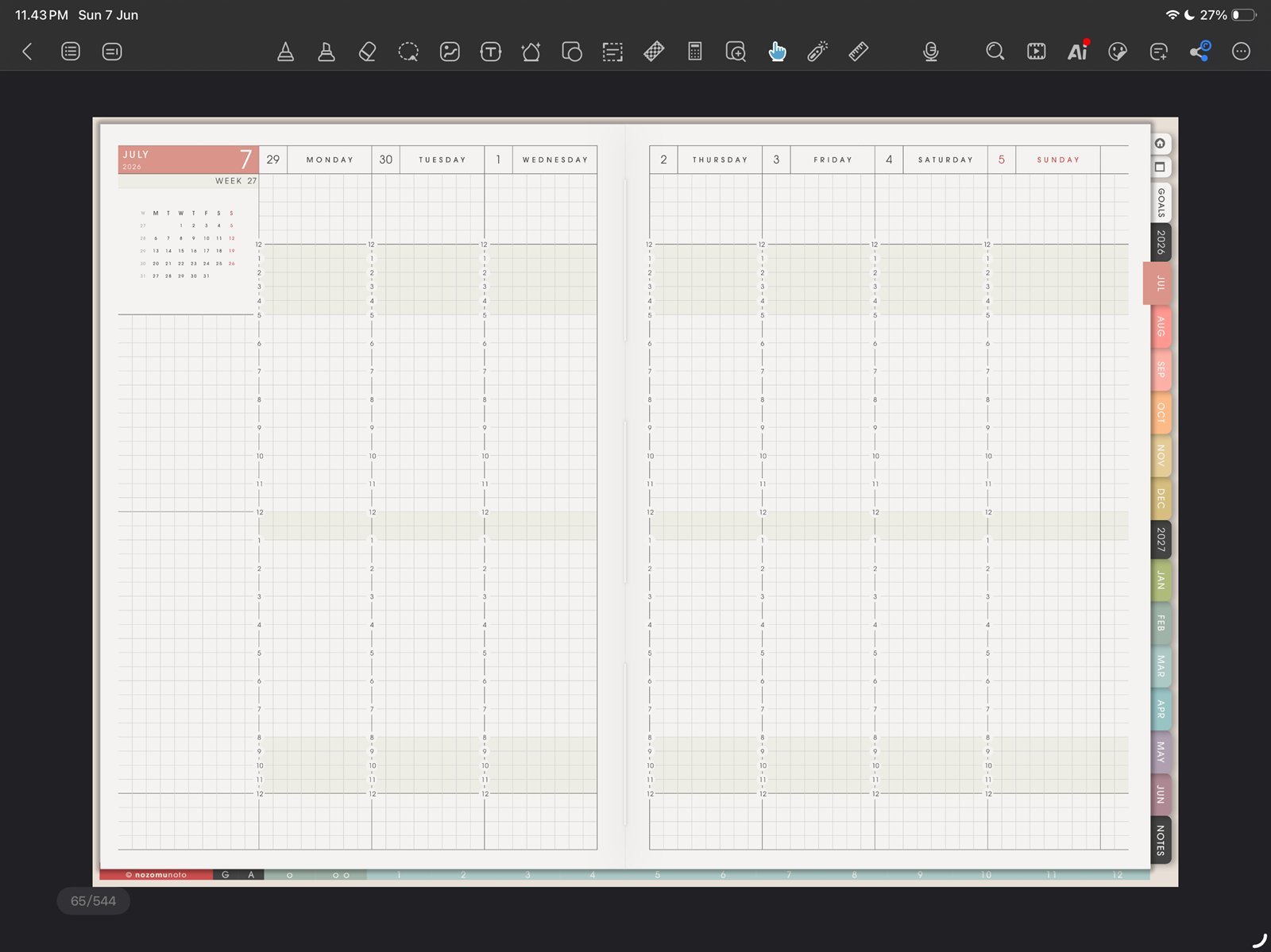
Weekly link testTest one weekly link after the month link works. Product shown: Yume Techo Academic 26-27 Landscape. 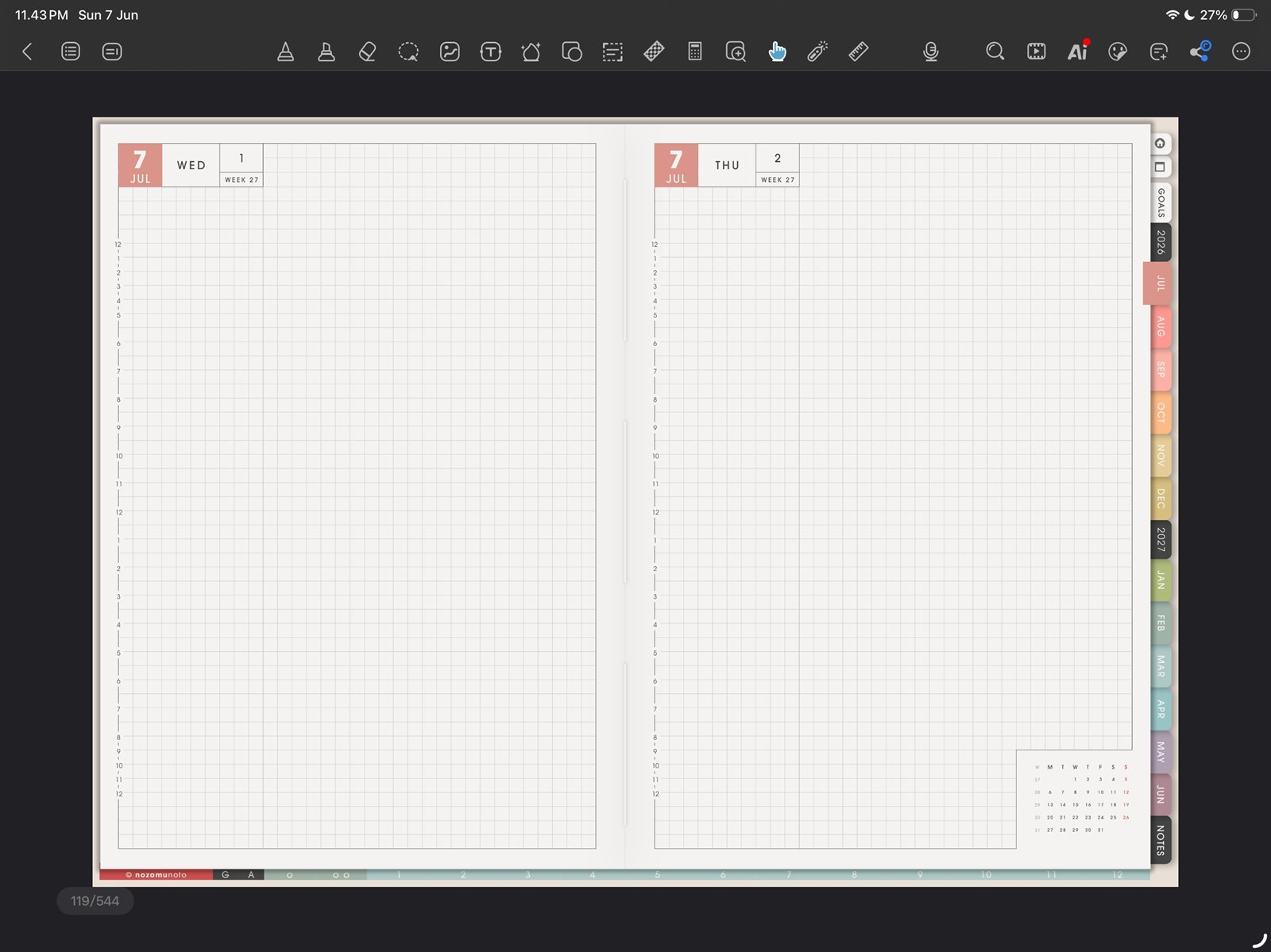
Daily link testTest one daily link before building a full planning routine. Product shown: Yume Techo Academic 26-27 Landscape. - Try tapping with your finger if Apple Pencil keeps writing or selecting.
- If the PDF is only open in a preview screen, import it into Kilonotes first, then test the same link again.
- Keep one clean copy of the original PDF outside Kilonotes so you can re-import a fresh clean copy if a heavily edited copy starts behaving strangely.
Why the hand tool matters
Kilonotes separates writing from navigation. If a writing tool is active, tapping a tab can write or select instead of moving through the planner. Test links with the hand / navigation tool first, then return to writing.
Quick link test
- Test one outside tab. Tap an obvious month, section, or Index tab.
- Test one inside link. From the Index or monthly page, tap a weekly, daily, template, or notes link.
- Return and write. After the jump works, switch back to writing tools and write a small test note.
If links still fail to move
1. The wrong mode is active
What happens: tapping writes ink, selects something, or stays on the same page.
What to do: switch to the hand / navigation tool and tap the same link again.
2. The file is only previewed
What happens: the PDF opens from Files or a preview window, but Kilonotes tools and planner links feel unreliable.
What to do: import the PDF into Kilonotes from the library, then test one Index link again.
3. The working copy was changed too much
What happens: links worked at first, then became unreliable after page moves, exports, or heavy edits.
What to do: import a fresh clean copy of the original PDF and test the same link before moving pages again.
Next Kilonotes link checks
Still need help?
Send your order number, product name, device, app, and a screenshot or short screen recording if the issue is visual.