

Browse help topics
Getting Started
Need help choosing?
Need help after purchase?
Download & Import
Using your notebook/planner
- How to change or reuse template pages on planner landing pages
- Why stickers look blurry when enlarged
- What to check if a product does not work on your device
- How to use NozomuNoto index pages
- How to use NozomuNoto template pages
- How to change a digital planner cover
- How to install and use digital stickers
Product Tutorials
- How to use Yume Techo Landscape tutorial pages
- How to use Yume Techo Portrait tutorial pages
- How to use Shibui Techo Weeks tutorial pages
- How to use Shibui Techo Months tutorial pages
- How to use Yume Noto V1 Landscape tutorial pages
- How to use Yume Noto V1 Portrait tutorial pages
- How to use Yume Noto V2 Landscape tutorial pages
- How to use Yume Noto V2 Portrait tutorial pages
- How to use Yume Noto V3 Portrait tutorial pages
- How to use NozomuNoto Ultimate Digital Stickers
- How to use NozomuNoto Digital Covers
- Which NozomuNoto instruction or tutorial file should I open first?
Device & App
iOS / iPadOS
GoodNotes
Notability
Noteshelf
Noteful
StarNote
Flexcil
Kilonotes
Android
StarNote
Samsung Notes
Penly
Flexcil
Noteshelf
Xodo
E-reader Devices
Boox devices
reMarkable
Bigme
Supernote
How to import a NozomuNoto PDF in reMarkable
Import the PDF file into reMarkable and keep the original download as a backup.
On this page
Reference links
Use these for current app or device help, downloads, updates, vendor help, and manual references.
Import the PDF to reMarkable
- Save the original NozomuNoto PDF on your computer, phone, or cloud storage.
- Import the PDF with the reMarkable desktop app, mobile app, web app, cloud integration, email, or USB workflow described by reMarkable help.
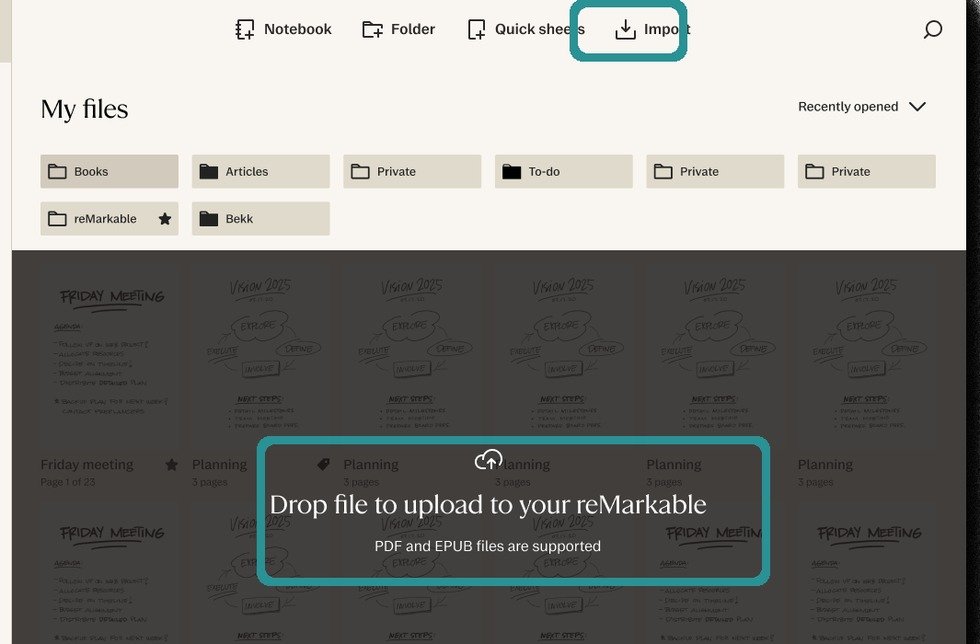
reMarkable importOfficial reMarkable desktop app screenshot showing PDF/EPUB upload by Import or drag and drop. - Wait for the file to sync before opening it on the tablet.
- Open the planner and check the cover, index page, and one page overview jump.
- Keep the original PDF outside reMarkable as your clean backup.
Still need help?
Send your order number, product name, device, app, and a screenshot or short screen recording if the issue is visual.