

Browse help topics
Getting Started
Need help choosing?
Need help after purchase?
Download & Import
Using your notebook/planner
- How to change or reuse template pages on planner landing pages
- Why stickers look blurry when enlarged
- What to check if a product does not work on your device
- How to use NozomuNoto index pages
- How to use NozomuNoto template pages
- How to change a digital planner cover
- How to install and use digital stickers
Product Tutorials
- How to use Yume Techo Landscape tutorial pages
- How to use Yume Techo Portrait tutorial pages
- How to use Shibui Techo Weeks tutorial pages
- How to use Shibui Techo Months tutorial pages
- How to use Yume Noto V1 Landscape tutorial pages
- How to use Yume Noto V1 Portrait tutorial pages
- How to use Yume Noto V2 Landscape tutorial pages
- How to use Yume Noto V2 Portrait tutorial pages
- How to use Yume Noto V3 Portrait tutorial pages
- How to use NozomuNoto Ultimate Digital Stickers
- How to use NozomuNoto Digital Covers
- Which NozomuNoto instruction or tutorial file should I open first?
Device & App
iOS / iPadOS
GoodNotes
Notability
Noteshelf
Noteful
StarNote
Flexcil
Kilonotes
Android
StarNote
Samsung Notes
Penly
Flexcil
Noteshelf
Xodo
E-reader Devices
Boox devices
reMarkable
Bigme
Supernote
How to Manage NozomuNoto Planner Pages on Other E-Reader Devices
Learn what to check before duplicating, copying, deleting, inserting, or rearranging NozomuNoto PDF planner pages on another e-reader device.
On this page
Test page changes on a copy first
Page management varies by e-reader and PDF reading app. Some devices handle page changes well, while others work best as fixed PDFs for reading and writing.
- Keep one clean backup of the original NozomuNoto PDF.
- Open a copied planner PDF.
- Choose one test page that is not important.
- Try one page action, such as duplicate, copy, paste, insert blank page, delete, move, or rearrange.
- Confirm the planner still opens correctly.
- Test one Index link.
- Write one small test note.
Reference links
Use these for current app or device help, downloads, updates, vendor help, and manual references.
Manage NozomuNoto pages on another e-reader
- Keep one clean backup copy of the original NozomuNoto PDF outside the device.
- Open a copied planner PDF before testing page changes.
- Choose one test page that is not important.
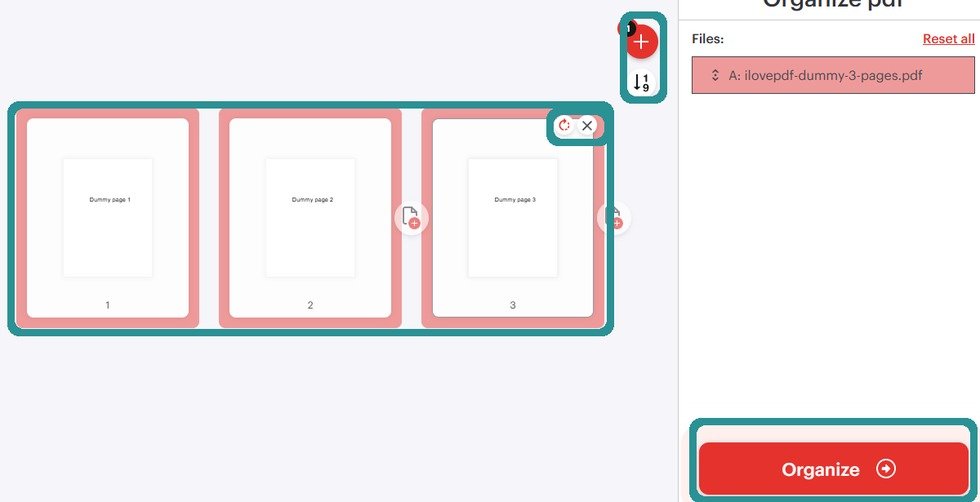
Organize before transferPrepare page order and extra copies before transfer unless the exact device guide gives a reliable native method. - Try one page action only, such as duplicate, copy, paste, insert blank page, delete, move, or rearrange.
- Confirm the planner still opens correctly after the page action.
- Test one Index link.
- Write one small test note.
Other e-reader page-management checks
- Device fit: page management depends on the e-reader, software version, and PDF reading app.
- Possible actions: duplicate, copy, paste, insert blank page, delete, move, or rearrange pages only when your device has the tool.
- Test copy: use a copied planner file for experiments, not the main planner you rely on.
- Protected pages: be careful with Index pages, section pages, template pages, linked pages, and pages with writing.
- Navigation: test one Index link after every page-change experiment.
When page actions are limited
- Use the planner as-is on the e-reader for reading, writing, bookmarks, and navigation.
- Prepare page changes in another compatible PDF app or PDF organizer.
- Transfer the edited PDF back to the e-reader as a new working copy.
- Open the new copy, test one Index link, and write one small note.
Next e-reader page links
Still need help?
Send your order number, product name, device, app, and a screenshot or short screen recording if the issue is visual.