

Browse help topics
Getting Started
- Does my NozomuNoto purchase include an app or an app subscription?
- New to digital planning? Start here!
- What is a digital notebook?
- What is a digital planner?
- What tools do I need to start digital planning?
- Which apps work with NozomuNoto planners?
- What does “hyperlinked PDF planner” mean?
- Paper planner vs digital planner
Need help choosing?
Need help after purchase?
Download & Import
Using your notebook/planner
- Can I use my NozomuNoto planner offline?
- How do I back up, export, or move my NozomuNoto planner to a new device?
- How to change or reuse template pages on planner landing pages
- Why stickers look blurry when enlarged
- What to check if a product does not work on your device
- How to use NozomuNoto index pages
- How to use NozomuNoto template pages
- How to change a digital planner cover
- How to install and use digital stickers
Product Tutorials
- How to use Shibui Noto V1 Landscape
- How to use the Ikigai Noto Hiragana and Katakana workbook
- How to use Yume Techo Landscape tutorial pages
- How to use Yume Techo Portrait tutorial pages
- How to use Shibui Techo Weeks tutorial pages
- How to use Shibui Techo Months tutorial pages
- How to use Yume Noto V1 Landscape tutorial pages
- How to use Yume Noto V1 Portrait tutorial pages
- How to use Yume Noto V2 Landscape tutorial pages
- How to use Yume Noto V2 Portrait tutorial pages
- How to use Yume Noto V3 Portrait tutorial pages
- How to use NozomuNoto Ultimate Digital Stickers
- How to use NozomuNoto Digital Covers
- Which NozomuNoto instruction or tutorial file should I open first?
Device & App
iOS / iPadOS
GoodNotes
Notability
Noteshelf
Noteful
StarNote
Flexcil
Kilonotes
Android
StarNote
Samsung Notes
Penly
Flexcil
Noteshelf
Xodo
E-reader Devices
Boox devices
reMarkable
Bigme
Supernote
How to manage pages in GoodNotes
Use the safest page workflow for GoodNotes without breaking your planner setup.
On this page
- Before moving pages
- Reference links
- Manage pages in GoodNotes
- Safe GoodNotes page management
- 1. Copy templates before writing
- 2. Move copied pages, not important linked originals
- 3. Test links after page changes
- Common page-management problems
- 1. The copied page is hard to find
- 2. Too many page copies pile up
- Next GoodNotes page checks
- Video walkthrough
Applies to: PDF planners & notebooks · Goodnotes · iPad (iPadOS).
Files: Planner/notebook PDF. Back up filled work before page changes; page actions vary by app/version.
Use these steps to work with NozomuNoto PDF planners, notebooks, stickers, covers, and template pages in GoodNotes. The official links below are for downloads, updates, and current help pages.
Before moving pages
Save one clean backup of your planner or notebook before changing pages in GoodNotes. Page tools are useful, but it is easy to change more than you meant to.
- Index pages
- Template source pages
- Main section pages
- Tutorial pages
- Pages with important links
- Filled pages you already wrote on
Safer workflow: copy or duplicate the page first, move or edit the copy, keep the original page clean when possible, and keep one original file saved outside GoodNotes as your backup.
Reference links
Use these for current app or device help, downloads, updates, vendor help, and manual references.
- GoodNotes: Import files into Goodnotes
- GoodNotes: Navigate PDF Hyperlinks
- GoodNotes: PDF hyperlink issue guide
- GoodNotes: Use Favorites and Bookmarks
- GoodNotes: Copy or move pages from one document to another
- GoodNotes: Elements Tool
- GoodNotes: Change a notebook cover
- GoodNotes: Export documents or pages
- GoodNotes: Templates & Notebook Covers
Manage pages in GoodNotes
- Open the planner, then open the Pages panel.
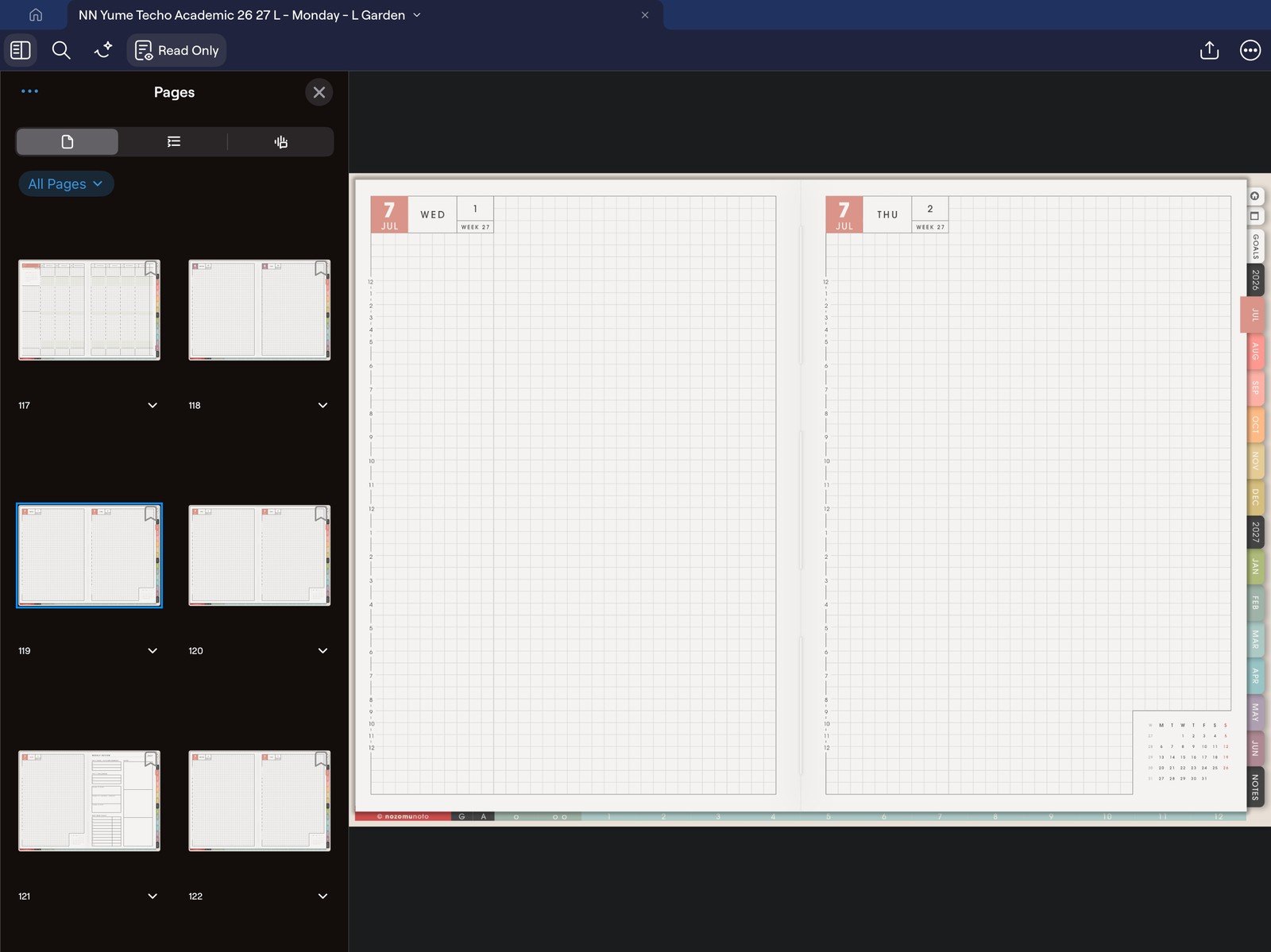
Full Pages panel screenFull screen view first, then use the cropped highlight below to see the exact area. 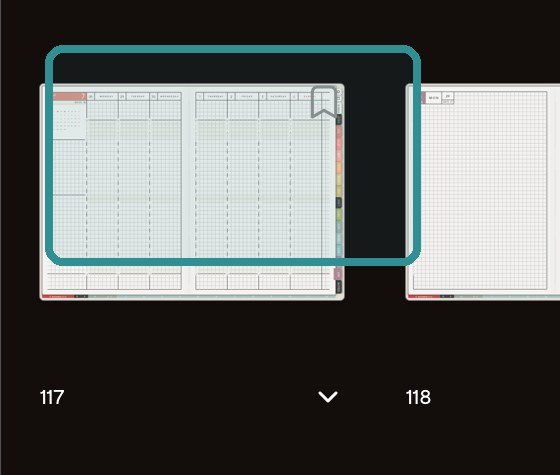
Page thumbnailOpen Pages to see page thumbnails and choose the page you want to manage. - Use the page thumbnails to find the page you want to copy or manage.
- Open the page menu for that page, then choose Copy Page when you want to reuse the page.
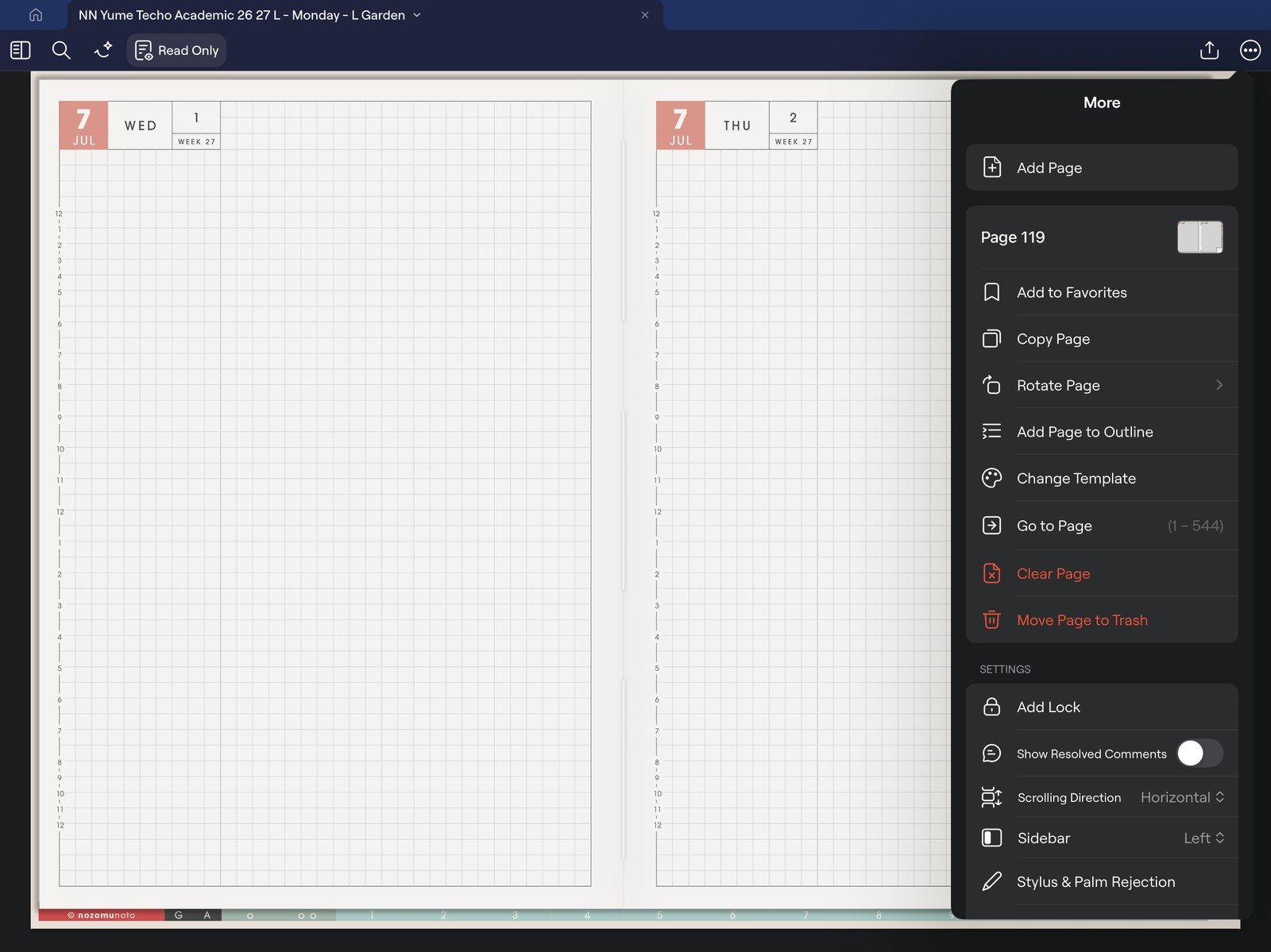
Full page actions menuFull screen view first, then use the cropped highlight below to see the exact area. 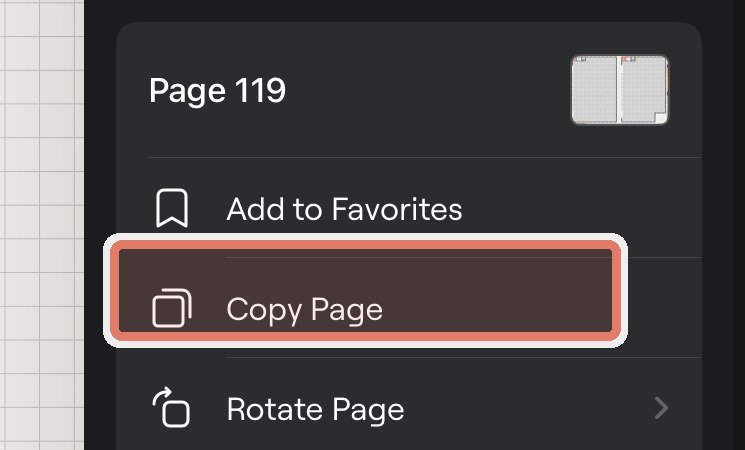
Copy PageUse the page menu and choose Copy Page when you want to reuse a planner or template page. - Open Add Page, then choose Paste Page when you want to insert the copied page in another place.
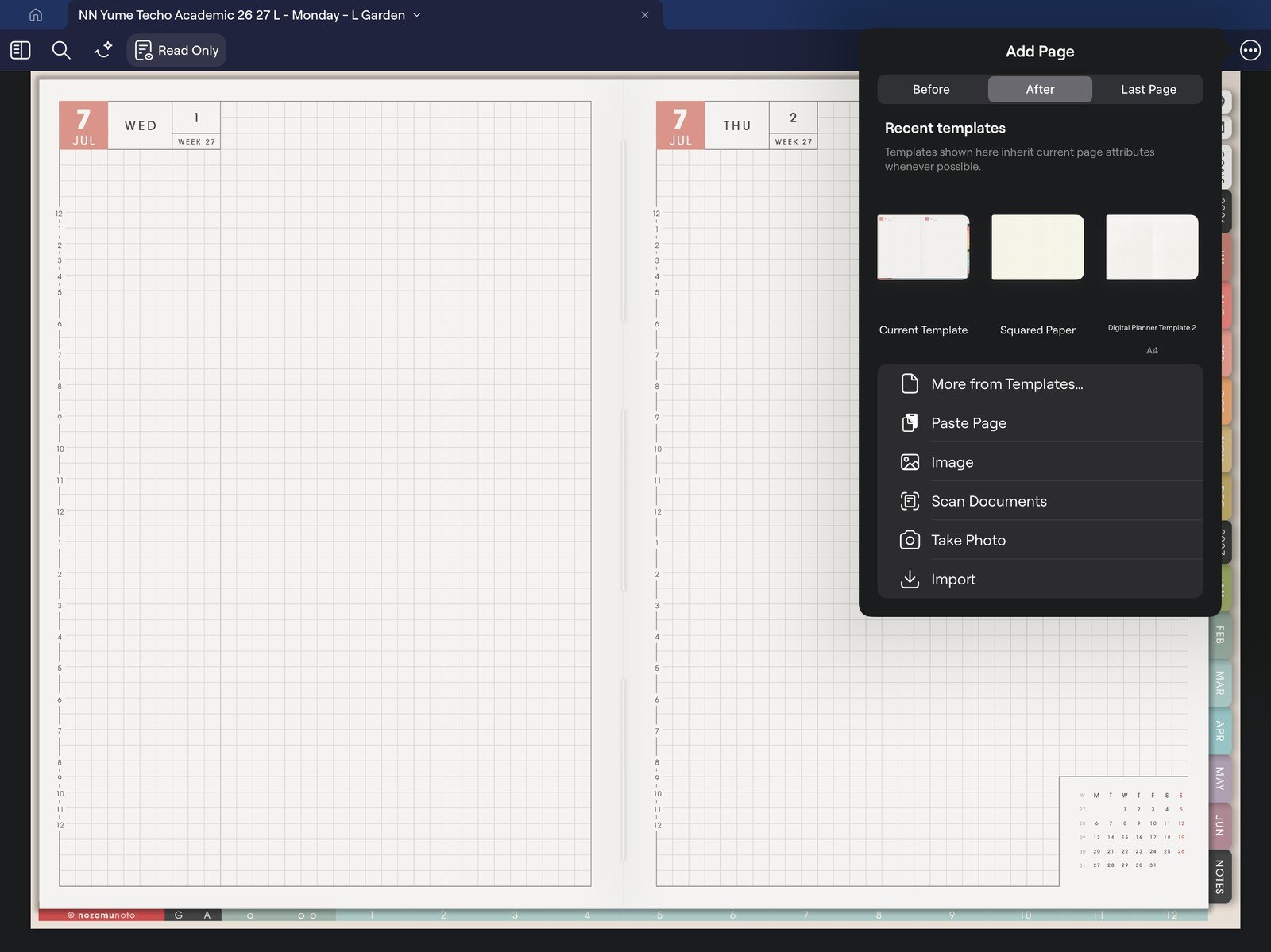
Full Add Page menuFull screen view first, then use the cropped highlight below to see the exact area. 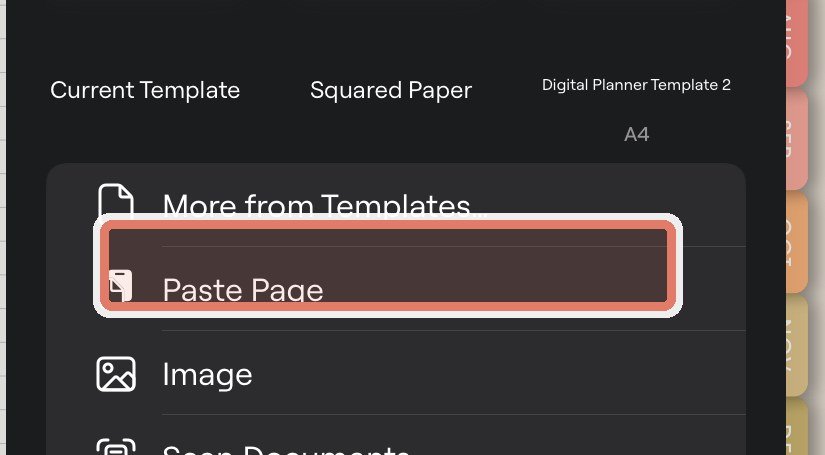
Paste PageUse Add Page, then Paste Page, to insert the copied page where you want it. - After copying, adding, moving, deleting, or organizing pages, test Index and a few tabs before writing more.
Safe GoodNotes page management
1. Copy templates before writing
For NozomuNoto template pages, copy the clean template first. Write on the copy so the original page stays reusable.
2. Move copied pages, not important linked originals
Moving a copied notes page is usually fine. Moving core linked pages, such as Index, Monthly, Weekly, or dated pages, can make the planner harder to navigate. Test experiments in a copied planner file first.
3. Test links after page changes
After copying, moving, deleting, or inserting pages, test Index and a few tabs. If anything jumps somewhere unexpected, stop editing that copy and return to a clean backup.
Common page-management problems
1. The copied page is hard to find
What happens: the template copy exists, but the original template button still goes to the clean template section.
What to do: bookmark the copied page or use Add Page to Outline from the page menu when you want it in the Outline list.
2. Too many page copies pile up
What happens: every idea gets its own copied page and the planner becomes hard to scan.
What to do: keep only active copied pages in Bookmarks Only and delete or archive test pages from your working copy after you know you are finished with them.
Next GoodNotes page checks
- Use template pages in GoodNotes
- Use the Index page in GoodNotes
- Bookmark pages in GoodNotes
- Use NozomuNoto template pages
- GoodNotes official page management guide
Video walkthrough
Watch: GoodNotes notebook basics (2:48, 2022)
Published in November 2022 with older GoodNotes controls. It also includes a screenshot-overlay method; for linked PDF template pages, use the written Copy Page/Paste Page steps.
Written version: Use reading/navigation mode to follow a printed tab or planner link. To reuse a clean PDF template, copy the page, go to the intended insertion point and paste a working copy. Add a bookmark for pages you reopen, and keep the original template clean.
Still need help?
Send your order number, product name, device, app, and a screenshot or short screen recording if the issue is visual.