

Browse help topics
Getting Started
Need help choosing?
Need help after purchase?
Download & Import
Using your notebook/planner
- How to change or reuse template pages on planner landing pages
- Why stickers look blurry when enlarged
- What to check if a product does not work on your device
- How to use NozomuNoto index pages
- How to use NozomuNoto template pages
- How to change a digital planner cover
- How to install and use digital stickers
Product Tutorials
- How to use Yume Techo Landscape tutorial pages
- How to use Yume Techo Portrait tutorial pages
- How to use Shibui Techo Weeks tutorial pages
- How to use Shibui Techo Months tutorial pages
- How to use Yume Noto V1 Landscape tutorial pages
- How to use Yume Noto V1 Portrait tutorial pages
- How to use Yume Noto V2 Landscape tutorial pages
- How to use Yume Noto V2 Portrait tutorial pages
- How to use Yume Noto V3 Portrait tutorial pages
- How to use NozomuNoto Ultimate Digital Stickers
- How to use NozomuNoto Digital Covers
- Which NozomuNoto instruction or tutorial file should I open first?
Device & App
iOS / iPadOS
GoodNotes
Notability
Noteshelf
Noteful
StarNote
Flexcil
Kilonotes
Android
StarNote
Samsung Notes
Penly
Flexcil
Noteshelf
Xodo
E-reader Devices
Boox devices
reMarkable
Bigme
Supernote
How to change your cover in GoodNotes
Use the safest cover or first-page workflow for a NozomuNoto planner in GoodNotes.
On this page
Use these steps to work with NozomuNoto PDF planners, notebooks, stickers, covers, and template pages in GoodNotes. The official links below are for downloads, updates, and current help pages.
Before changing your cover
Save one clean backup of your planner or notebook first. Then check what type of cover file you have and choose the safest GoodNotes method.
- Use a PDF cover when you want to insert or replace a full page.
- Use a PNG or JPG cover when you want to place it as an image.
- Use a GoodNotes-specific cover file only when the product clearly includes one.
- Decide whether you want to replace the current cover or insert a new cover page.
- After the cover change, check that the planner opens and the main links still work.
Keep your original planner file saved outside GoodNotes in case you want to start again.
Reference links
Use these for current app or device help, downloads, updates, vendor help, and manual references.
- GoodNotes: Import files into Goodnotes
- GoodNotes: Navigate PDF Hyperlinks
- GoodNotes: PDF hyperlink issue guide
- GoodNotes: Use Favorites and Bookmarks
- GoodNotes: Copy or move pages from one document to another
- GoodNotes: Elements Tool
- GoodNotes: Change a notebook cover
- GoodNotes: Export documents or pages
- GoodNotes: Templates & Notebook Covers
Change your NozomuNoto cover in GoodNotes
- Save or extract the NozomuNoto cover file first. Use a cover that matches the planner orientation and size when one is included.
- Open the planner in GoodNotes. If you already wrote a lot, duplicate the planner first so you can test the cover safely.
- Open Add Page. Choose Import for a cover PDF, or choose Image for a cover image.
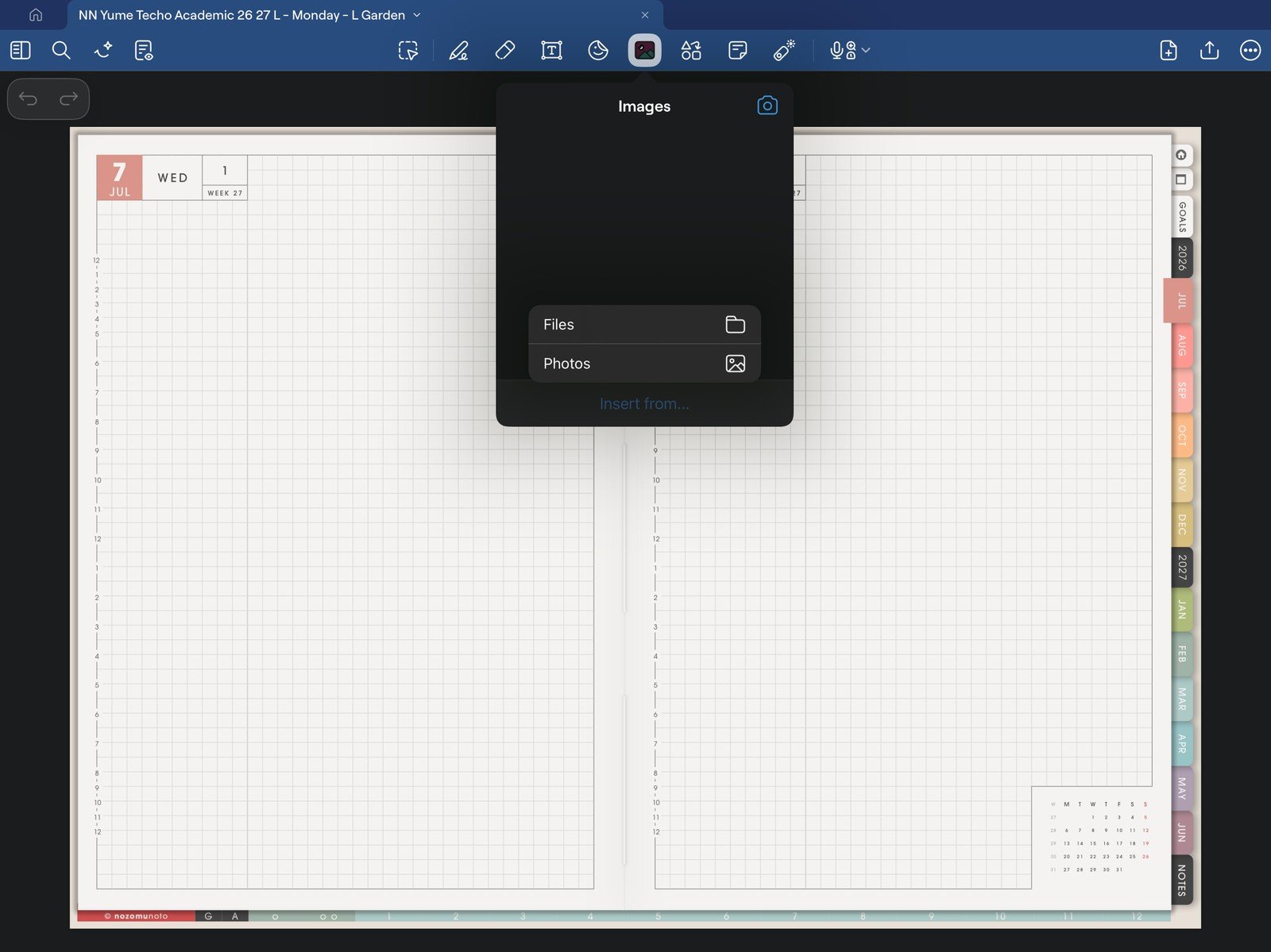
Full image menu screenFull screen view first, then use the cropped highlight below to see the exact area. 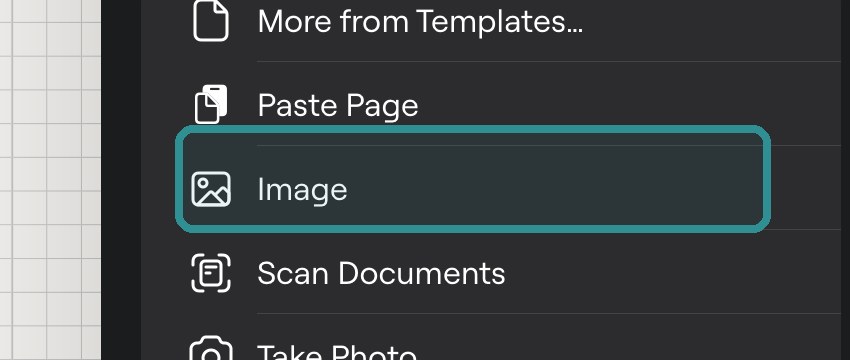
Cover imageChoose Image when the cover is a picture file from Photos or Files. 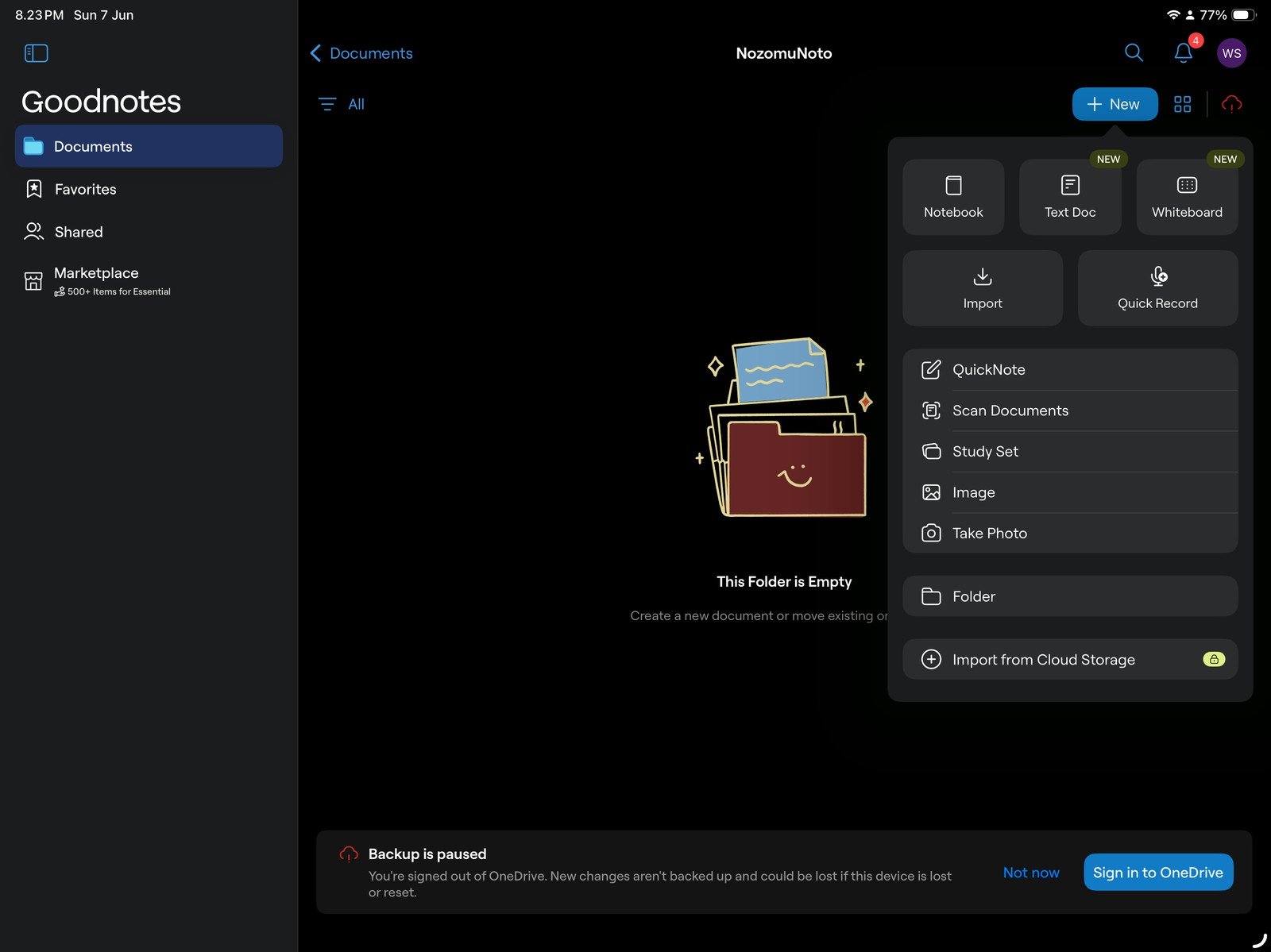
Full GoodNotes import menuFull screen view first, then use the cropped highlight below to see the exact area. 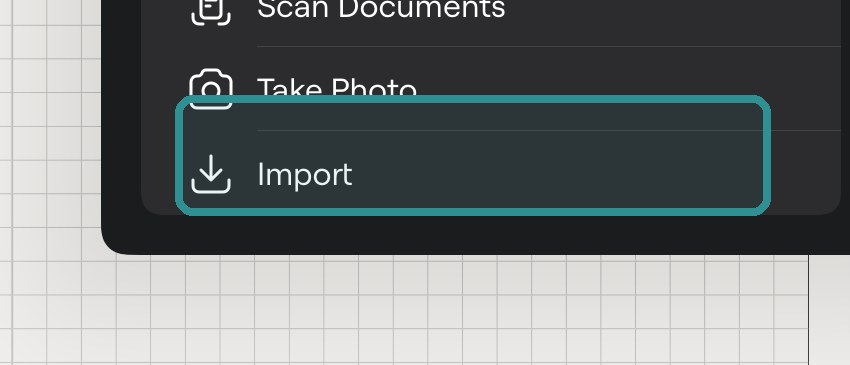
Cover PDFChoose Import when the cover is a PDF file. - Choose the cover file from Files, Photos, or the folder where you saved the extracted download.
- Open the Pages panel and place the cover page at the very beginning of the planner.
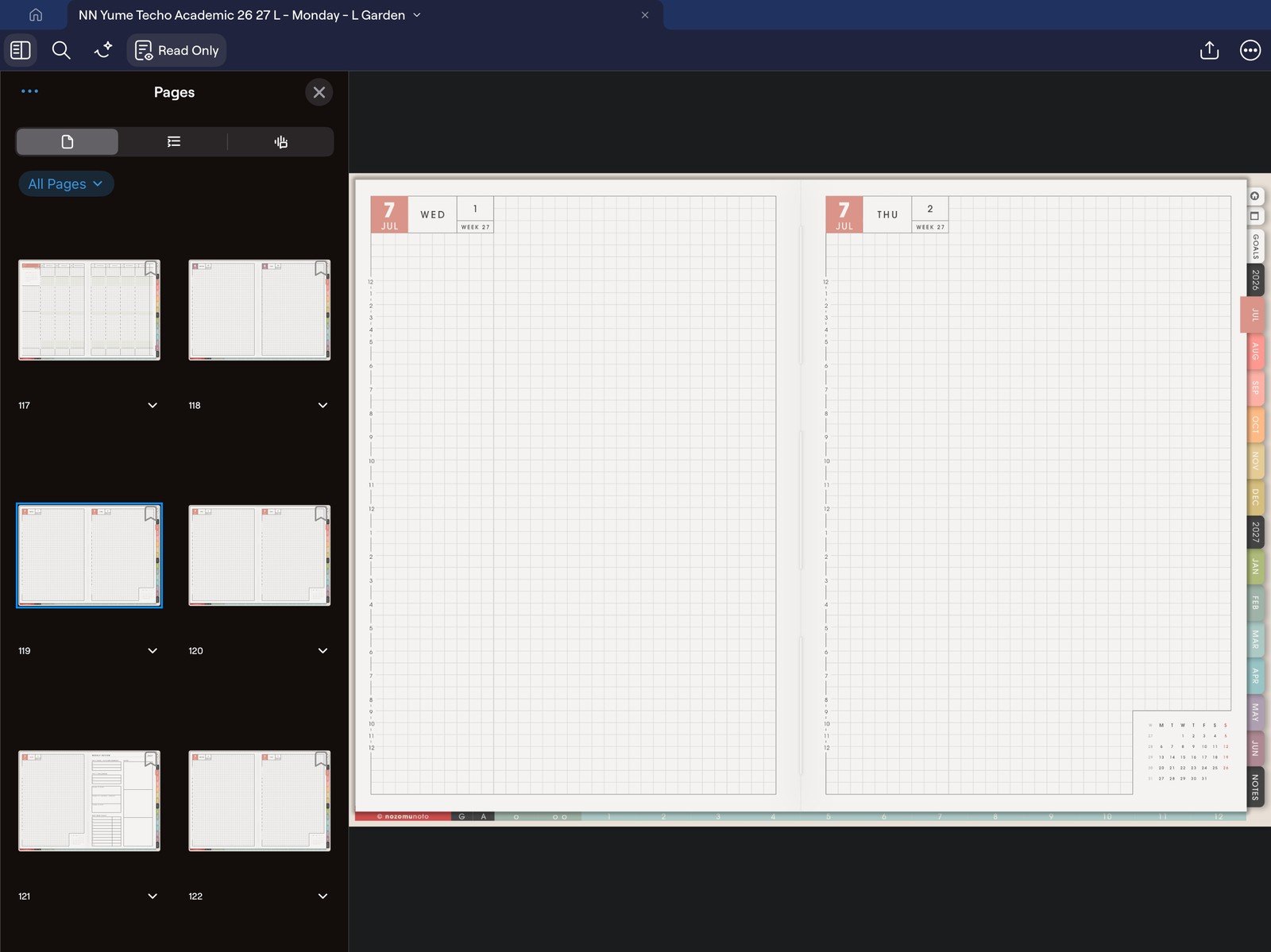
Full Pages panel screenFull screen view first, then use the cropped highlight below to see the exact area. 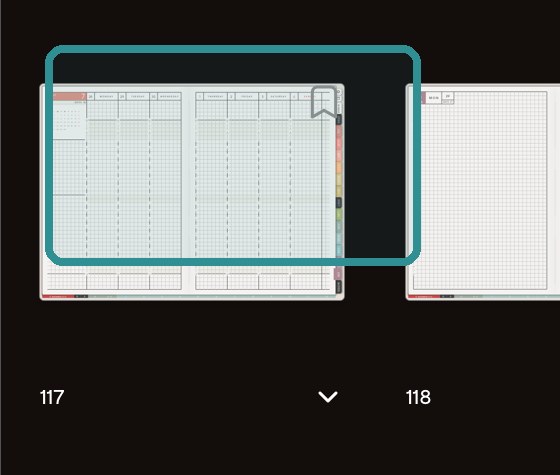
Pages panelUse Pages thumbnails to move or confirm the cover page at the beginning of the planner. - After changing the cover, test Index and a few planner tabs before continuing to write.
Cover checks in GoodNotes
1. The cover is the first page
GoodNotes usually shows the first page as the visible document cover. If the wrong page appears as the cover, open Pages and move the correct cover page to the front.
2. Match size and orientation
A landscape cover fits a landscape planner better. A portrait cover fits a portrait planner better. If the cover looks cropped or stretched, choose the matching NozomuNoto cover instead of resizing by hand.
3. Keep linked planner pages in place
Keep important linked pages in place when you only want to change the visible cover. Add or move the cover page carefully, then test navigation.
If the cover looks wrong
Reopen Pages, confirm the cover is first, and compare it with the original cover file. If the planner navigation feels broken after cover edits, return to a clean backup copy and change the cover again more slowly.
Next GoodNotes cover checks
Still need help?
Send your order number, product name, device, app, and a screenshot or short screen recording if the issue is visual.