

Browse help topics
Getting Started
- Does my NozomuNoto purchase include an app or an app subscription?
- New to digital planning? Start here!
- What is a digital notebook?
- What is a digital planner?
- What tools do I need to start digital planning?
- Which apps work with NozomuNoto planners?
- What does “hyperlinked PDF planner” mean?
- Paper planner vs digital planner
Need help choosing?
Need help after purchase?
Download & Import
Using your notebook/planner
- Can I use my NozomuNoto planner offline?
- How do I back up, export, or move my NozomuNoto planner to a new device?
- How to change or reuse template pages on planner landing pages
- Why stickers look blurry when enlarged
- What to check if a product does not work on your device
- How to use NozomuNoto index pages
- How to use NozomuNoto template pages
- How to change a digital planner cover
- How to install and use digital stickers
Product Tutorials
- How to use Shibui Noto V1 Landscape
- How to use the Ikigai Noto Hiragana and Katakana workbook
- How to use Yume Techo Landscape tutorial pages
- How to use Yume Techo Portrait tutorial pages
- How to use Shibui Techo Weeks tutorial pages
- How to use Shibui Techo Months tutorial pages
- How to use Yume Noto V1 Landscape tutorial pages
- How to use Yume Noto V1 Portrait tutorial pages
- How to use Yume Noto V2 Landscape tutorial pages
- How to use Yume Noto V2 Portrait tutorial pages
- How to use Yume Noto V3 Portrait tutorial pages
- How to use NozomuNoto Ultimate Digital Stickers
- How to use NozomuNoto Digital Covers
- Which NozomuNoto instruction or tutorial file should I open first?
Device & App
iOS / iPadOS
GoodNotes
Notability
Noteshelf
Noteful
StarNote
Flexcil
Kilonotes
Android
StarNote
Samsung Notes
Penly
Flexcil
Noteshelf
Xodo
E-reader Devices
Boox devices
reMarkable
Bigme
Supernote
How to use template pages in Notability
Find clean NozomuNoto template pages in Notability and use the safest workflow for that app or device.
On this page
Applies to: PDF planners & notebooks · Notability · iPad (iPadOS).
Files: Planner/notebook PDF. Preserve a clean source and check the new working page before writing.
Use these steps to work with NozomuNoto PDF planners, notebooks, stickers, covers, and template pages in Notability. The official links below are for downloads, updates, and current help pages.
Copy first
Template pages are meant to be reused. Before writing on a template page in Notability, copy or duplicate the page first, then write on the copy.
- Open the clean template page you want to use.
- Open Content Manager and find the template page thumbnail.
- Use the page actions menu to Copy the clean page. Then open the destination page menu and choose Paste, or use Select and Duplicate within the same note.
- Paste the copied page after the destination page, then write on the new copy.
- Write, type, decorate, or add stickers on the copied page.
- Keep the original template page clean so you can reuse it again later.
If your Notability version handles page tools differently, keep a clean planner backup and check the current Notability Content Manager guide.
Reference links
Use these for current app or device help, downloads, updates, vendor help, and manual references.
Use templates in Notability
- Open the planner or note.
- For NozomuNoto Template Pages, open Content Manager so you can find the clean PDF template page.
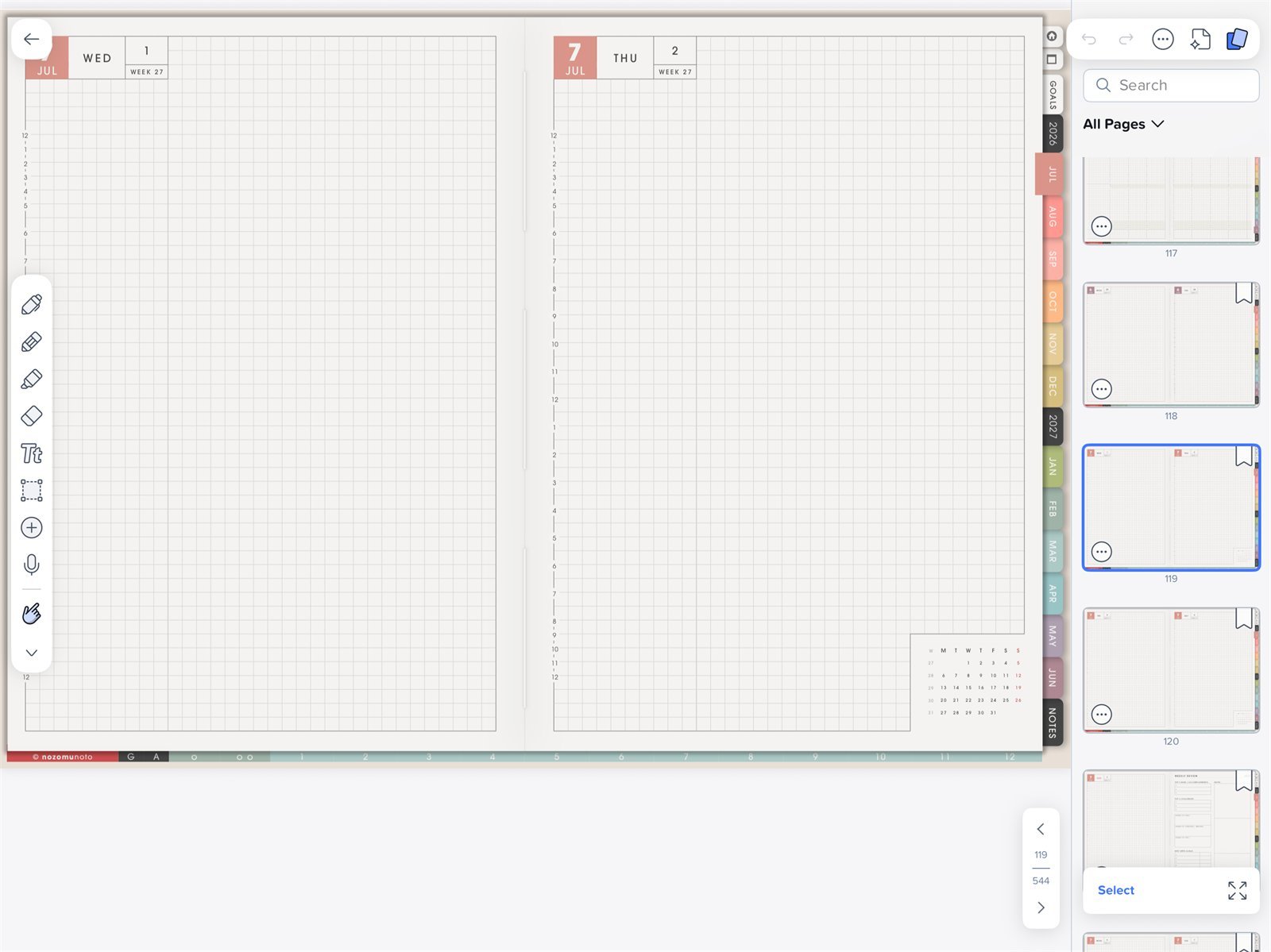
Find the clean template pageNotability All Pages view for Yume Techo Academic 26-27 Landscape. Find the clean template page before copying or duplicating it. - Tap the three dots on the clean template page thumbnail, then choose Copy. Navigate to the page after which you want the copy, open that page's menu in Content Manager, and choose Paste. The copied template is added after the selected page. You can instead use Select and Duplicate for a copy within the note.
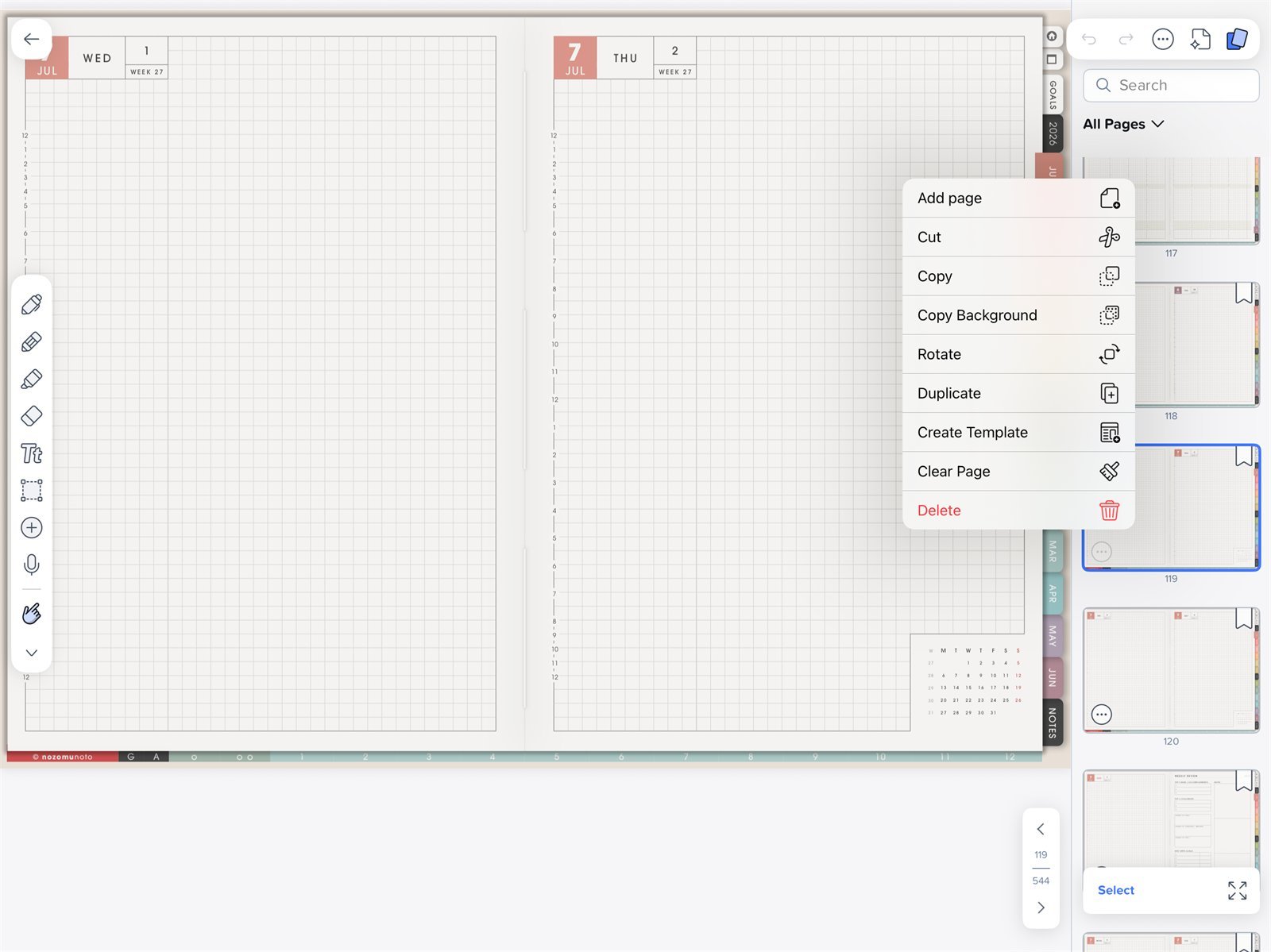
Copy or create templateNotability page actions. Copy or Duplicate keeps a working page; Create Template makes a Notability background. - Paste the copied page after the destination page near the month, week, project, class, section, or notes area where you will use it.

Content ManagerUse Content Manager to find the clean template page first. 
Page actionsUse the page actions menu to copy a planner page, then Paste it after the chosen destination page. Create Template is a separate background action. - Use Create Template only when you want a Notability reusable page background. This is different from keeping a fully linked NozomuNoto PDF page.
- Keep the original NozomuNoto template page clean before copying, duplicating, or turning anything into a Notability template.
Notability template checks
1. NozomuNoto Template Pages are PDF pages
For a linked planner, treat Template Pages as reusable PDF pages inside the product. Copy or duplicate them before writing.
2. Notability templates are app backgrounds
Create Template is useful for Notability backgrounds, but it is not the same as keeping a linked NozomuNoto planner page with product navigation.
3. Bookmark active copies
If you copy a project page, habit tracker, class page, or finance page, bookmark the working copy so it is easy to find again.
4. Page tools may move by version
If your Notability version shows page actions in a different place, use the current Content Manager guide and keep your original NozomuNoto PDF outside Notability.
If the clean template is already filled
Re-import a fresh copy of the original NozomuNoto PDF and copy the clean template page again. Keep one clean download outside Notability for this reason.
Next Notability template checks
Still need help?
Send your order number, product name, device, app, and a screenshot or short screen recording if the issue is visual.