

Use these steps to work with NozomuNoto PDF planners, notebooks, stickers, covers, and template pages in Kilonotes. The official links below are for downloads, updates, and current help pages.
Reference links
Use these for current app or device help, downloads, updates, vendor support, and manual references.
Import the PDF into Kilonotes on iPad
- Save and extract the NozomuNoto download first so the PDF is visible in Files, iCloud Drive, or your chosen folder.
- Open Kilonotes on the Notebook library screen.
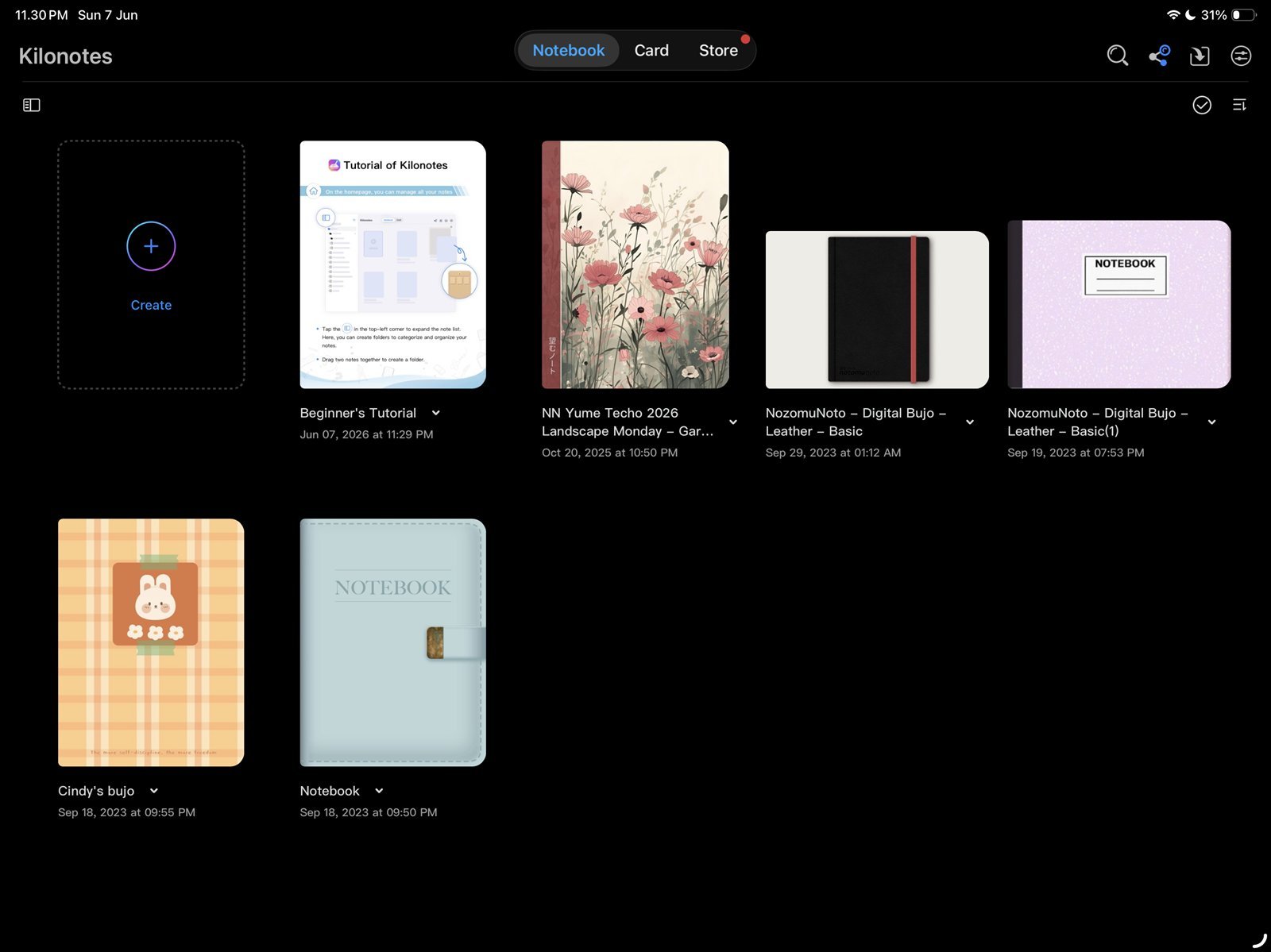
Kilonotes libraryStart from the Kilonotes Notebook library. Product shown: Yume Techo Academic 26-27 Landscape. - Tap the Create card or plus button, then choose Import.
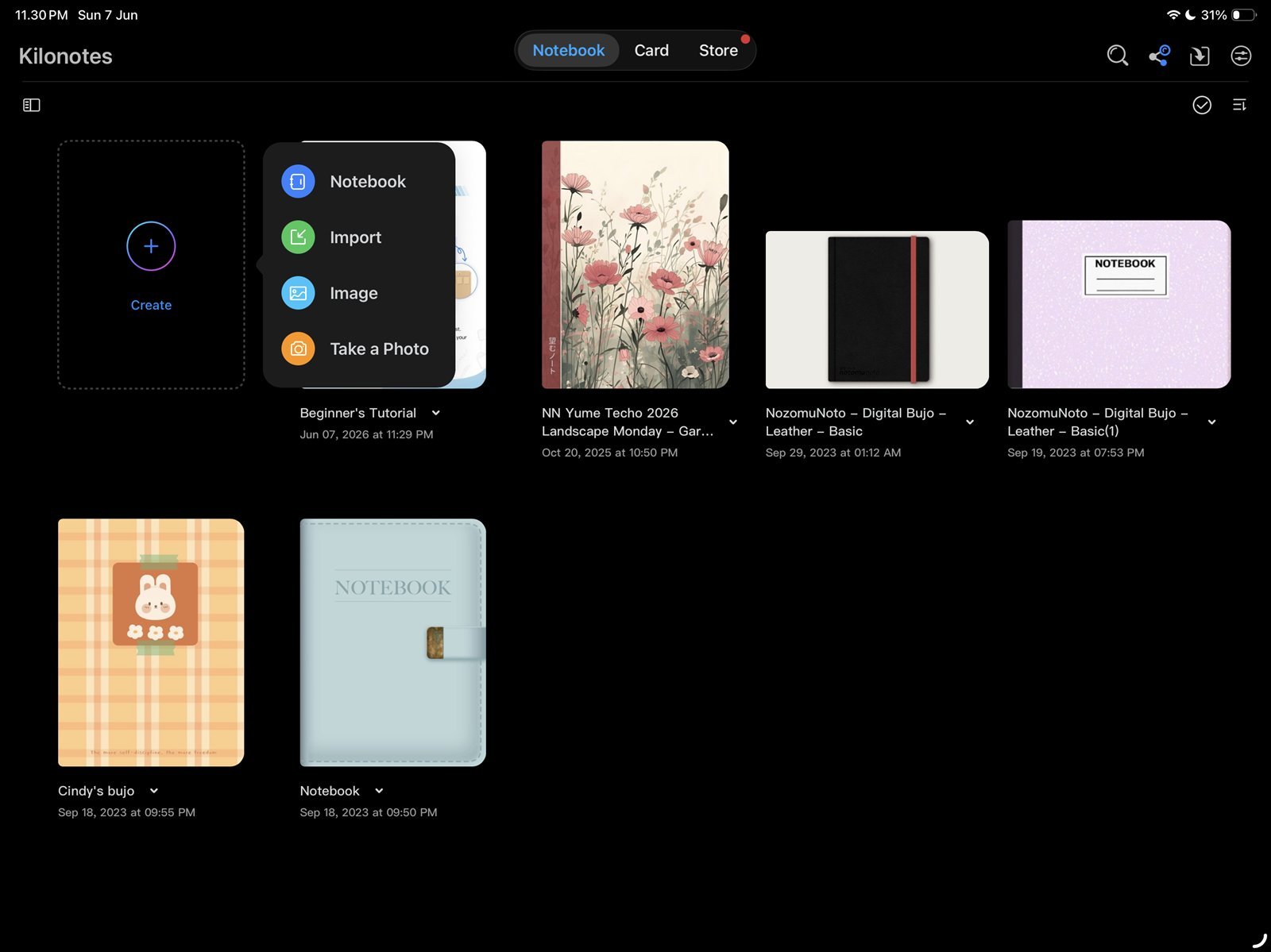
Create > ImportUse Create, then Import to choose the NozomuNoto PDF. Product shown: Yume Techo Academic 26-27 Landscape. - In the iPad file picker, choose the extracted NozomuNoto PDF.
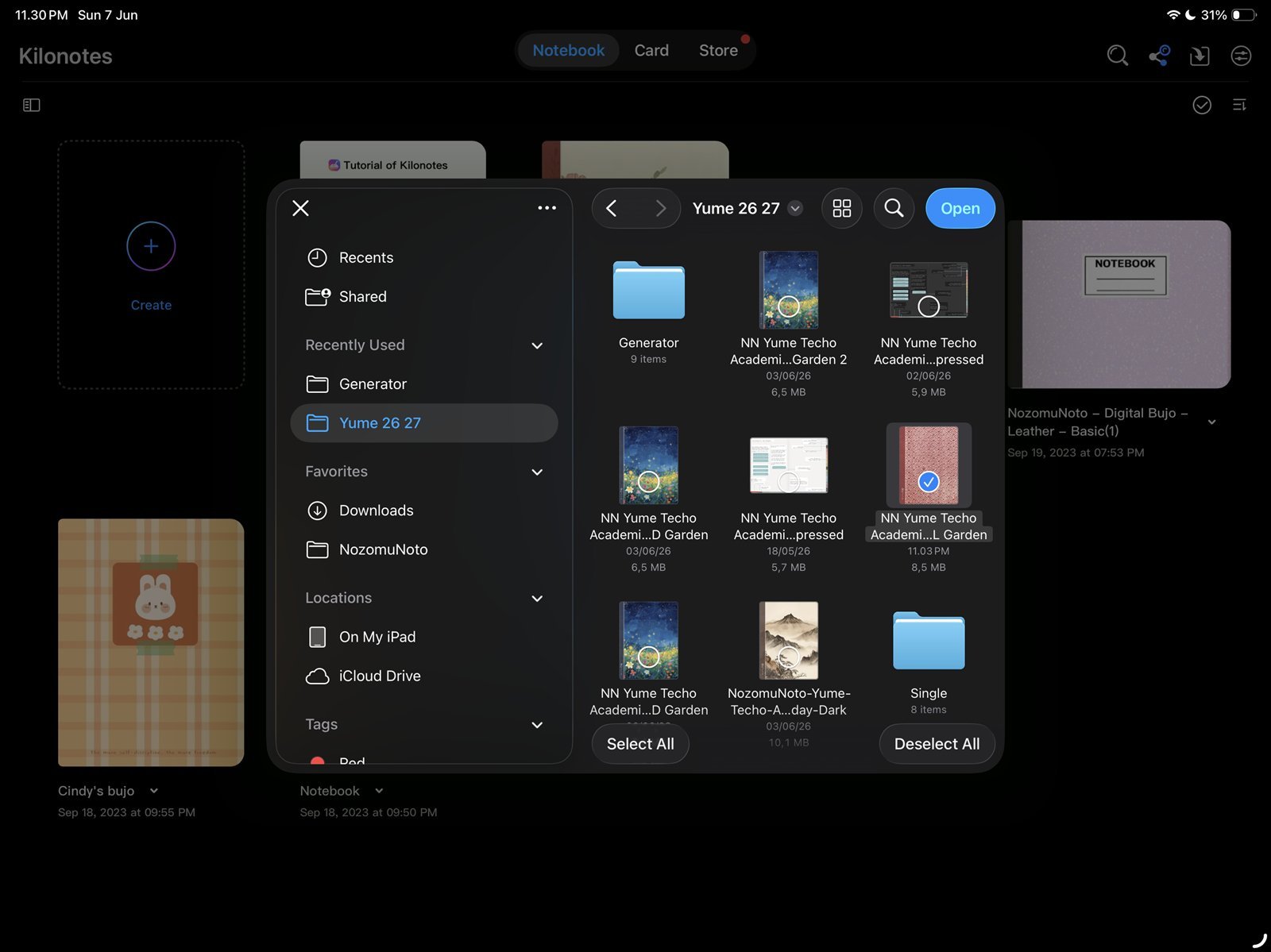
Choose the PDFSelect the extracted planner PDF from the iPad file picker. Product shown: Yume Techo Academic 26-27 Landscape. - Open the imported planner from the Kilonotes library and check the cover, Index, and one dated page.
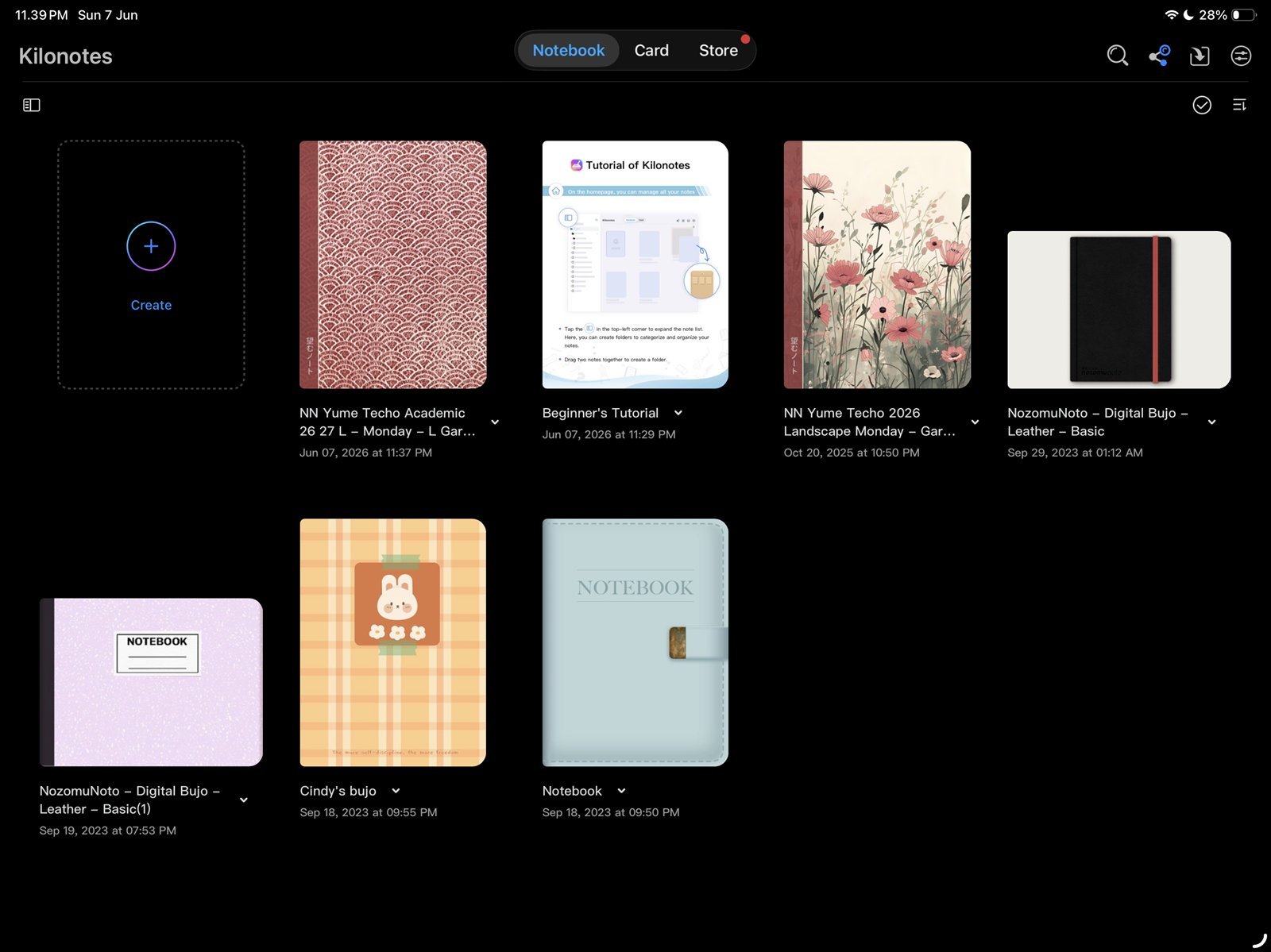
Imported plannerOpen the imported planner from the Kilonotes library. Product shown: Yume Techo Academic 26-27 Landscape.