

Use these steps to work with NozomuNoto PDF planners, notebooks, stickers, covers, and template pages in Penly. The official links below are for downloads, updates, and current help pages.
Reference links
Use these for current app or device help, downloads, updates, vendor support, and manual references.
Import the PDF into Penly
- Save and extract the NozomuNoto download first. If the download is a ZIP, open the extracted folder before choosing the PDF.
- Open Penly and stay on the My Notes library screen.
- Tap the blue + button in the lower-right corner.
- Tap Import Document.
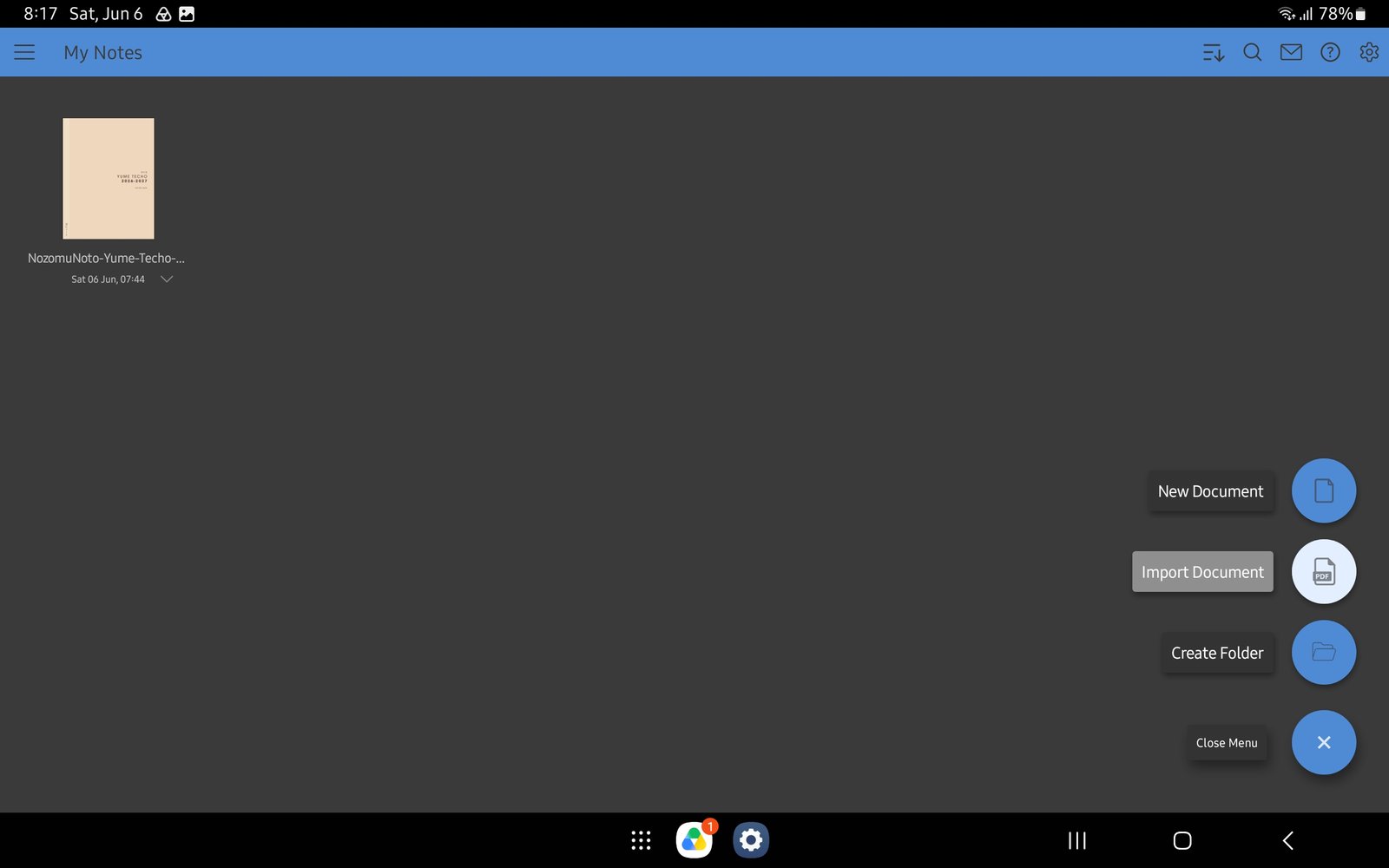
Full Penly import screenFull screen view first, then use the cropped highlight below to see the exact area. 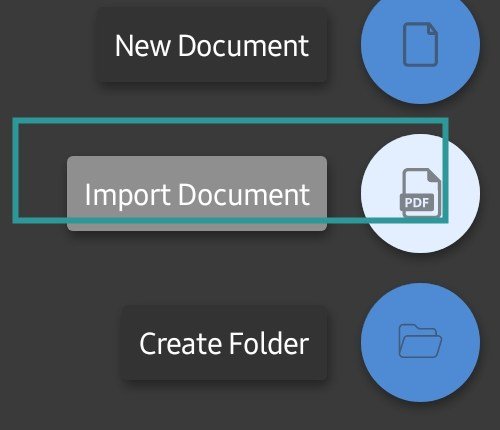
Import DocumentPenly My Notes menu with Import Document highlighted. - In the Android file picker, open the place where the PDF is saved, such as Drive, My Files, or OneDrive.
- Select the NozomuNoto PDF, tap Select, then open the imported planner from the Penly library.
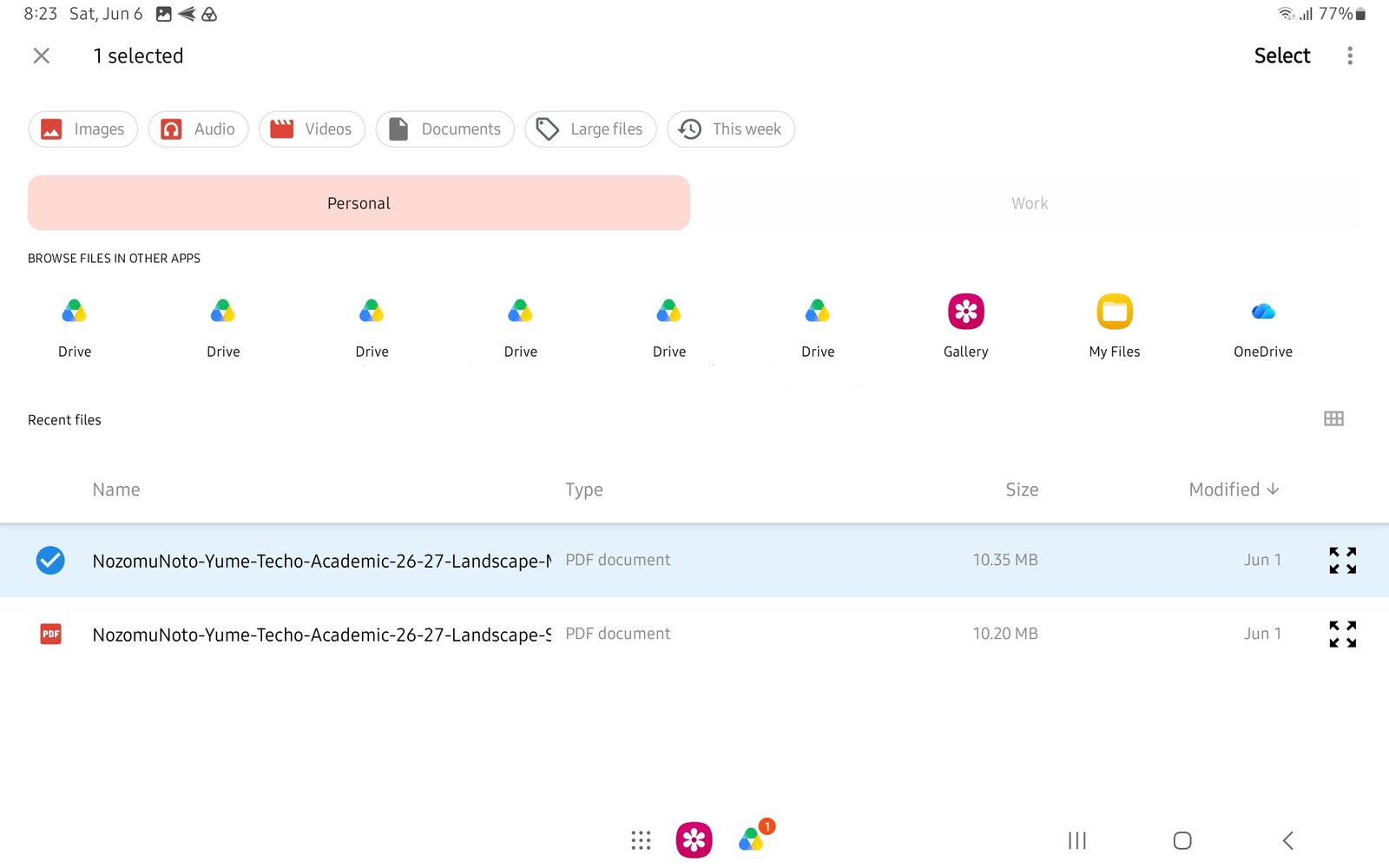
Full selected file screenFull screen view first, then use the cropped highlight below to see the exact area. 
Selected PDFAndroid file picker with the extracted NozomuNoto PDF selected. Full Android file picker screenFull screen view first, then use the cropped highlight below to see the exact area. 
SelectTap Select after choosing the extracted PDF.
Notes
- Import order: Use the screenshots in order: import 1 shows the Penly library and Import Document button; import 2 shows the Android file picker with the PDF selected; import 3 shows the Select button to finish choosing the PDF.
- If the planner imports more than once or the wrong file opens, keep the newest clean copy and remove test copies only after the working copy opens correctly.