

Use these steps to work with NozomuNoto PDF planners, notebooks, stickers, covers, and template pages in Penly. The official links below are for downloads, updates, and current help pages.
Reference links
Use these for current app or device help, downloads, updates, vendor support, and manual references.
Duplicate, copy, paste, and rearrange pages in Penly
- Open the planner or notebook in Penly.
- Tap the page overview icon, shown as a grid near the top-left of the toolbar.
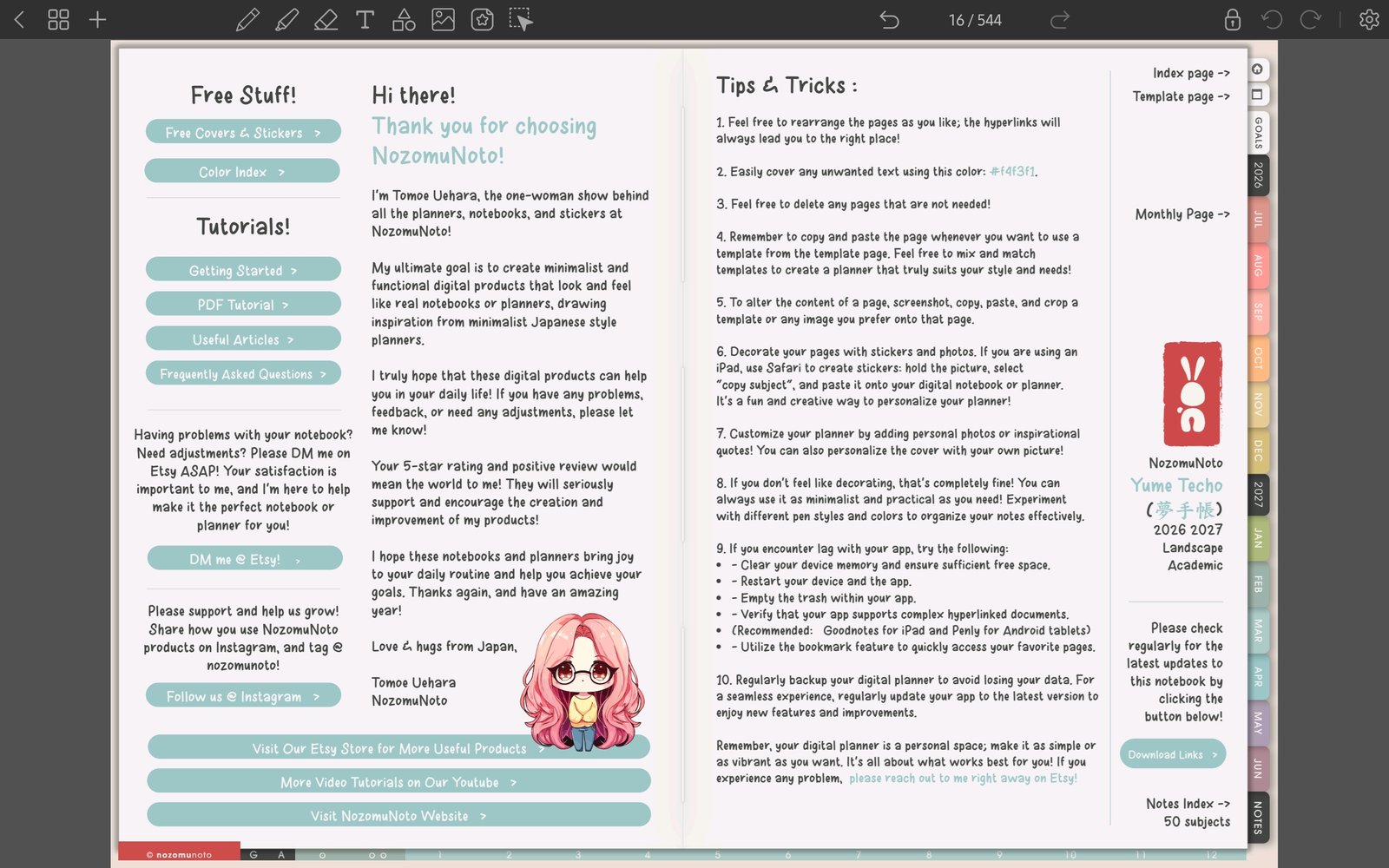
Full Penly toolbar screenFull screen view first, then use the cropped highlight below to see the exact area. 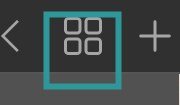
Open page overviewTap the grid icon near the top-left toolbar to open page overview. - Tap and hold the page thumbnail you want to copy, duplicate, move, delete, export, or share.
- Use the top action bar. The stacked-pages icon is the one to look for when you need copy or duplicate actions.
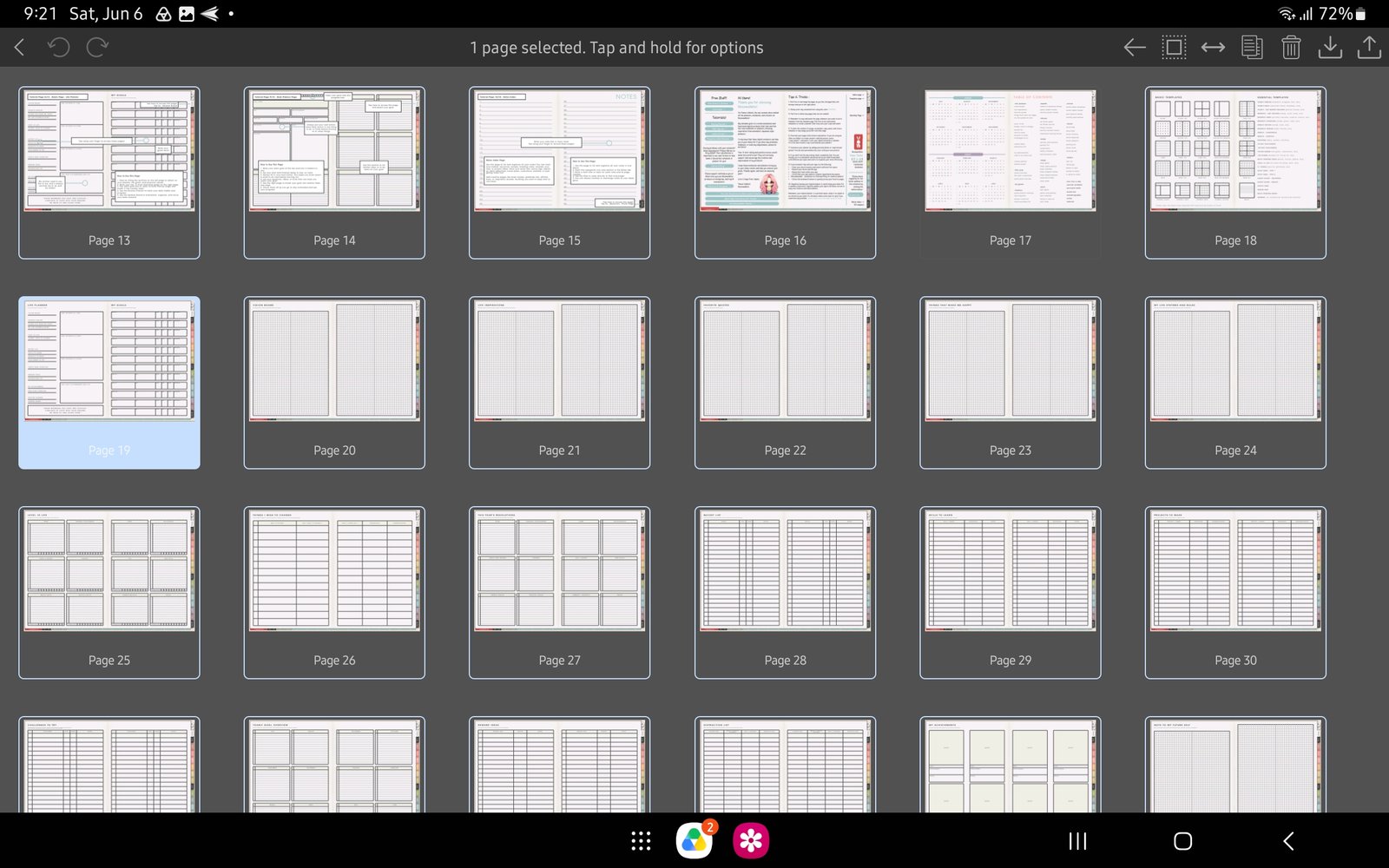
Full page actions screenFull screen view first, then use the cropped highlight below to see the exact area. 
Copy and duplicate actionsSelected page toolbar with the stacked-pages copy or duplicate action highlighted. - After moving or duplicating pages, return to the index and test a few tabs before writing more.
Notes
- Important page note: Make page changes on a working copy of the planner. If a tab begins jumping to the wrong place after a big page edit, stop editing that copy and re-import the clean backup.
- If a page change makes navigation confusing, go back to a clean working copy before adding more notes.