

Use these steps to work with NozomuNoto PDF planners, notebooks, stickers, covers, and template pages in Samsung Notes. The official links below are for downloads, updates, and current help pages.
Reference links
Use these for current app or device help, downloads, updates, vendor support, and manual references.
Use the Samsung Notes page sorter
- Confirm the planner was imported after setting Default note style to Split pages.
- Open the planner and tap the page sorter / thumbnail icon on the top-right toolbar.
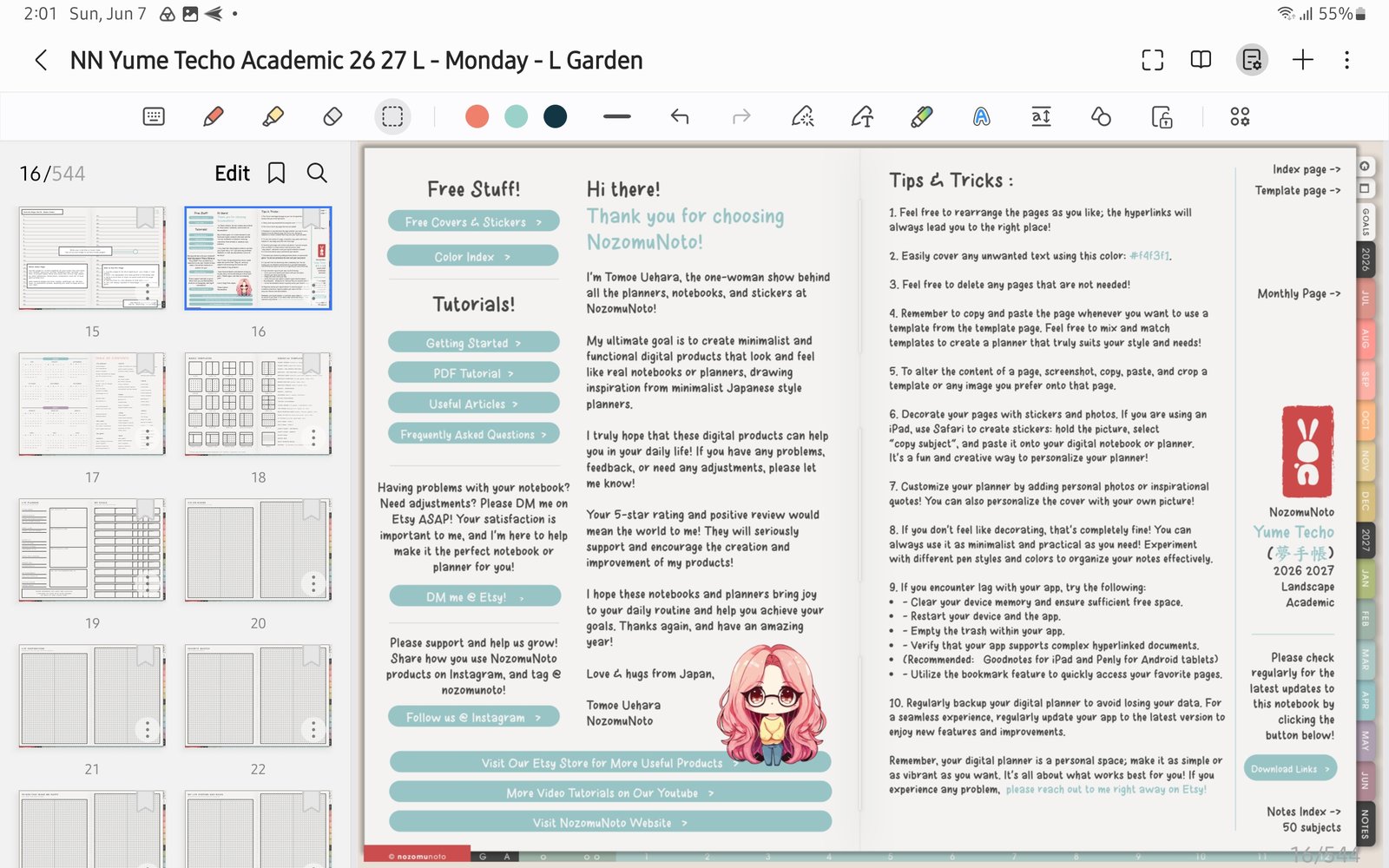
Open page sorterThe left thumbnail panel is available when the planner was imported with Split pages. Product shown: Yume Techo Academic 26-27 Landscape. - Tap Edit in the thumbnail panel if Samsung Notes shows it.
- Open the small page action menu on a thumbnail.
- Use the available page actions such as Add page, Copy, Cut, Delete, Share, or Save as.
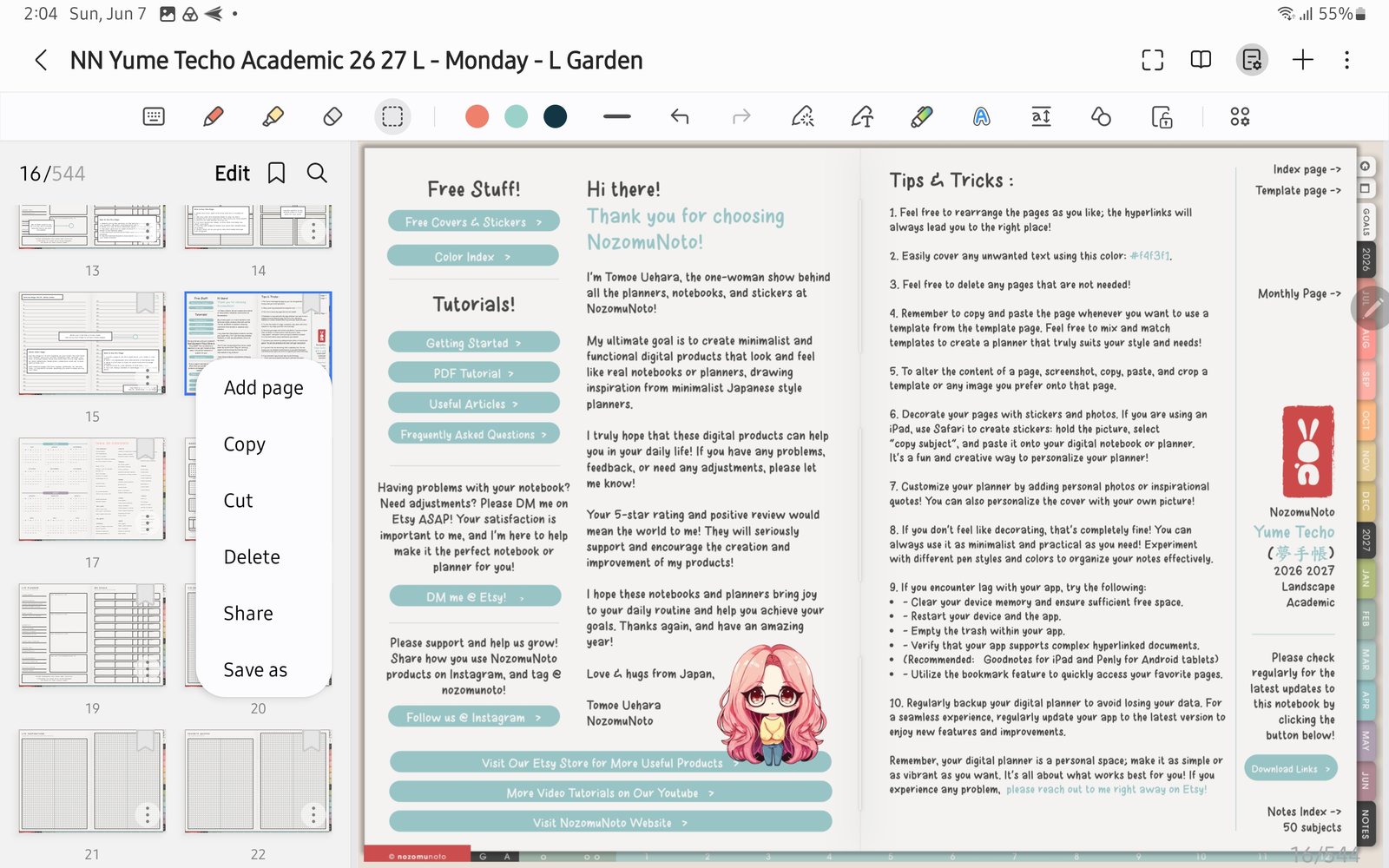
Thumbnail page action menuUse Add page, Copy, Cut, Delete, Share, or Save as from the thumbnail menu. Product shown: Yume Techo Academic 26-27 Landscape. - After copying, cutting, deleting, or adding pages, test the Index and a few planner tabs again.
- If the page sorter or page action menu is missing, set Split pages first and re-import a fresh copy of the PDF.
Notes
- Best practice: Use Samsung Notes for light page management. For lots of template duplication, page rearranging, and sticker-heavy planning, use a planner-first Android app such as Penly.
- If a page change makes navigation confusing, go back to a clean working copy before adding more notes.