

Browse help topics
Getting Started
Need help choosing?
Need help after purchase?
Download & Import
Using your notebook/planner
- How to change or reuse template pages on planner landing pages
- Why stickers look blurry when enlarged
- What to check if a product does not work on your device
- How to use NozomuNoto index pages
- How to use NozomuNoto template pages
- How to change a digital planner cover
- How to install and use digital stickers
Product Tutorials
- How to use Yume Techo Landscape tutorial pages
- How to use Yume Techo Portrait tutorial pages
- How to use Shibui Techo Weeks tutorial pages
- How to use Shibui Techo Months tutorial pages
- How to use Yume Noto V1 Landscape tutorial pages
- How to use Yume Noto V1 Portrait tutorial pages
- How to use Yume Noto V2 Landscape tutorial pages
- How to use Yume Noto V2 Portrait tutorial pages
- How to use Yume Noto V3 Portrait tutorial pages
- How to use NozomuNoto Ultimate Digital Stickers
- How to use NozomuNoto Digital Covers
- Which NozomuNoto instruction or tutorial file should I open first?
Device & App
iOS / iPadOS
GoodNotes
Notability
Noteshelf
Noteful
StarNote
Flexcil
Kilonotes
Android
StarNote
Samsung Notes
Penly
Flexcil
Noteshelf
Xodo
E-reader Devices
Boox devices
reMarkable
Bigme
Supernote
How to use planner hyperlinks in reMarkable
Use built-in PDF links, tabs, and buttons in reMarkable.
Reference links
Use these for current app or device help, downloads, updates, vendor help, and manual references.
Use links and navigation on an e-reader
- Open the original imported PDF planner or notebook on reMarkable.
- Go to the NozomuNoto Index, a monthly tab, a section tab, or another printed planner link.
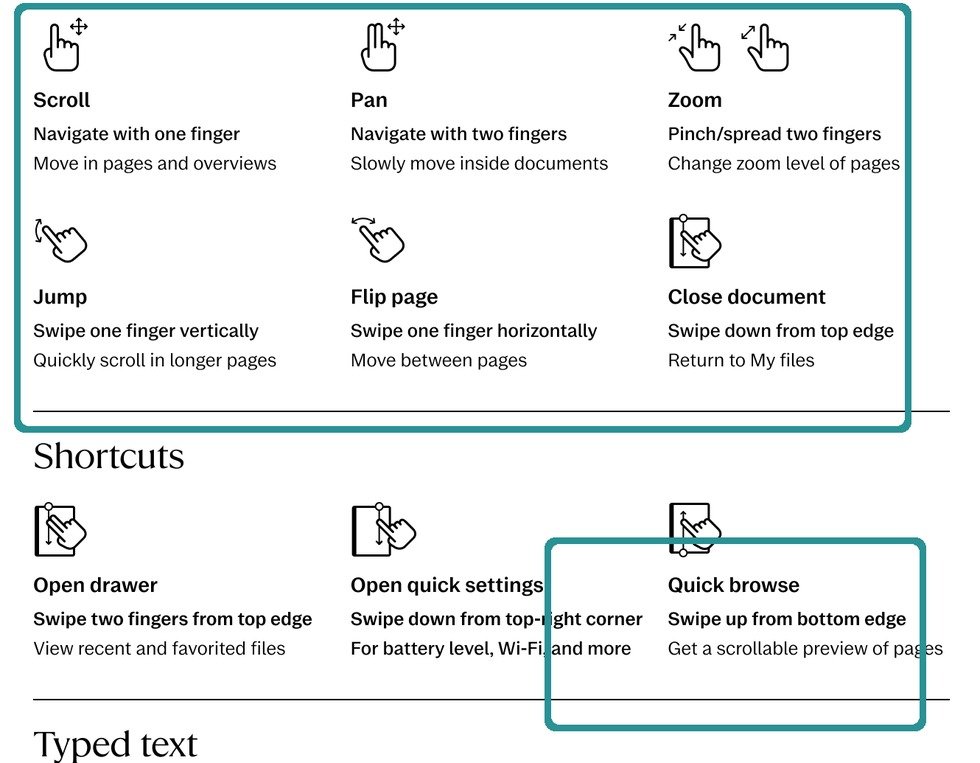
reMarkable navigation gesturesOfficial reMarkable gesture reference for page navigation and Quick browse. This guide does not rely on tappable PDF links. - Use the reMarkable document tools for page overview, annotations, and PDF reading. Keep a tablet note app for sticker-heavy planning.
- If a tap writes on the page instead of moving, leave writing mode and switch to the reader, view, hand, navigation, or page-browsing tool your device provides.
- Use the return path named in this device guide, such as contents, bookmarks, page overview, folders, page numbers, and the NozomuNoto Index page.
E-reader navigation note
E-readers try not to all handle PDF links the same way. The planner can still work as a written PDF planner when the return path is clear: printed Index, page numbers, contents, bookmarks, page overview, folders, and clear file names.
Still need help?
Send your order number, product name, device, app, and a screenshot or short screen recording if the issue is visual.