

Browse help topics
Getting Started
- Does my NozomuNoto purchase include an app or an app subscription?
- New to digital planning? Start here!
- What is a digital notebook?
- What is a digital planner?
- What tools do I need to start digital planning?
- Which apps work with NozomuNoto planners?
- What does “hyperlinked PDF planner” mean?
- Paper planner vs digital planner
Need help choosing?
Need help after purchase?
Download & Import
Using your notebook/planner
- Can I use my NozomuNoto planner offline?
- How do I back up, export, or move my NozomuNoto planner to a new device?
- How to change or reuse template pages on planner landing pages
- Why stickers look blurry when enlarged
- What to check if a product does not work on your device
- How to use NozomuNoto index pages
- How to use NozomuNoto template pages
- How to change a digital planner cover
- How to install and use digital stickers
Product Tutorials
- How to use Shibui Noto V1 Landscape
- How to use the Ikigai Noto Hiragana and Katakana workbook
- How to use Yume Techo Landscape tutorial pages
- How to use Yume Techo Portrait tutorial pages
- How to use Shibui Techo Weeks tutorial pages
- How to use Shibui Techo Months tutorial pages
- How to use Yume Noto V1 Landscape tutorial pages
- How to use Yume Noto V1 Portrait tutorial pages
- How to use Yume Noto V2 Landscape tutorial pages
- How to use Yume Noto V2 Portrait tutorial pages
- How to use Yume Noto V3 Portrait tutorial pages
- How to use NozomuNoto Ultimate Digital Stickers
- How to use NozomuNoto Digital Covers
- Which NozomuNoto instruction or tutorial file should I open first?
Device & App
iOS / iPadOS
GoodNotes
Notability
Noteshelf
Noteful
StarNote
Flexcil
Kilonotes
Android
StarNote
Samsung Notes
Penly
Flexcil
Noteshelf
Xodo
E-reader Devices
Boox devices
reMarkable
Bigme
Supernote
How to import a NozomuNoto PDF in Bigme
Import the PDF file into Bigme and keep the original download as a backup.
On this page
Applies to: PDF planners & notebooks · Bigme PDF/document reader · Bigme device (check model).
Files: Planner/notebook PDF. Follow the exact model/reader guide; writing and navigation tools vary.
Reference links
Use these for current app or device help, downloads, updates, vendor help, and manual references.
Import the PDF on Bigme
- Save the original NozomuNoto download somewhere safe first.
- Extract the ZIP if the product arrives as a ZIP, then use the PDF file.
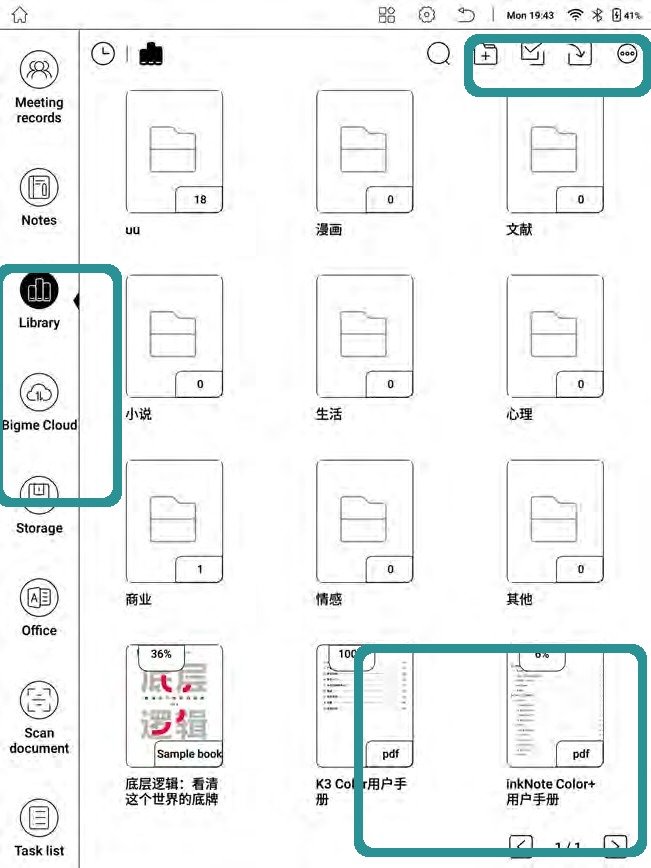
Bigme libraryBigme manual UI showing Library, storage, and PDF files. - Open Bookshelf or Library on the Bigme device.
- Follow the transfer instructions for your exact Bigme model from the official quick links. Complete the phone/computer-to-device transfer first, then open the saved PDF from Bookshelf or Library. WiFi Import and Local Import controls can differ by model.
- Open the imported planner PDF and check the cover, Index, and one writing page before using it every day.
- Keep one unchanged backup outside Bigme so you can import a clean copy again later.
Still need help?
Send your order number, product name, device, app, and a screenshot or short screen recording if the issue is visual.