

Use these steps to work with NozomuNoto PDF planners and notebooks on Bigme. E-readers are best for calm writing, reading, bookmarks, page review, and light annotation, so this guide keeps the setup simple and points out where a tablet app may still be better.
Before you start
- Use the Index as the home base before jumping into monthly, weekly, template, or notes pages.
- If the product arrives in a ZIP, extract it first, then transfer the PDF file your e-reader can open.
- After the first step, test one Index link, one writing mark, and one page action before setting up the whole planner.
Reference links
Use these for current app or device help, downloads, updates, vendor support, and manual references.
Use the index and contents on Bigme
- Open the planner PDF in the Bigme reader.
- Tap the screen to show the reading toolbar.
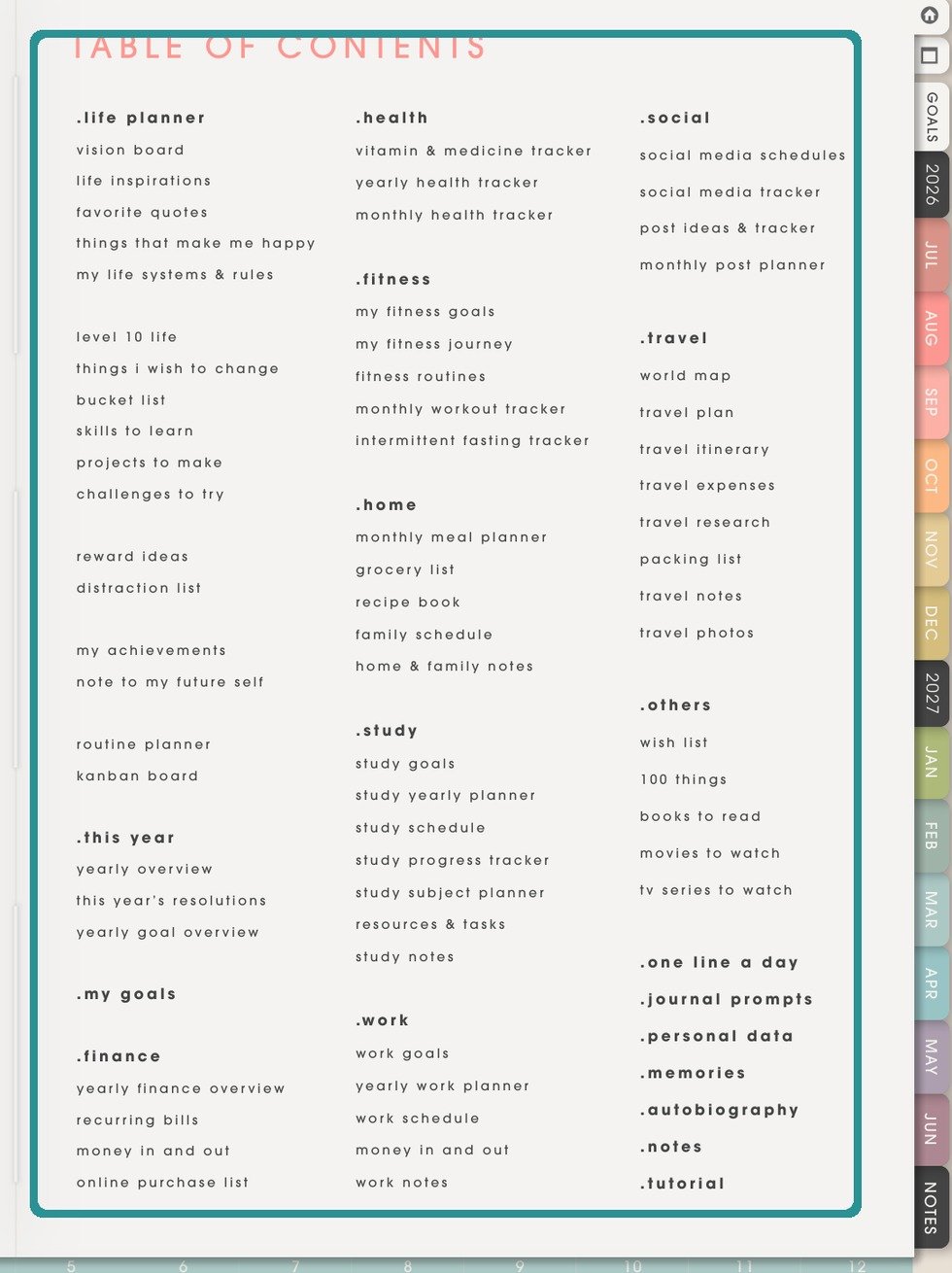
NozomuNoto Index pageThe Index page is the NozomuNoto planner map. Use it with Bigme reader contents, bookmarks, or page navigation. - Open Contents or TOC from the reader toolbar.
- Use the NozomuNoto Index page for planner-specific sections, months, templates, and notes.
- Use the Bookmarks, Annotations, and Handwriting tabs from the reader manual as extra return and review tools.
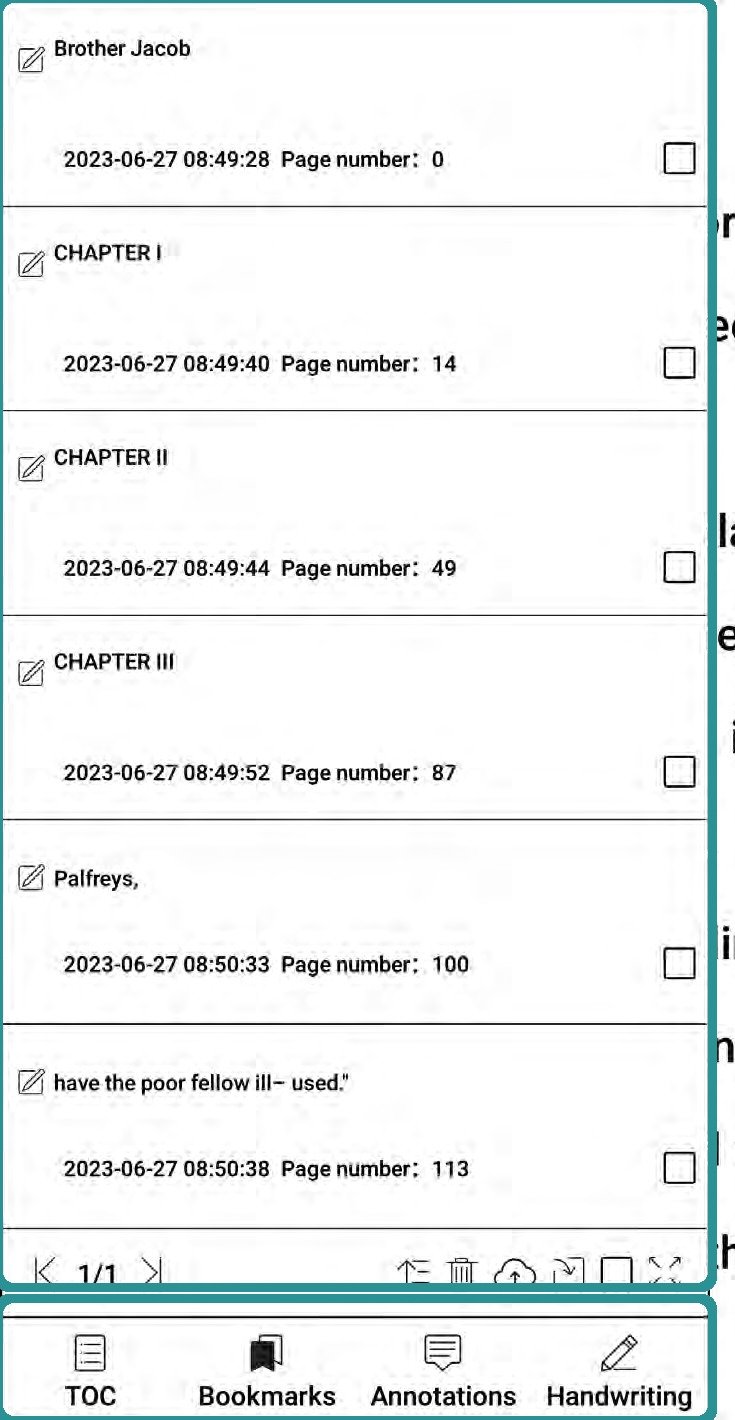
Bigme contents and bookmarksBigme manual UI showing TOC, Bookmarks, Annotations, and Handwriting tabs.
Best Bigme return path
Use the NozomuNoto Index for planner structure, then use Bigme Contents or Bookmarks for the few pages you reopen often.