

Browse help topics
Getting Started
Need help choosing?
Need help after purchase?
Download & Import
Using your notebook/planner
- How to change or reuse template pages on planner landing pages
- Why stickers look blurry when enlarged
- What to check if a product does not work on your device
- How to use NozomuNoto index pages
- How to use NozomuNoto template pages
- How to change a digital planner cover
- How to install and use digital stickers
Product Tutorials
- How to use Yume Techo Landscape tutorial pages
- How to use Yume Techo Portrait tutorial pages
- How to use Shibui Techo Weeks tutorial pages
- How to use Shibui Techo Months tutorial pages
- How to use Yume Noto V1 Landscape tutorial pages
- How to use Yume Noto V1 Portrait tutorial pages
- How to use Yume Noto V2 Landscape tutorial pages
- How to use Yume Noto V2 Portrait tutorial pages
- How to use Yume Noto V3 Portrait tutorial pages
- How to use NozomuNoto Ultimate Digital Stickers
- How to use NozomuNoto Digital Covers
- Which NozomuNoto instruction or tutorial file should I open first?
Device & App
iOS / iPadOS
GoodNotes
Notability
Noteshelf
Noteful
StarNote
Flexcil
Kilonotes
Android
StarNote
Samsung Notes
Penly
Flexcil
Noteshelf
Xodo
E-reader Devices
Boox devices
reMarkable
Bigme
Supernote
How to Use Planner Hyperlinks in Kindle Scribe
Test NozomuNoto planner hyperlinks on Kindle Scribe, use finger taps when writing tools capture the pen, and check Send to Kindle setup.
On this page
Test links before writing
Check one obvious planner link before setting up the full planner.
- Open the NozomuNoto PDF on Kindle Scribe.
- Go to the Index page, a monthly tab, or another printed planner link.
- Tap one link with your finger.
- Check that Kindle Scribe moves to the expected page.
- If the pen writes on the page, lift the pen and test with your finger instead.
- If links still stay on the page, confirm the file was sent with Send to Kindle and that Kindle Scribe software is current.
Reference links
Use these for current app or device help, downloads, updates, vendor help, and manual references.
- Amazon: Send to Kindle
Use this page to send the actual NozomuNoto planner or notebook PDF to the Amazon account linked to your Kindle Scribe. - Amazon: Kindle Scribe User Guide
- Amazon Help: Send documents to Kindle Library
- Amazon Help: Kindle Scribe document file types and notes
- Amazon Help: Manage notebook pages on Kindle Scribe
- Amazon Press: Introducing Kindle Scribe
- Amazon: Kindle Scribe overview
- Amazon: New Kindle Scribe features
Use the Amazon Send to Kindle page
Open https://www.amazon.com/sendtokindle to send the actual NozomuNoto planner or notebook PDF to the Amazon account linked to your Kindle Scribe. After it appears in your Kindle library, download it on Kindle Scribe, open the document, then test one Index link and one writing mark before daily planning.
If links stop working after sending
- Delete the old document from Kindle Scribe or your Kindle library, restart Kindle Scribe, then send the actual PDF again.
- If the web upload gives a bad result, download the PDF to your phone and use Share > Kindle app to send it.
- You can also email the PDF to your Kindle address. Find the address in Amazon Manage Your Content and Devices > Preferences > Personal Document Settings, then send only from an approved email address.
- If you see a Personal Document Automatic Conversion setting in that area, leave it enabled for this resend. If that setting is not there, continue with the clean resend, phone, or email method.
- When testing planner links, tap with your finger. If your toolbar has a pointer or hand tool, choose that before tapping planner tabs or Index links.
Test NozomuNoto links on Kindle Scribe
- Open the NozomuNoto PDF that you sent with Send to Kindle.
- Go to the Index page, a monthly tab, a section tab, or another printed planner link.
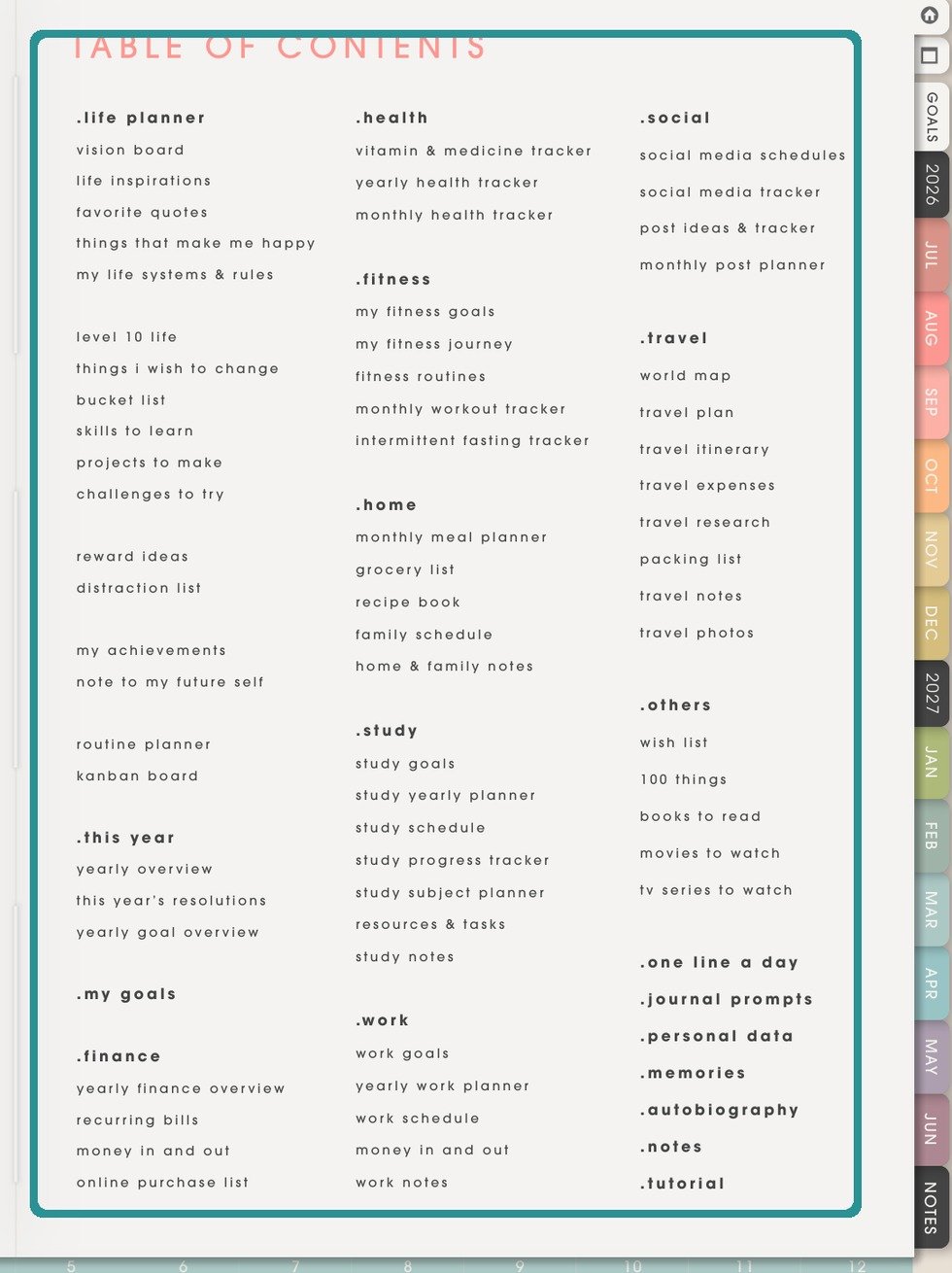
NozomuNoto Index pageUse the printed NozomuNoto Index or tabs inside the sent PDF. Kindle Scribe reading behavior can differ from tablet PDF apps. - Tap one obvious link with your finger and check whether Kindle Scribe moves to the expected page.
- If the pen writes instead of moving, lift the pen and tap the link with your finger.
- After one link works, test one month, one week, and one return path before writing in the planner every day.
Kindle Scribe link checks
- Use the sent PDF: test links in the document downloaded from your Kindle library, not a receipt, preview, ZIP file, or instruction-only PDF.
- Use the printed Index: the NozomuNoto Index and tabs are built into the PDF and are the clearest first link test.
- If links stay on the page: check the Send to Kindle file path, reopen the document, restart Kindle Scribe, and check the software version.
Still need help?
Send your order number, product name, device, app, and a screenshot or short screen recording if the issue is visual.