

Use these steps to work with NozomuNoto PDF planners, notebooks, stickers, covers, and template pages in StarNote. The official links below are for downloads, updates, and current help pages.
Reference links
Use these for current app or device help, downloads, updates, vendor support, and manual references.
Import the PDF into StarNote
- Save and extract the NozomuNoto download in the Files app first. Import the extracted PDF, not the ZIP.
- Open StarNote to All notes.
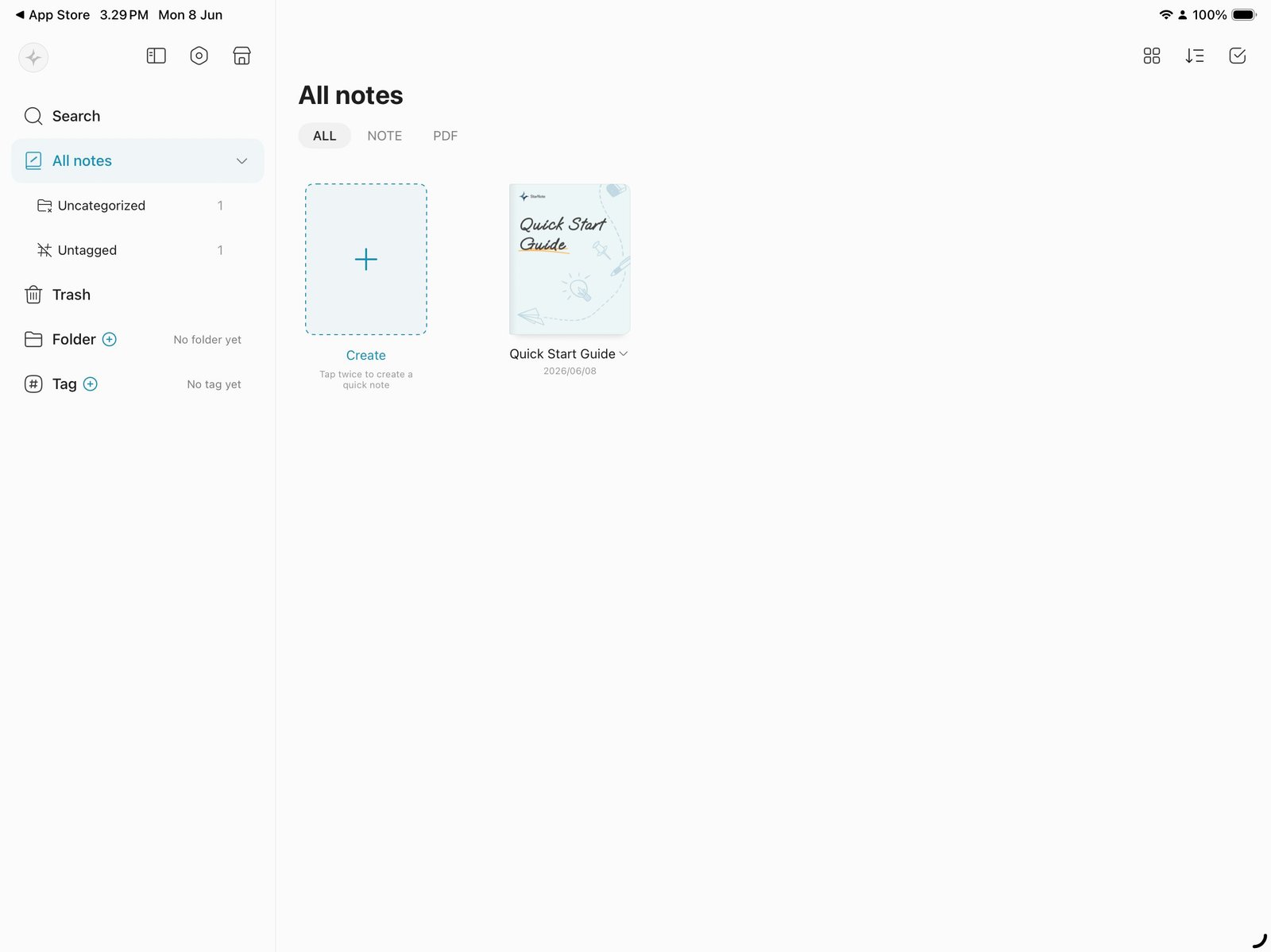
All notesStart from StarNote All notes before importing. Product shown: Yume Techo Academic 26-27 Landscape. - Tap the large Create card with the plus sign.
- Tap Import files.
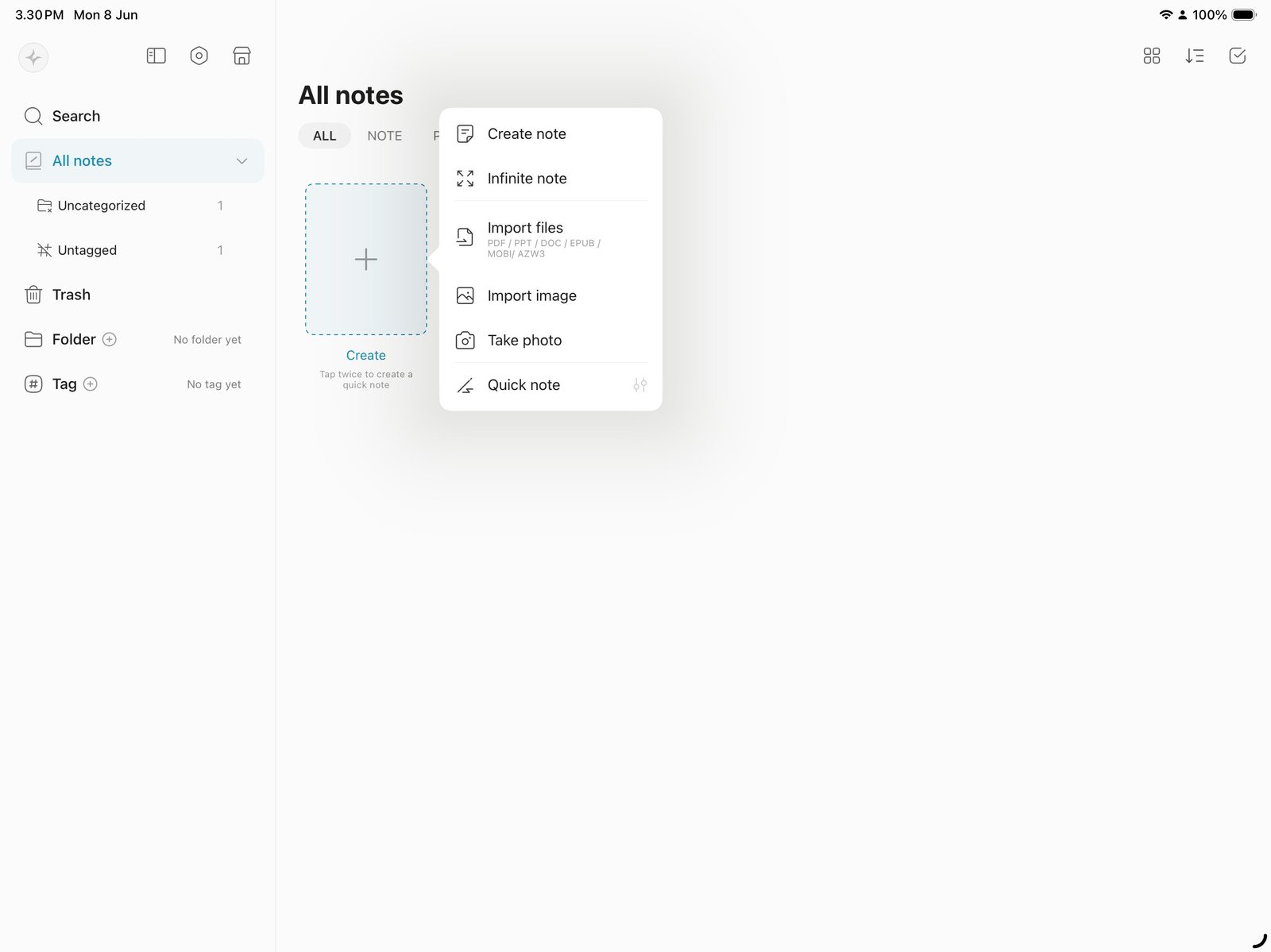
Create > Import filesTap the Create card, then choose Import files. Product shown: Yume Techo Academic 26-27 Landscape. - Choose the NozomuNoto planner or notebook PDF from the iPad file picker.
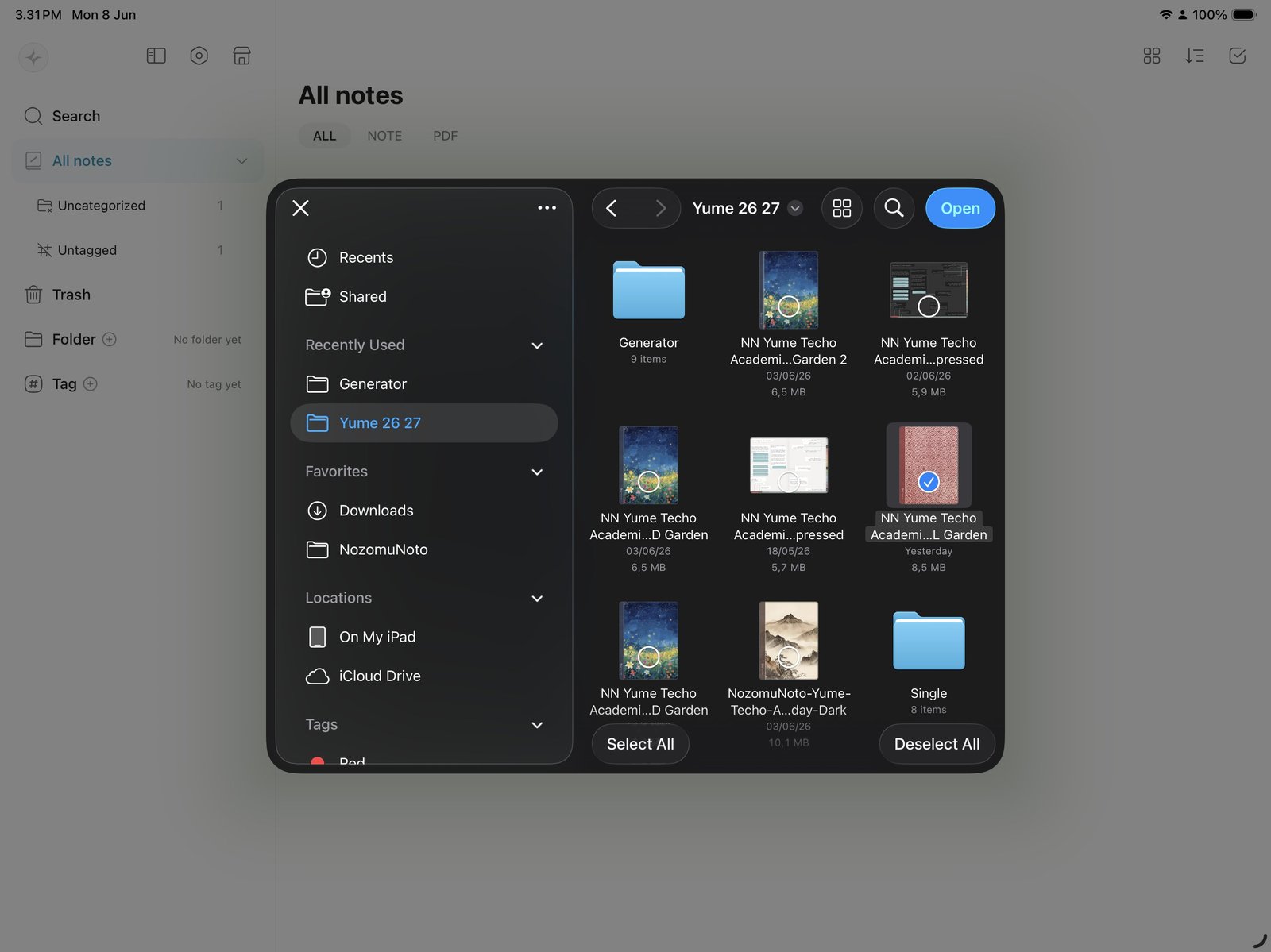
Select the PDFChoose the NozomuNoto PDF in the iPad file picker. Product shown: Yume Techo Academic 26-27 Landscape. - Open the imported planner from StarNote, then test one Index link or month tab before writing.
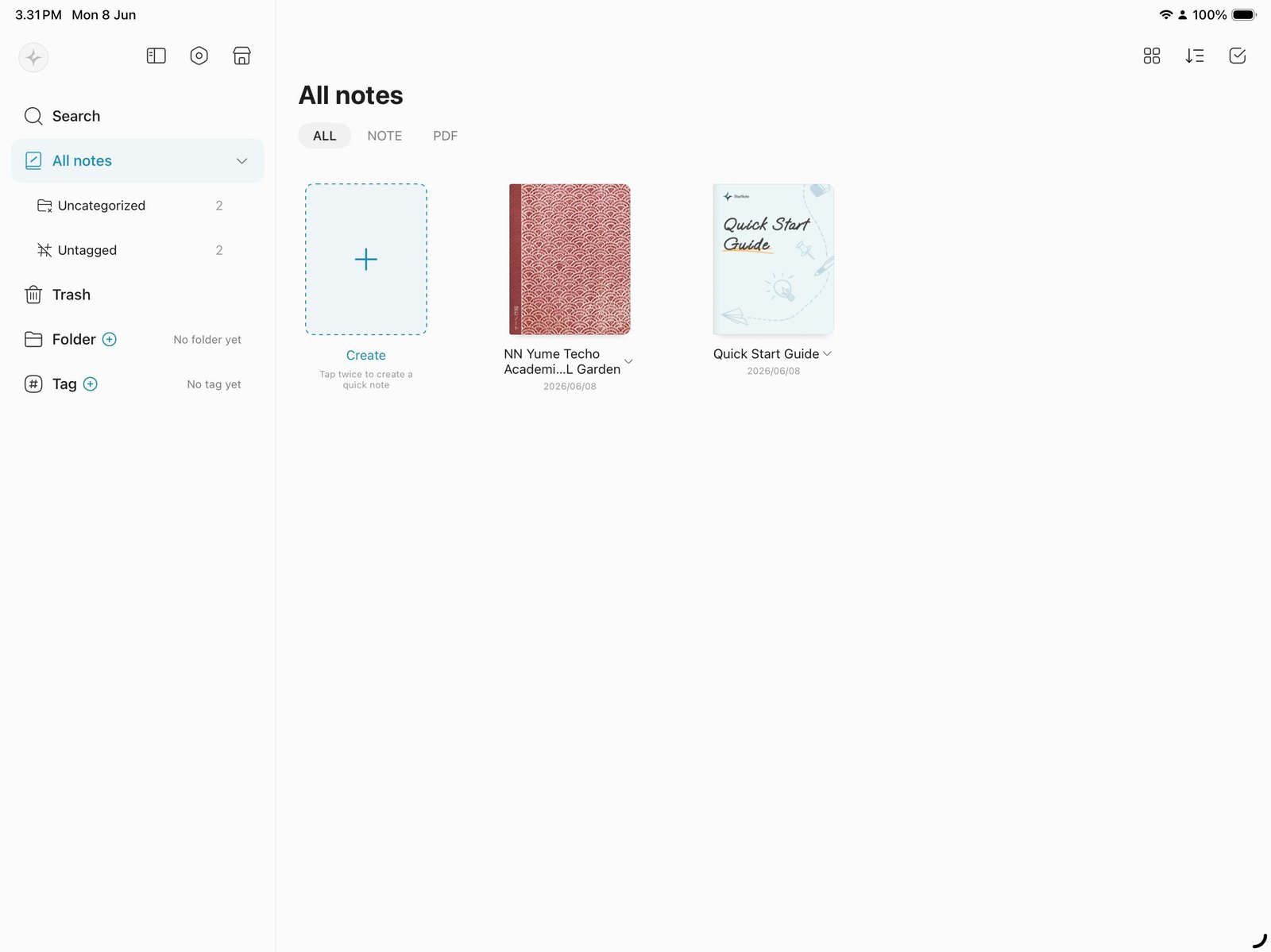
Imported plannerOpen the imported planner in StarNote before testing links or writing. Product shown: Yume Techo Academic 26-27 Landscape.
Notes
- Import check: Use the PDF file for planners and notebooks. PNG files are for stickers, covers, and image extras. If the PDF is not visible in the file picker, return to Files and make sure the ZIP is extracted first.
- If the planner imports more than once or the wrong file opens, keep the newest clean copy and remove test copies only after the working copy opens correctly.