

Use these steps to work with NozomuNoto PDF planners, notebooks, stickers, covers, and template pages in StarNote. The official links below are for downloads, updates, and current help pages.
Reference links
Use these for current app or device help, downloads, updates, vendor support, and manual references.
Set up your first NozomuNoto planner in StarNote
- Import one clean NozomuNoto PDF from All notes using the Create card, Import files, and the planner PDF.
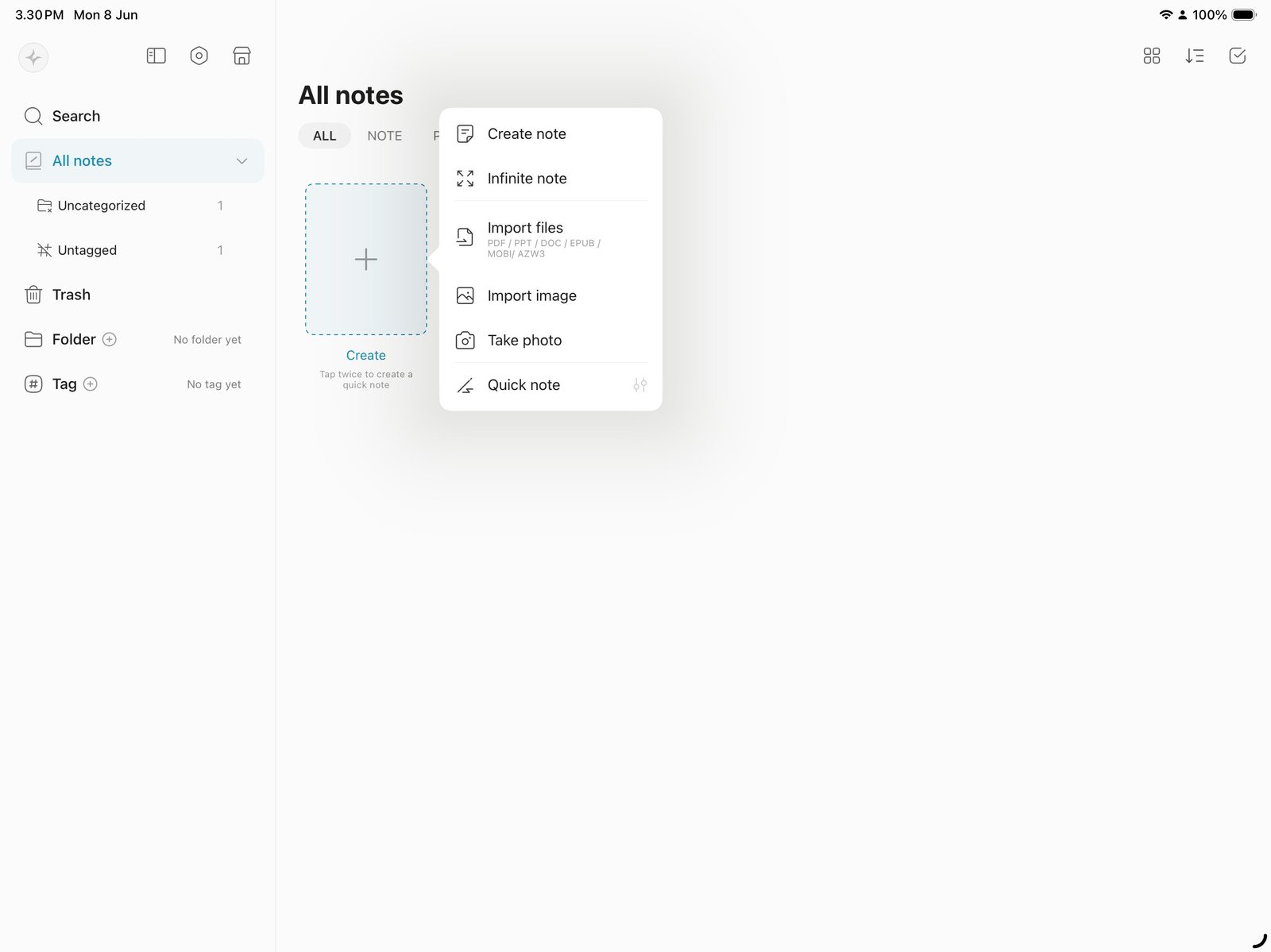
Import filesStart with one clean imported planner copy in StarNote. Product shown: Yume Techo Academic 26-27 Landscape. - Open the planner from StarNote.
- Tap the book/read mode icon and test the Index page, one month tab, and one weekly or daily link.
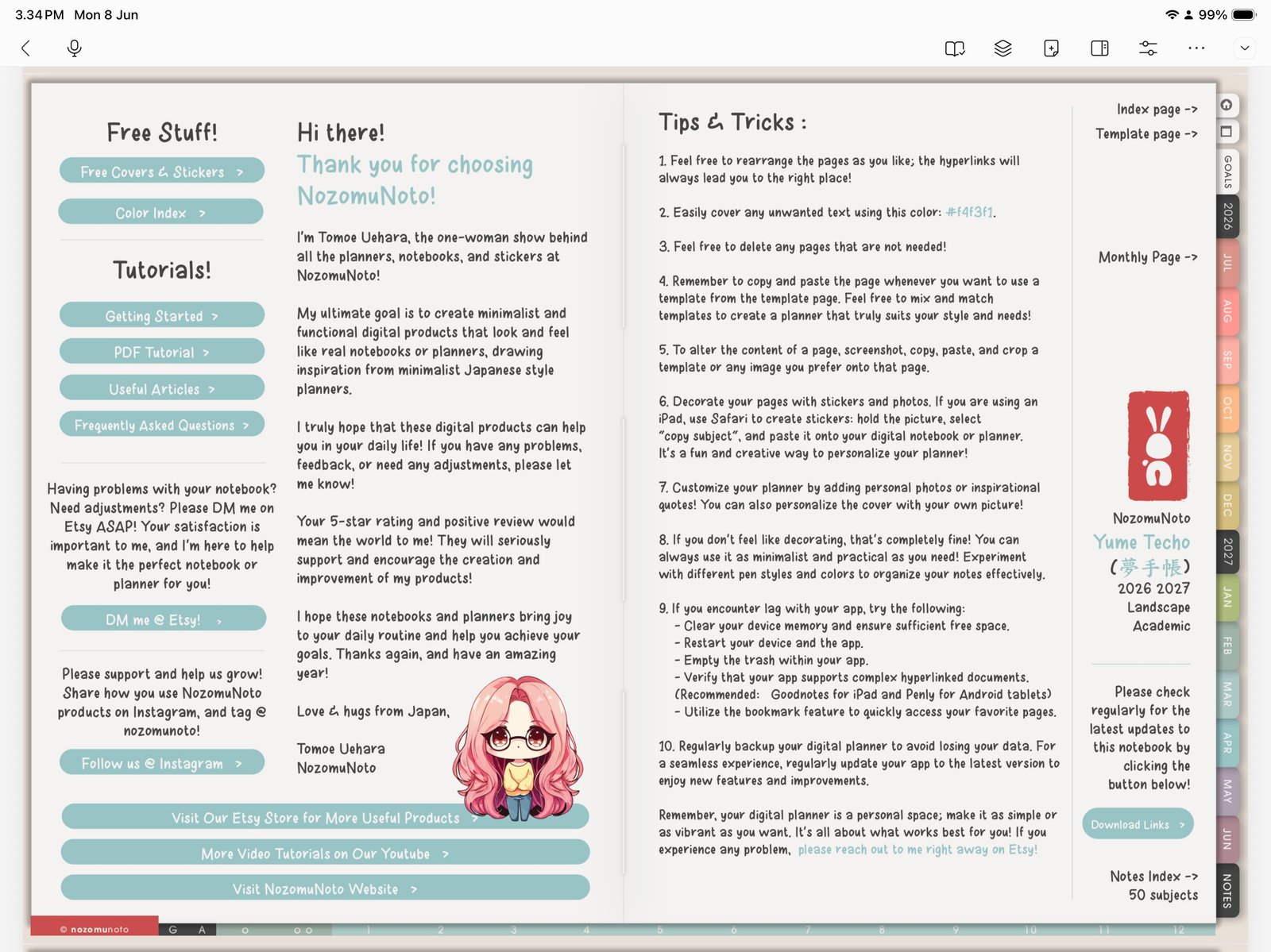
Test linksUse book/read mode before the first Index, month, week, or daily link test. Product shown: Yume Techo Academic 26-27 Landscape. - Open Document overview and bookmark only the pages you need this week: Index, current month, current week, and Notes.
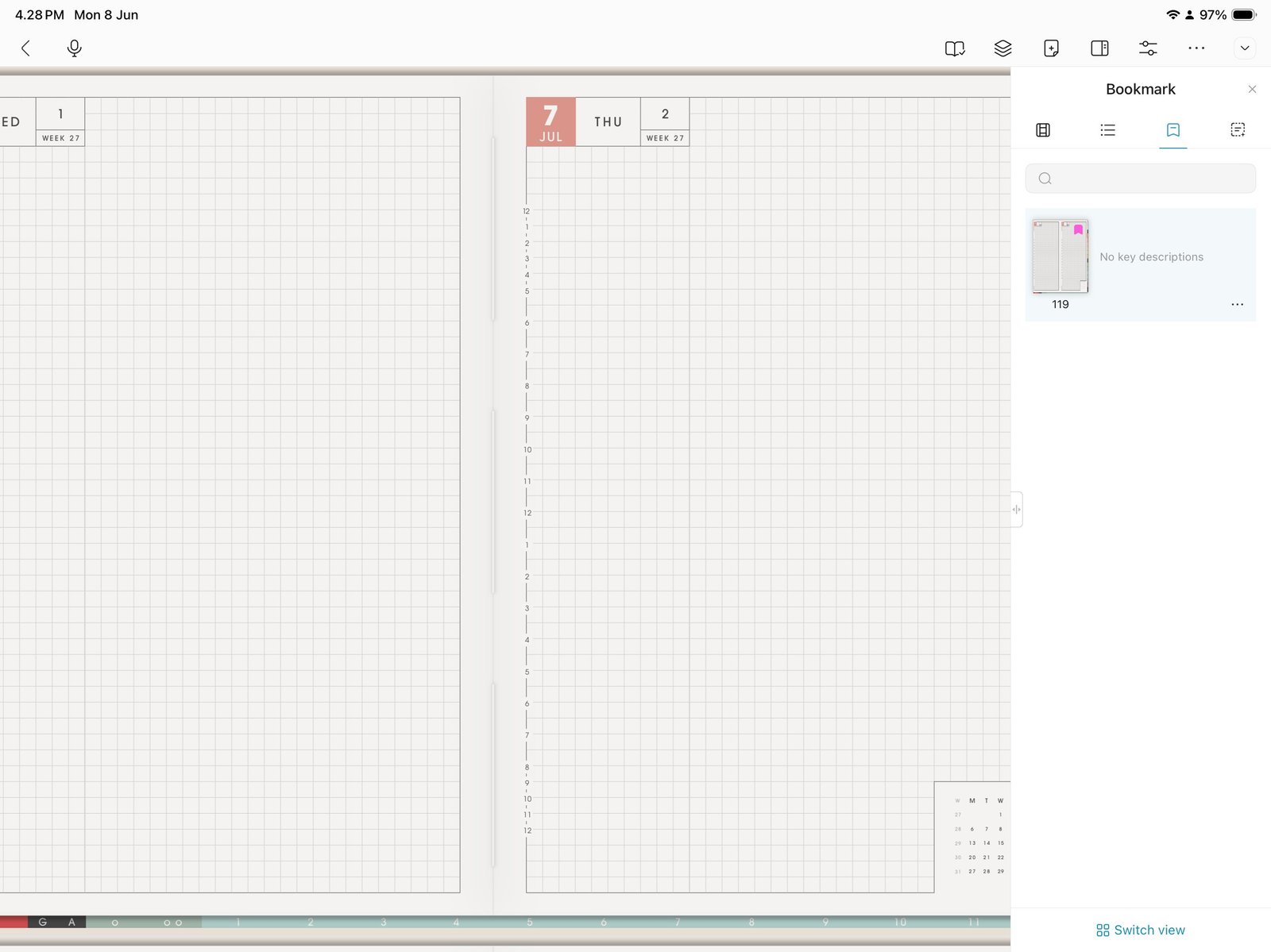
Bookmark return pointsSave only the return points needed this week. Product shown: Yume Techo Academic 26-27 Landscape. - Find one clean template page, open the thumbnail three-dot menu, and tap Duplicate current page before writing.
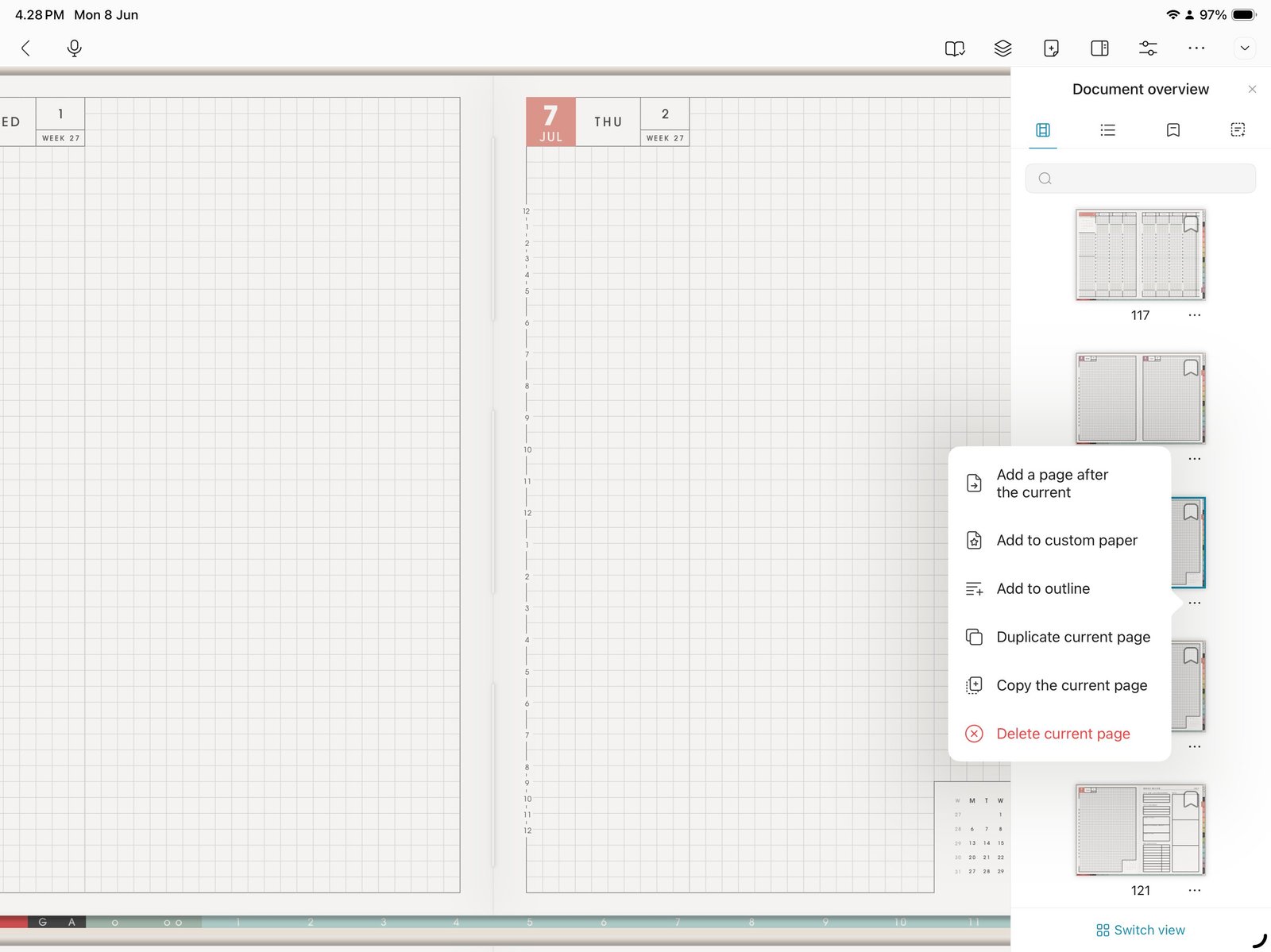
Duplicate one templateUse Duplicate current page once before writing on a reusable template. Product shown: Yume Techo Academic 26-27 Landscape. - Use the image icon to test one PNG sticker or photo.
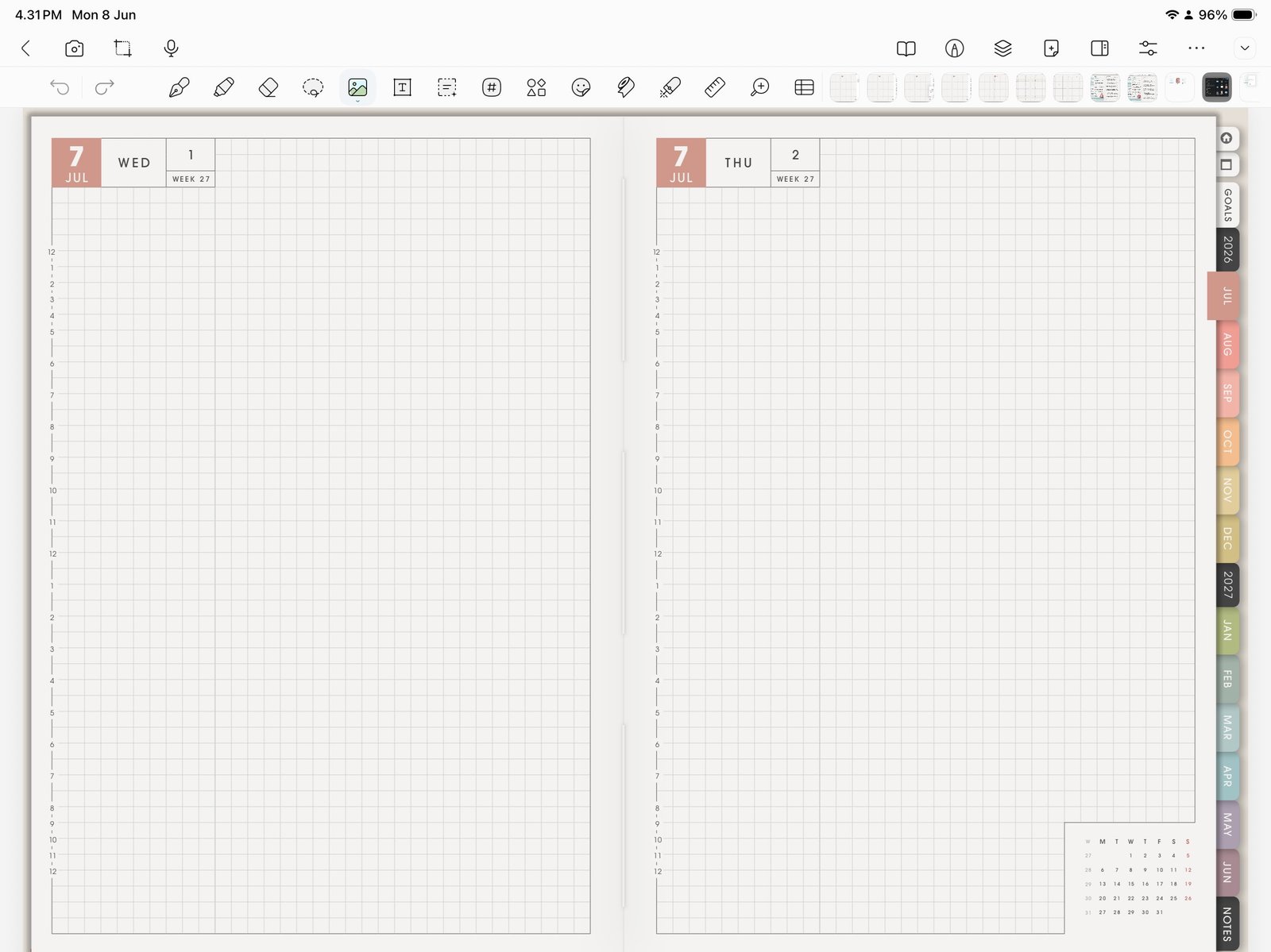
One image testUse the image icon for one PNG sticker or image test. Product shown: Yume Techo Academic 26-27 Landscape. - Keep the original download outside StarNote as your backup copy.
Notes
- Good first StarNote setup: Start with navigation, one bookmark set, one duplicated template, and one image test. This proves the planner works before you spend time decorating or rearranging pages.
- If the full planner feels too big, use only Index, current month, current week, and one notes or template page for the first week.