

Use these steps to work with NozomuNoto PDF planners, notebooks, stickers, covers, and template pages in Flexcil. The official links below are for downloads, updates, and current help pages.
Reference links
Use these for current app or device help, downloads, updates, vendor support, and manual references.
Manage pages in Flexcil
- Open the document in Flexcil.
- Open Page Navigation so the page thumbnails appear on the right.
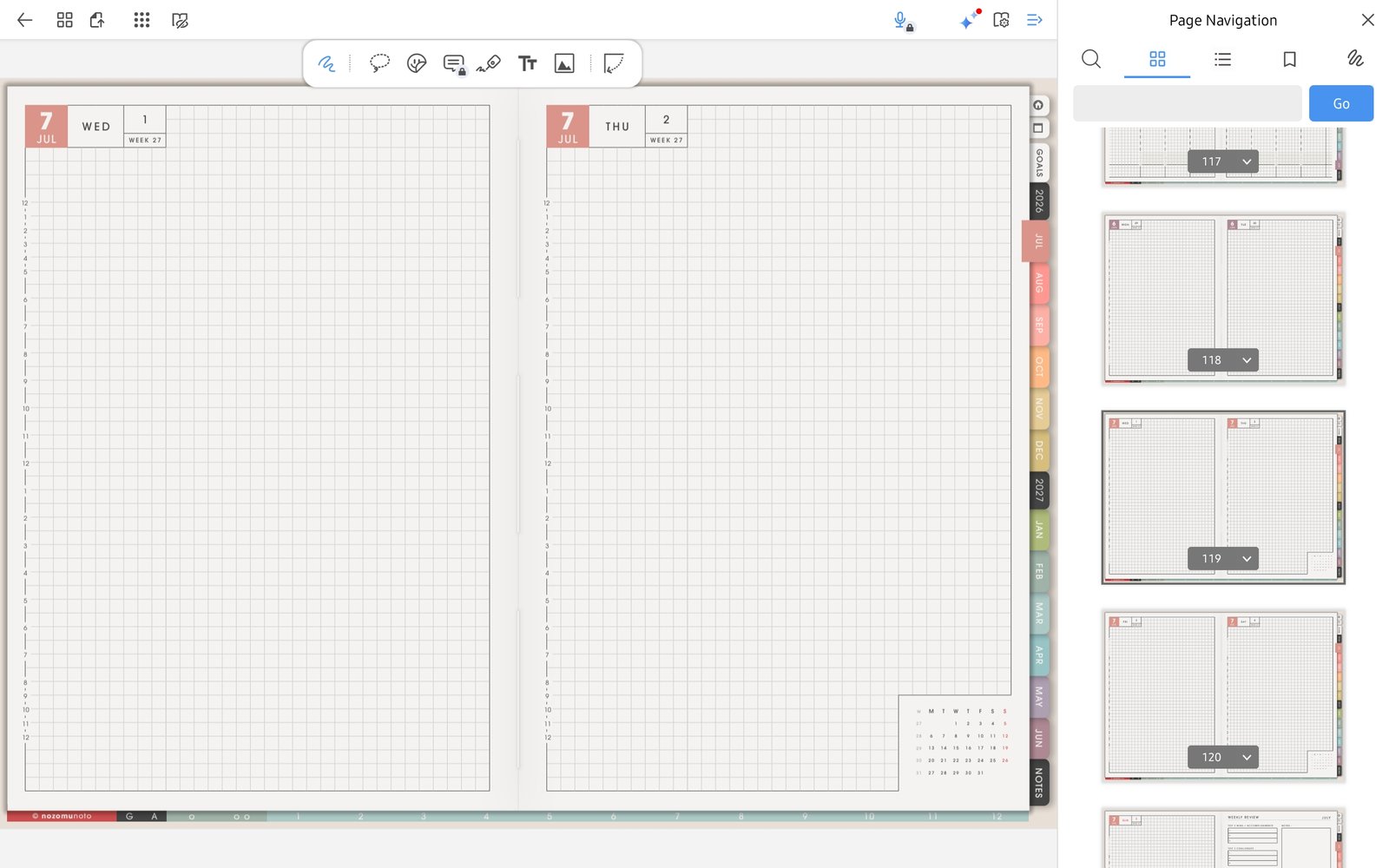
Page NavigationPage Navigation thumbnails in Flexcil for Android show pages from Yume Techo Academic 26-27 Landscape. - Find the page you want to manage.
- Open the page action menu on that thumbnail.
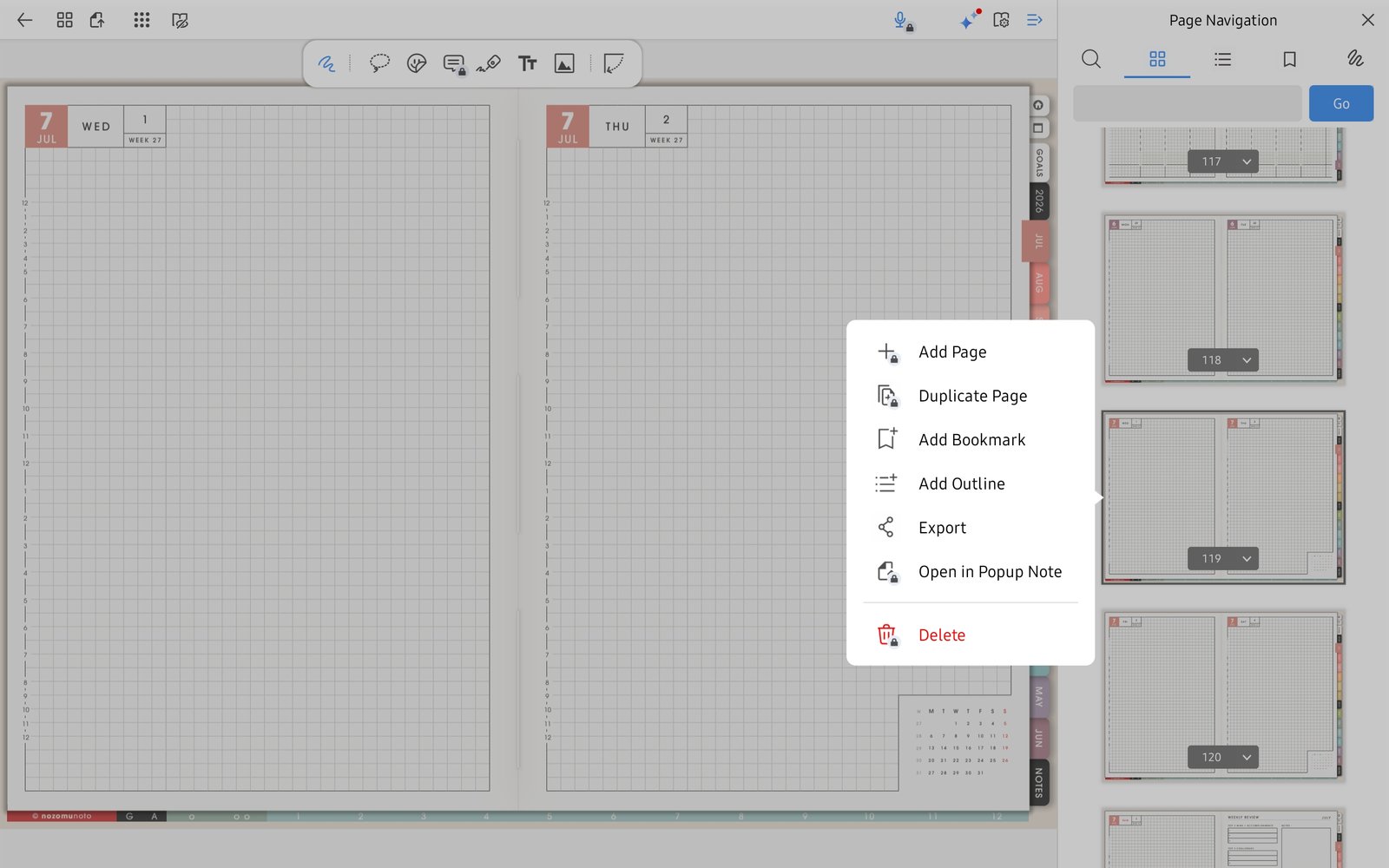
Page action menuFlexcil page action menu showing Add Page, Duplicate Page, Add Bookmark, Add Outline, Export, Open in Popup Note, and Delete. - Use the proven actions shown in Flexcil: Add Page, Duplicate Page, Add Bookmark, Add Outline, Export, Open in Popup Note, or Delete.
- For reusable NozomuNoto templates, choose Duplicate Page first, then write on the copy.
- After changing pages, test the index and tabs before doing a long planning session.